This article will compare 5 iPhone data backup software programs, so that you can choose the best for yourself. I will show you Apple-only solutions and third-party software such as CopyTrans Shelbee and AnyTrans.
To understand which tool best suits your requirements, click on one of the statements below (no hidden redirects).
What matters most to you?
Wireless and automatic backups
Choose iCloud Backup (see the instructions below). Note that you’ll have to get a subscription if your backup is larger than 5Gb.
Free official Apple solution on my computer
Choose iTunes or Apple Devices. Apple Devices is a new official app for Windows, but it works the same as iTunes. See the steps to make a backup with iTunes or refer to the instructions for Apple Devices below.
Free backup to a folder of my choice or even to an external hard drive
Choose CopyTrans Shelbee. The full backup and restore features are free. You can select any destination folder. The software also has paid features like incremental backup, app data backup, and custom restore. Go to the CopyTrans Shelbee solution below.
Compatibility with Mac or customized backup
Choose AnyTrans. It is compatible both with Windows and Mac. You can make a full backup or select data for your transfer. The software is not free. See how to do a backup with AnyTrans below.
See Table of Contents
Does backing up an iPhone back up everything?
The Music app and photos synced to iPhone from PC cannot be copied over. You will have to transfer these files manually. Please see the articles “How to Transfer Music from iPhone to iPhone” and “How to Transfer Photos from iPhone to iPhone” .
How do I back up my entire phone with iCloud?
You can enable the iCloud Backup in your iPhone settings. Click on your Apple ID profile picture, select iCloud, then touch “iCloud Backup”. Toggle the setting and click the button “Back up now”.
| ✅ Pros | ⚠️ Cons |
|---|---|
| Automatic wireless backups | Requires fast Wi-Fi and charging |
| Official Apple solution | Less control over backup contents |
| No computer required | Limited free storage (5 GB) |
| Restores easily to a new iPhone over Wi-Fi | Device should be non-initialized or factory-reset for the restore |
If you need detailed instructions with screenshots and possible troubleshooting, see the steps below.
- Open “Settings” on your iPhone.
- You’ll immediately see your Apple ID profile on top – it has a photo or your name. Open it.
- A new list of settings will appear. You need to find “iCloud” and touch it.
- Find the line “iCloud Backup” and open the setting.
- To enable the backup, touch the toggle next to “Back Up This iPhone” so that it becomes green.
- And finally, touch the button “Back up now”. Make sure you have more than 50% of battery charge or connect iPhone to power. Otherwise, the backup won’t start.
- The backup will start. You will see a progress bar appear.
- As soon as it’s finished, a new backup date will appear instead of the progress bar. Your best iPhone backup is done!
If you are on iOS 26, here’s where you can find the “iCloud Backup” option.
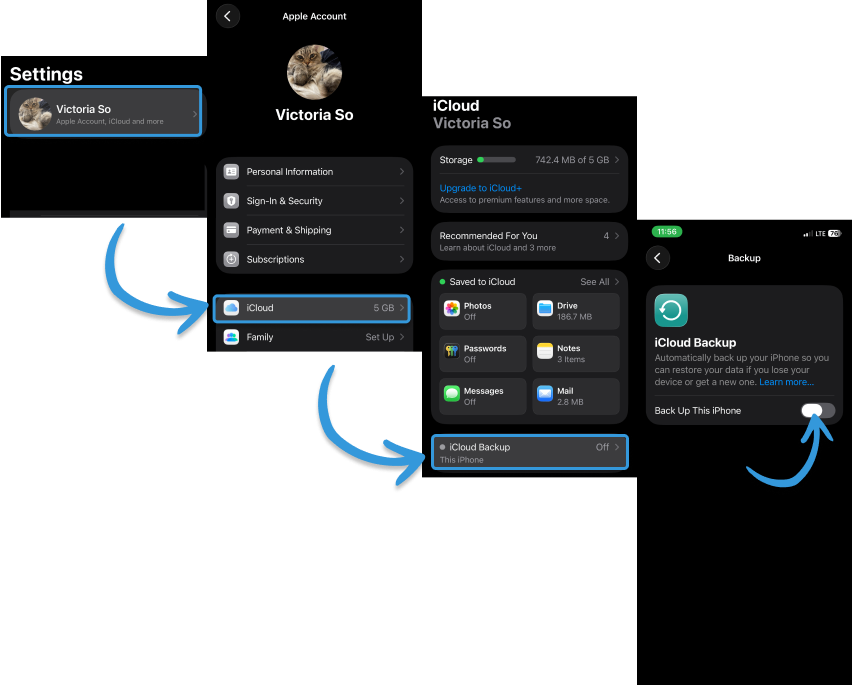
If your iOS version is lower than 26, your screen should look like this.
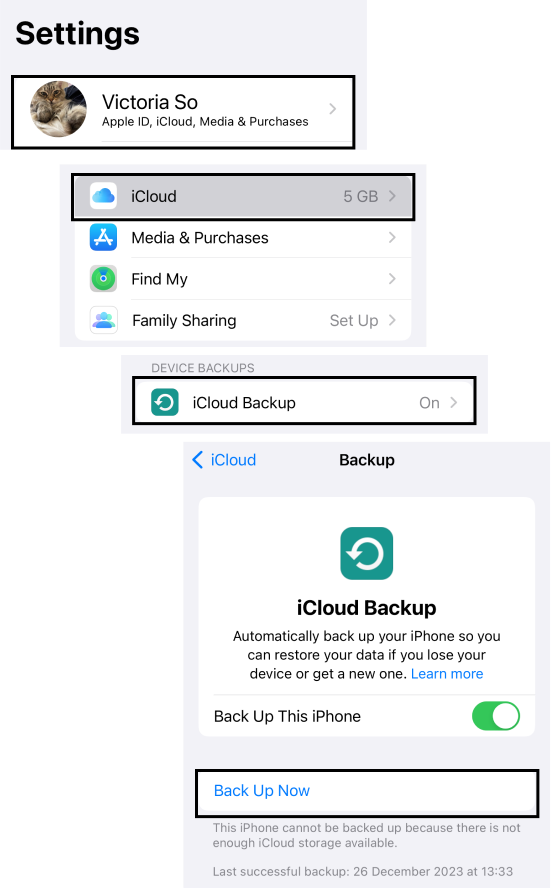
If you get a pop-up telling you that you don’t have enough free storage in your iCloud, you have to get iCloud+ subscription starting from 0.99USD per month.
If you are looking for free official Apple tools, opt for iTunes or Apple Devices on your Windows computer.
If you don’t have enough free space on your Windows PC, but you need a free solution to make a backup to an external hard drive, CopyTrans Shelbee is the best iPhone backup software.
Your iCloud backup won’t finish? Make sure your internet connection is stable and fast enough, otherwise switch to a better source. If the backup is stuck, refer to the article “What to do if the iCloud backup is taking forever?“
FAQ
What’s the difference between iPhone backup and iCloud?
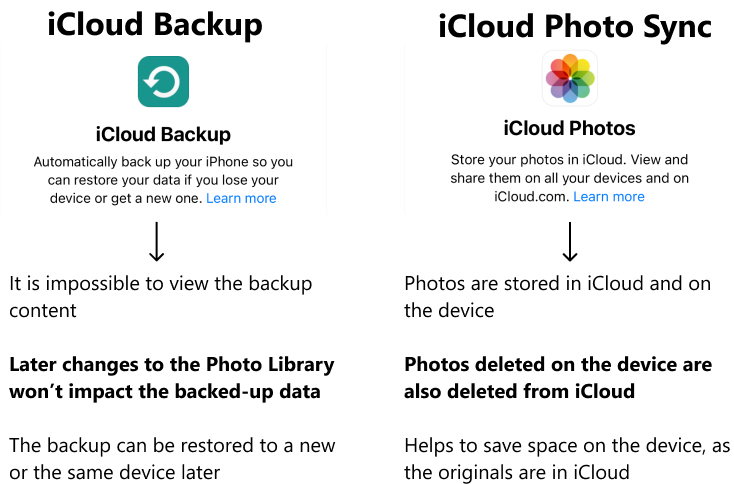
Don’t mix up iCloud sync and iCloud Backup. You can sync any iPhone data with iCloud, e.g., photos, contacts, WhatsApp, notes, calendars, etc. The originals of the synced data will be stored in iCloud, and you will see reduced-size copies of them on your iPhone. You can disable the sync anytime in your iPhone settings.
As for the iCloud Backup, it’s an encoded copy of all the data that are stored on your iPhone. You cannot see what’s inside your backup without special tools, like CopyTrans Backup Extractor. You can only restore this backup on a new clean or a factory-reset iPhone.
Does iCloud do a full backup?
Yes, an iCloud backup includes all data stored locally on the iPhone. It means that if some of your data are synced with iCloud (see the image above), they will not be included in the backup. However, they are already stored in your iCloud, and they will appear on another device when you connect it to your iCloud account. Learn more about “What does iCloud back up?”
Back up iPhone with iTunes
Install iTunes on your Windows PC from the Microsoft Store, then connect your iPhone to the PC with a cable. Click on a small phone icon that appears on top of the iTunes window, then click the button “Back up Now”.
| ✅ Pros | ⚠️ Cons |
|---|---|
| Backup on your PC | Impossible to choose the location |
| Free official Apple solution | Users often report that backups turn out corrupted |
| The only limit is the PC storage | Impossible to make a backup if there’s not enough storage |
| One click restore to a new iPhone | If your backup turns out corrupted, you will never be able to restore it |
You can find the exact steps with screenshots below. What if iTunes is your best iPhone backup software?
- Install iTunes from the Microsoft Store.
- Launch it and connect your iPhone to the PC with a cable.
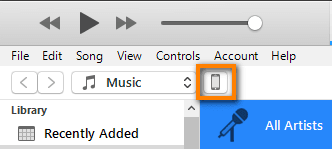
- A small phone icon should appear on top of the iTunes window – that’s your connected iPhone. Click on it.
- You will see the “Summary” menu.
- Tick “This Computer”
- iTunes will also offer you to encrypt the backup. It’s not an obligatory step. However, the iPhone passwords and settings are saved only if the backup is encrypted. The encryption password doesn’t have to be complicated.
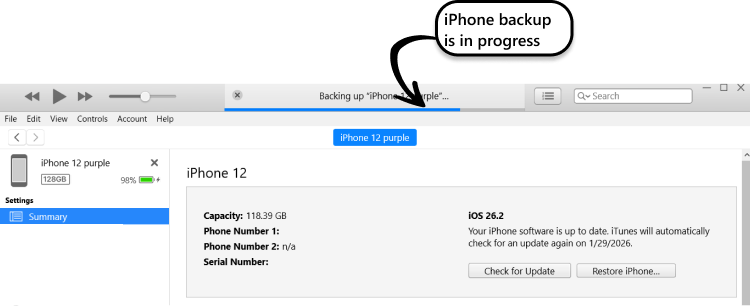
- Click on the button “Back Up Now”. You will see the progress on top of the iTunes window.
- The backup is done when the progress bar disappears. Your backup is stored in the folder C:\Users\*Username*\Apple\MobileSync.
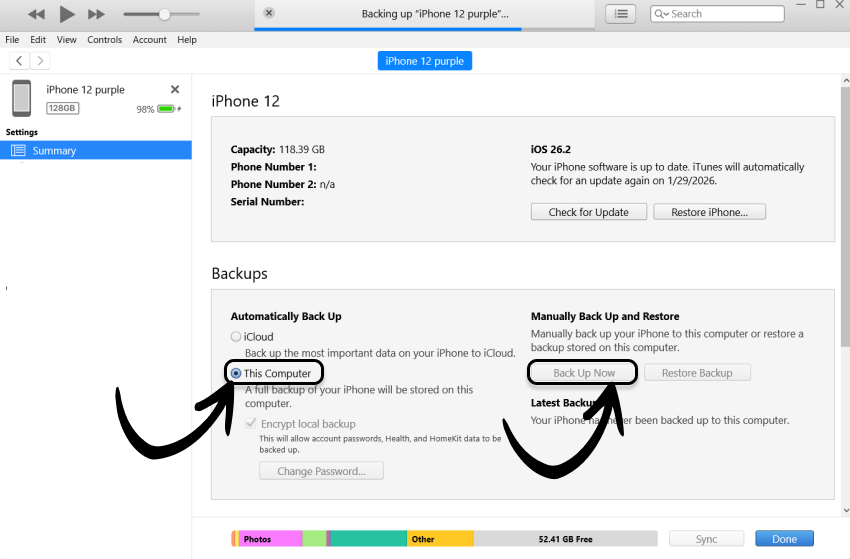
At first, I thought that if I select “iCloud”, the backup will be made to iCloud. But iTunes made a usual backup on my PC. I don’t understand what is meant by “your important data will be backed up to iCloud”. Nothing was saved on my iCloud. So, even if you mistakenly select “iCloud” instead of “This Computer”, you should still get a normal iTunes backup.
Save your encryption password somewhere! iTunes and other third-party apps will ask you to enter this password for the restore. If you forget it, you won’t be able to restore your phone. Learn more about the iOS backup password.
FAQ
Can I still use iTunes on Windows?
Of course! Even if there are new Apple programs for Windows, such as Apple devices, Apple Music, and Apple TV, iTunes can still be used as before. All you have to do is to completely delete the new Apple apps from your PC and leave only iTunes.
Why won’t iTunes let me backup my iPhone to my computer?
In most cases, it happens when there’s not enough free space on the computer. But if you’re sure that your PC has a lot of free memory, refer to the article “Why won’t my iPhone backup“.
Back up iPhone with Apple Devices, a new official iTunes replacement
Install Apple Devices for Windows from the Microsoft Store. Launch it and connect your iPhone to the PC. Click the “Back Up Now” button.
| ✅ Pros | ⚠️ Cons |
|---|---|
| Backup on your PC | Impossible to choose the location |
| Free official Apple solution | Can only do backups and restores |
| The only limit is the PC storage | Impossible to make a backup if there’s not enough storage |
| Works even without Internet | No automatic backups over Wi-Fi like in iCloud. |
Apple Devices is a replacement for iTunes that Apple launched. The interface of Apple Devices is a little more simplified, but the software still looks and functions like iTunes. Let’s see if you like Apple Devices more, and it becomes your go-to iPhone backup software!
- Download and install Apple Devices for Windows from the Microsoft Store.
- Launch the program and connect your iPhone to the PC with a cable.
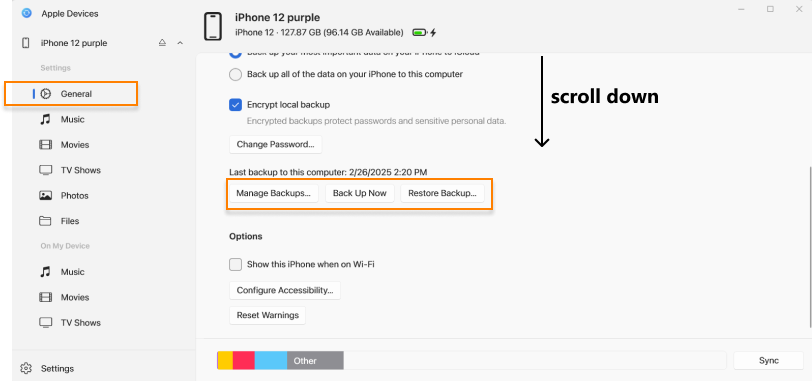
- The “General” menu should appear immediately. If not, make sure your iPhone screen is unlocked.
- Find the button “Back Up Now” to start the backup.
- Sometimes you have to enter your passcode on your iPhone screen to start the process. As soon as it’s done, you’ll see the backup progress at the bottom of the Apple Devices window.
- The backup is finished when the blue progress bar disappears.
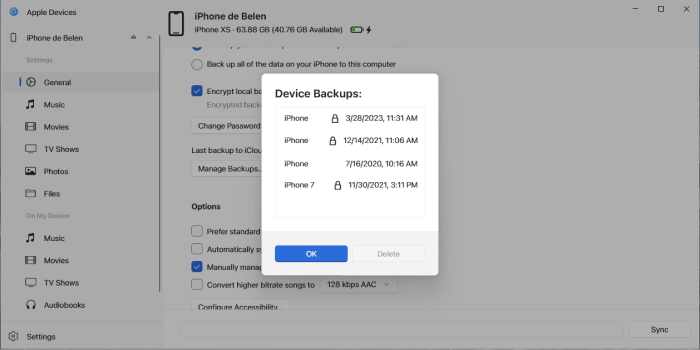
- To make sure the backup is done, click the “Manage Backups” button. You will see a list of all the backups you made on your PC.
FAQ
What replaced iTunes?
Apple released a few new apps for Windows. They are Apple Devices for backups and restores, Apple Music for music, and Apple TV. iTunes is also available but with limited functions. So, you can either use only iTunes or install all the 4 apps.
Where do Apple Devices store Backups?
They are stored in the folder C:\Users\*Username*\Apple\MobileSync. You cannot select the destination folder for the backup. However, you can technically simply drag and drop it to an external hard drive to save up space on your PC.
Which companies offer reliable iPhone backup solutions?
There are many third-party iPhone data backup software.
Well-known programs are CopyTrans Shelbee, Swiss software, and AnyTrans, a Chinese app.
CopyTrans Shelbee is a lightweight and user-friendly tool that offers only backup and restore features. The main functions are free, but there are additional paid features.
AnyTrans is a complex all-in-one tool with many features, and it’s not free.
“It’s really an alternative to iTunes but be careful, it’s not a synchronization software. You can make backups of your iPhone (photos, letters, calendars etc and also a full backup). Perfect for me.”
“Their AnyTrans software is great and has helped me a lot! Sometimes you still have to go back to iTunes to do the transfers yourself, but that’s very rare.”
Back up iPhone with CopyTrans Shelbee
Download CopyTrans Shelbee from the official website. Install it on your Windows PC and launch it. Connect your iPhone to your computer with a cable and click the “Backup” button.
| ✅ Pros | ⚠️ Cons |
|---|---|
| Backup to a folder of your choice | Slow to back up to portable external drive |
| Free Full Backup and Restore | Incremental backup and Custom restore are paid |
| Save app data | Only possible for apps present in App Store |
| Efficient customer support and flexible refund policy | The customer support only works by mail |
Follow the detailed steps below to back up your iPhone to a destination of your choice. The software works without iTunes or iCloud. So, maybe this is your best iPhone backup program?
- Download CopyTrans Shelbee from the official CopyTrans website. You can surely check the reviews on the external websites, but do not download anything from them. Cracked versions are not safe. What’s more, the backup is already a free feature.
- Install the software normally. If necessary, see the guide “How to install CopyTrans programs?“
- Launch CopyTrans Shelbee. Connect your iPhone to the PC with a USB or Type-C cable.
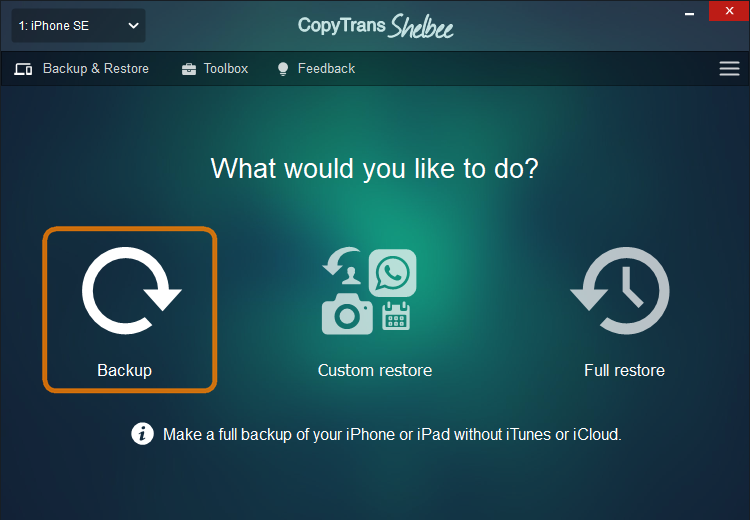
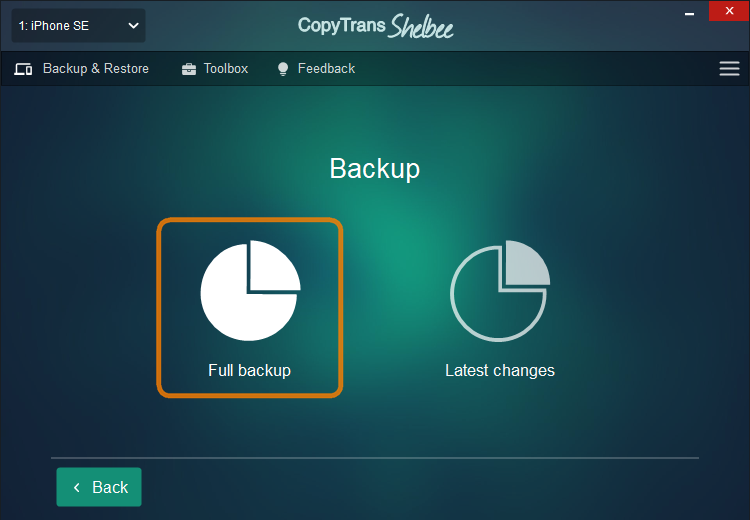
- Click the big “Backup” button, then select “Full Backup”.
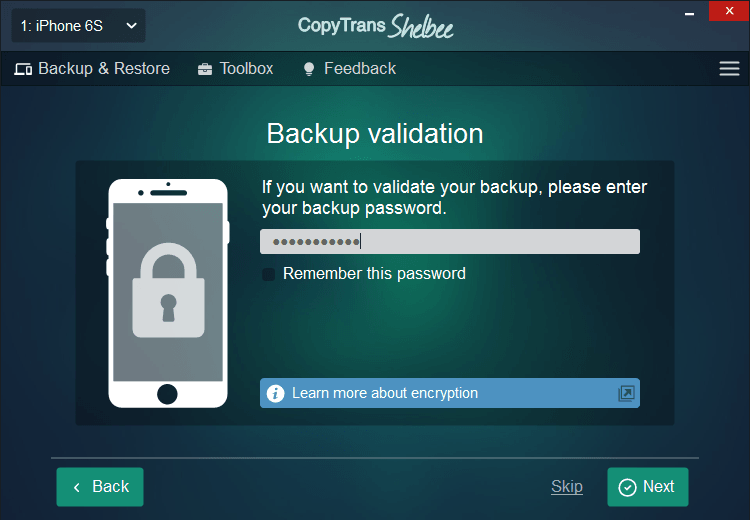
- CopyTrans Shelbee will offer you backup validation. It means that the software will check the backup for errors or corruptions. The backup will take a little longer if you choose to do so.
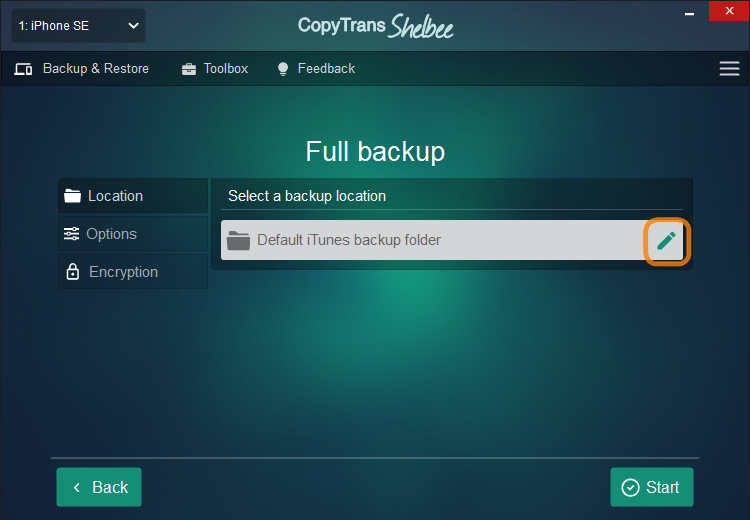
It’s not an obligatory step – you can click “Skip” if you wish to proceed. - Select the destination folder by clicking on the pencil icon.
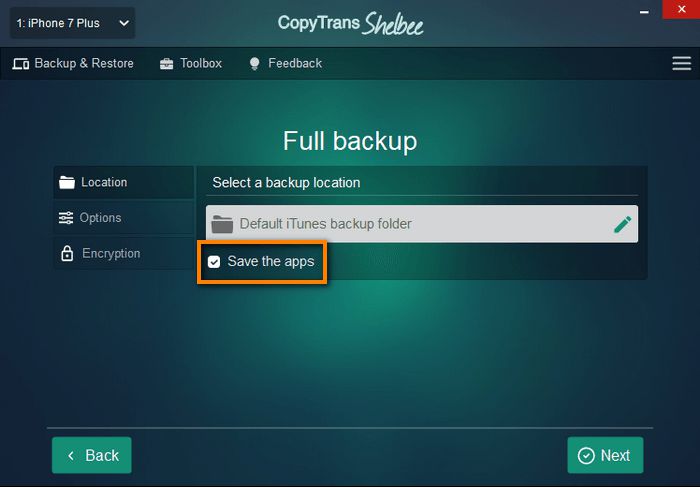
- You can tick the box “Save the apps” (paid feature). If you deselect it, your iPhone will be backed up the same way iTunes or iCloud do. The advantage of the “Save the apps” feature is that you can restore the app even if it is deleted from the App Store in the future.
- Now wait for the backup to finish, and your best iPhone backup is done! You’ll find the backup files in the folder you selected.
Download CopyTrans Shelbee — Backup Tool for Windows
If the software is asking you to install necessary drivers, install them. Otherwise, your iPhone won’t be properly recognized by Windows.
FAQ
Is CopyTrans Shelbee completely free?
Not completely. You can make a basic full backup and restore for free – it saves the same data as iTunes or iCloud. However, if you need advanced features like Incremental backup, Custom restore, App data backup, or Moving iTunes backup location, you will need to purchase a 2-year license at 19.99 USD.
Does CopyTrans Shelbee require iTunes?
No, there are their own drivers called CopyTrans Driver Installer. CopyTrans apps were created as an alternative to iTunes. However, in some cases, the customer support can ask you to install iTunes if there are complex compatibility issues between your iPhone and Windows PC.
Can CopyTrans be trusted?
There’s a lot of open information about CopyTrans online. All the policies (refund, privacy) and terms are published on their website. They have a page on Facebook, X (Twitter), and YouTube. Many authority websites mention CopyTrans in different countries, their tool for heic photos is mentioned in Wikipedia.
Back up iPhone with AnyTrans
Download AnyTrans from the official iMobie website. Install it and connect your iPhone to the PC with a cable. Open the “Backup manager” and click on “Back Up Now”.
| ✅ Pros | ⚠️ Cons |
|---|---|
| Back up via Wi-Fi | Doesn’t always work – it’s slower than via the cable |
| Check the backup content before restoring it | Not all the data is shown (e.g., some photos are blank) |
| Many tools in one app | Quite expensive – 59.99 USD for 1 PC |
| 60-day money-back guarantee | Customers complain that it’s impossible to reach out to the support team |
Here’s a detailed guide on how to back up your iPhone with AnyTrans.
- Download the latest official version of AnyTrans from the iMobie website. Install it normally on your PC.
- Launch the program and connect your iPhone to the computer with a cable.
- Go to the “Backup Manager” tab and click “Back Up Now”. You need to have a license to do it! It’s not free.
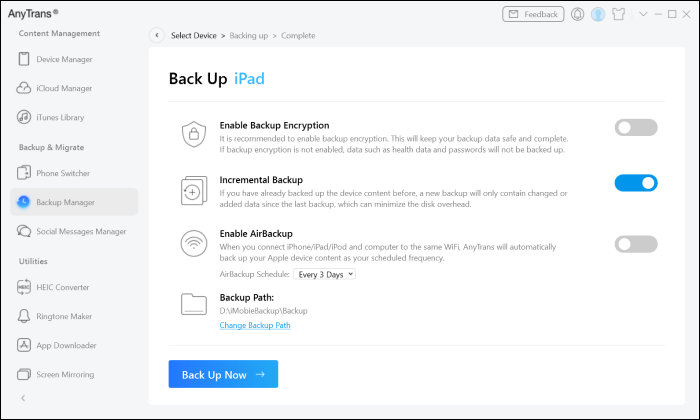
- In the next screen, you can enable encryption to back up your passwords. You can also change the backup location.
- Next, start the backup and wait for it to finish.
If your iPhone is not recognized, install the latest iTunes version and run it at least once. If it doesn’t help, install drivers separately or switch to CopyTrans Shelbee.
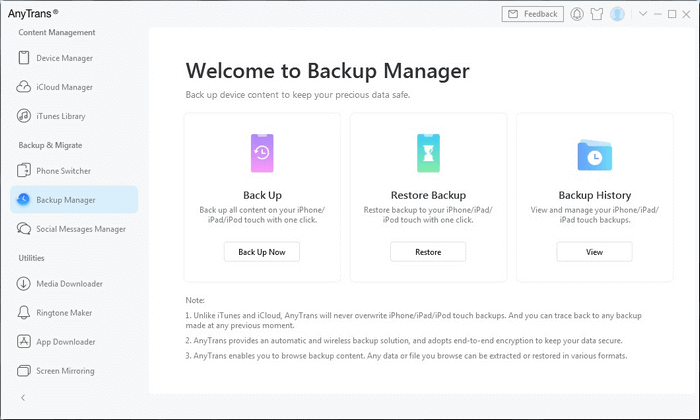
Even if it is stated that AnyTrans doesn’t overwrite your backup unlike iTunes, none of the apps overwrite backups. iTunes creates one full backup and then adds only latest changes to it – it’s called incremental backup. CopyTrans Shelbee lets you choose between a full and incremental backups.
So, your backup won’t be overwritten no matter what tool you choose.
FAQ
Is AnyTrans malware?
It’s not a malware. However, if you are worried about viruses, you can drag and drop the installer to VirusTotal. The website will notify you if any of the well-known antivirus programs find malware in the installer.
Is AnyTrans free?
No. You can choose between a subscription starting from $36 USD and one-time purchase at $60. But you cannot use the software for free. If you’re looking for a free tool, opt for CopyTrans Shelbee, iTunes, or Apple Devices.
Conclusion – What is the best way to back up an iPhone?
The choice of the iPhone backup software depends on your needs. If you still have doubts, check the table below. It compares the tools described in the article.
iPhone backup software vs iCloud vs iTunes
| Shelbee | AnyTrans | iTunes | Apple Devices | iCloud | |
|---|---|---|---|---|---|
| Incremental Backup | ✅ Yes | ✅ Yes | ✅ Yes | ✅ Yes | ✅ Yes |
| Backup Validation | ✅ Yes (Unique) | ❌ No | ❌ No | ❌ No | ❌ No |
| Custom Dest. Folder | ✅ Yes | ✅ Yes | ❌ Restricted | ❌ Restricted | ❌ Cloud Only |
| Save Apps (.ipa) | ✅ Yes | ❌ No | ❌ No | ❌ No | ❌ App Store |
| Selective Restore | ✅ Yes | ✅ Yes | ❌ Full Only | ❌ Full Only | ❌ Full Only |
| Cost Model | Free for basic backup and restore One-time for extra features $19.99 |
Subscription or one-time $59.99 | Free | Free | Monthly subscription $0.99 min |
FAQ – iPhone data backup software
Do you really need an iPhone backup?
If your iPhone gets broken, or you lose important data, the backup will help you to restore files. A backup can be restored on a new iPhone, so, you’ll “clone” your previous device to a new one. But if you’re not scared of losing data or you prefer using “Quick Start“, you don’t need iPhone backups.
Is there a way to back up an iPhone without iCloud?
Plenty! If you want to stick to Apple-only solutions, then use iTunes or Apple Devices for Windows. If you don’t mind third-party apps, CopyTrans Shelbee for Windows offers a user-friendly interface and free backups.
Can I back up my iPhone to Google Drive instead of iCloud?
You cannot make a full iPhone backup, but you can save separate data types manually. You can copy different files to the Google Drive app, sync your iPhone Photos with Google Photos, copy your Apple contacts and calendars to your Google account.
Can I back up my iPhone to my computer without iTunes?
Yes! You can use a new Apple program for Windows, Apple Devices. Otherwise, use a backup tool, CopyTrans Shelbee for Windows. It offers free full backup to a folder of your choice and user-friendly interface.
Can I back up my iPhone directly to USB through computer?
Definitely! CopyTrans Shelbee, a third-party program for Windows, lets you select the backup folder, be it on your PC or a USB drive. Apple-only solutions don’t offer such a feature.
How do paid iPhone backup solutions compare to free ones?
Paid solutions offer the features that free Apple-only tools don’t have. Back up and restore data of your choice, select the backup folder, open your backup on PC, etc.
What are the most user-friendly iPhone backup software products?
CopyTrans Shelbee and Apple Devices. CopyTrans Shelbee was developed to do backups and restores, so it has only 2 buttons.
Apple Devices is a new Windows program. All you need to do is to connect your iPhone to the PC and click the “Back Up Now” button.
Related articles
- How to Back Up an iPhone to an External Hard Drive?
- How do I backup my iPhone to my PC computer?
- AnyTrans Alternatives for Windows
- Best way to save music files from iPhone to PC
- Best Data Recovery Software
- Best way to back up iPhone photos and videos
- How do I backup my entire iPhoto library to an external hard drive?
- How to change storage location for iPhone backup?
