

 (12 votes, average: 3.58 out of 5)
You’ve probably seen the headlines about photos leaking from iCloud, and yes, it’s as alarming as it sounds. These “private” photos turned out to be not so private after all, thanks to iCloud Photos silently syncing everything to the cloud.
The thing is that you can have both privacy and control. In this guide, I’ll show you how to turn off iCloud Photos, keep your photos safe, and manage everything right on your iPhone or PC: no leaks, unwanted uploads, or guesswork.
And if you still want easy access to your library without relying on iCloud, CopyTrans Studio is your friend. It lets you organize, transfer, and back up your photos in just a few clicks, without iTunes and synchronization nightmares.
By the end, you’ll know how to protect your privacy and keep your photo collection under complete control — without Apple breathing down your neck in the cloud.
- iCloud Photos
- How to turn off iCloud photos
- Turn off iCloud – how to manage photos?
- How to turn off iCloud on iPhone
iCloud Photos
iCloud Photos is a service that lets you store all of your photos and videos in the cloud. It can be enabled on your iPhone or iPad, allowing you to access them from any device with an internet connection.
❗ If iCloud Photos is enabled, it will automatically upload new photos and videos to the cloud as they are taken. It also means that if someone has access to your Apple ID, they could gain access to your photos. The sad fact is, not a single device or service is safe from hijacking.
How do I know if it is enabled on my iPhone?
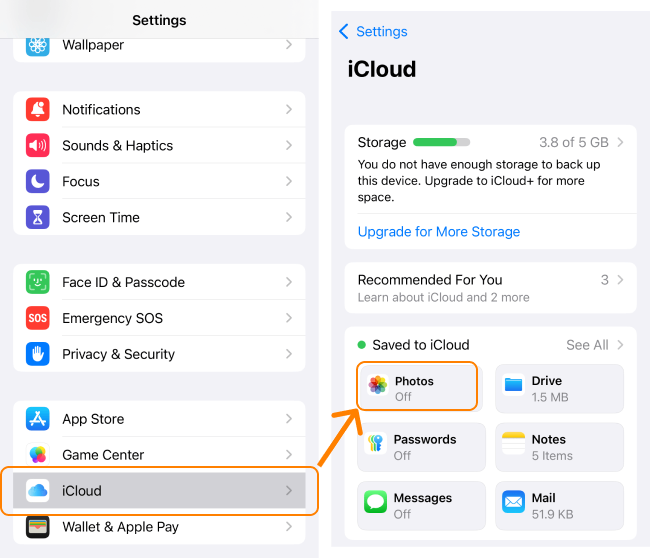
Not sure if iCloud Photos is enabled on your device? Then open Settings, tap your account name, then iCloud > Photos and see if the toggle is ON or OFF.
For iOS 13 and below, use the following method:
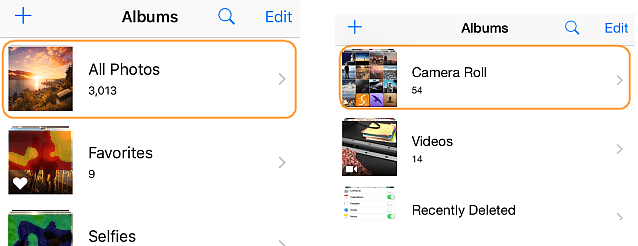
When you turn on iCloud Photos, Camera Roll album will be replaced with the All Photos album:
-
Open the Photos app on your iPhone or iPad;
-
Make sure your view is set to “Albums”:
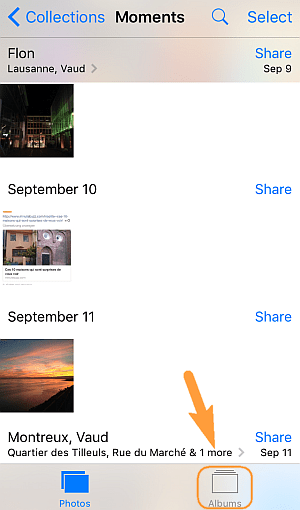
-
If you see “All Photos” on top instead of “Camera Roll”, then iCloud Photo Library is enabled.
Why should I disable it?
If you have iCloud Photos enabled on your device, the photos are not fully stored on your iPhone. The images on your iPhone are just thumbnails, while high-quality originals are stored in iCloud. In addition, CopyTrans Photo will not function correctly in combination with iCloud Photos.
❗ With iCloud Photos enabled, you will run out of iCloud storage rapidly. As a result, you’ll be prevented from making iCloud backups, syncing photos or saving anything else in your iCloud account. If you do not want to upgrade your storage plan and pay each month, we recommend that you deactivate the function as soon as possible.
How to turn off iCloud photos
iCloud is turned on by default. This means that your iPhone will upload photos to the cloud every time you take new ones. But if you’re not comfortable with it or just want a little more privacy, you can turn off iCloud Photos on your iPhone in 3 easy steps:
- On your iPhone, navigate to Settings > iCloud
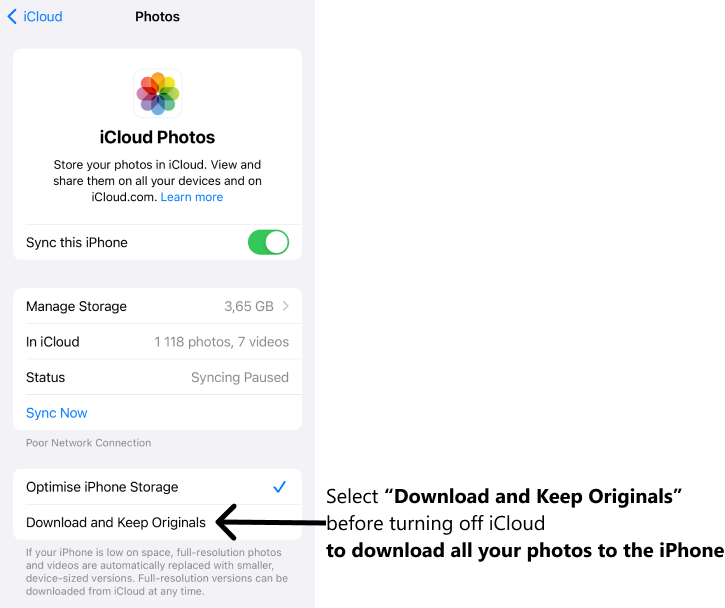
- In iCloud settings, tap “Photos”
- If you want your photos to remain on your device, choose “Download and Keep originals” before turning off iCloud sync. Then, turn off iCloud Photos using the toggle.
What happens if you turn off iCloud photos
The amount of free iPhone storage doesn’t get any bigger over time – it’s rather the opposite. So don’t be surprised if one day, when you attempt to bring photos from iCloud back to your iPhone, you see a notification “Cannot Download Photos and Videos“, suggesting there is not enough storage on your iPhone.
❗ If you enabled iCloud Photo Library and chose to “Optimize iPhone Storage”, the full-resolution versions of your photos are stored in iCloud. You only have access to lower-quality copies of the photos on your iPhone.
💡 The easiest way not to lose photos and free up iCloud space is to use CopyTrans Cloudly and download all your photos from iCloud to PC. Then, you will be able to transfer your photos from PC to your iPhone and back with CopyTrans Photo.
Turn off iCloud
How to manage photos?
If you disable iCloud Photos and don’t want to use iCloud any longer, CopyTrans Cloudly will help you:
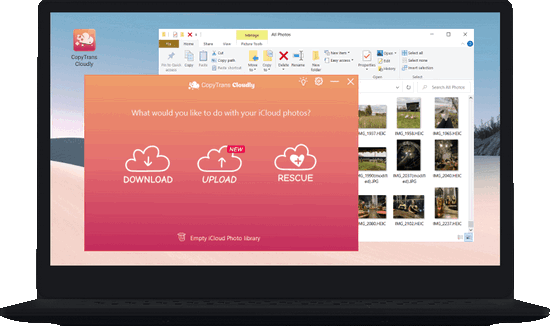
✔ Download your entire iCloud library to PC in one go;
✔ Delete all photos from iCloud in one click to free up space in iCloud;
BONUS: Manage your photos offline without iCloud or iTunes
If you want to transfer some of the images to your iPhone, use our CopyTrans Studio app to transfer these photos back to your iPhone. By using it in combination with CopyTrans Cloudly, you can truly become the master of your photos! Download and try it here:
How to speed up iPhone photo backup?
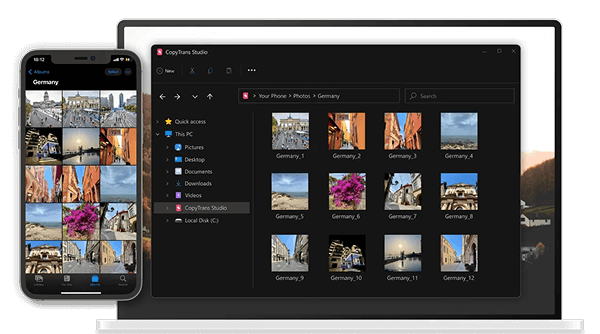
With CopyTrans Studio, back up iPhone photos and videos in a fast and smooth way
- Your iPhone Photo library integrated into Windows Explorer
- 1-click Full photos and videos backup
- Set Automatic backups and let CopyTrans do the job for you
- Compatible with the latest iOS devices
- Fast transfer for large photo libraries
- Wireless connection through Wi-Fi
How to turn off iCloud on iPhone
When you turn off iCloud, you will be asked if you wish to keep a copy of the information that you store in iCloud on your device. Also, signing out of iCloud will sign you out of Find My iPhone, iMessages, FaceTime and some other apps.
If you want to sign out from your Apple ID/ iCloud account, follow the instructions below. They apply to all devices starting with iOS 10.3:
-
On your iPhone, go to Settings > [your name] > Sign Out (at the bottom of the screen).
-
Enter your Apple ID and tap Turn Off.
-
Select the data types that should be copied to your device.
-
After this, select Sign Out in the top right corner.
-
Tap Sign Out one more time to confirm that you want to sign out of iCloud.
Turn Off iCloud
Final Thoughts
Learning how to turn off iCloud Photos will not only help you free up space, but also give you back control over your digital life. iCloud makes it easy to manage your photos, but it also means that your personal photos are automatically stored on Apple servers. If you prefer to keep your memories completely private, disabling iCloud Photos is a smart move.
After that, you can manage your iPhone photos manually, organize them as you see fit, and decide where exactly they will be stored. Want to safely back up your photos or transfer them to your PC without iCloud? That’s where CopyTrans Photo comes in. With it, you can move, view, and back up your entire photo library in just a few clicks — no synchronization issues, hidden downloads, or storage limits.
Disabling iCloud Photos will also help you free up space in your iCloud storage and avoid paying for extra space you may not even need. With tools like CopyTrans Studio, you can control your iPhone storage and keep your personal photos safe while remaining completely independent from the cloud.
Ultimately, it’s not just about managing your photos. It’s about protecting your privacy and ensuring that your favorite moments are exactly where they should be — with you and only you.
