Ever opened your iPhone and found your messages missing? Or maybe your group chats suddenly turned green, and you had no idea why? Contact names are gone. Messages are out of order. Or maybe you’re just wondering what an iMessage even is, and why some messages are blue and others green?
The iPhone Messages app is one of the most used — but also one of the most misunderstood — features of iOS. It’s easy to get lost between iMessages, regular text messages, message syncing, disappearing chats, and occasional bugs.
In this guide, we’ll break it all down. We’ll help you understand how iPhone Messages work exactly, what iMessage actually is, what the difference between blue and green messages is (hint: it’s not just a color thing), and how to troubleshoot common iPhone text issues that drive users crazy.
- iMessage vs Text Message
- How to Send Messages on iPhone?
- How to delete messages on iPhone?
- How to silence messages on iPhone?
- How to hide messages on iPhone?
- How to lock text messages on iPhone?
- How to archive messages on iPhone?
- Common iPhone message issues and how to fix them
- How to save contacts to PC?
iMessage vs Text Message
Let’s clear up one of the most confusing things about messaging on an iPhone: why are some messages blue and others green? When you send a message from your iPhone, you’re not just typing words and hitting send. You’re actually choosing (whether you realize it or not) between two completely different messaging systems — each with its own rules, advantages, and annoying limitations.

What is iMessage?
If you’ve ever sent a message and seen it appear in a blue bubble, you’ve used iMessage — Apple’s own messaging service. It’s built into the Messages app on every iPhone, iPad, and Mac, and it only works between Apple devices.
iMessage sends texts over Wi-Fi or mobile data instead of using your cellular carrier services. That means it’s often faster, richer in functionality, and way more secure.
Here’s what makes iMessage different:
- Messages are delivered via the internet (Wi-Fi or mobile data), not your carrier
- They’re end-to-end encrypted, so no one — not even Apple — can read them
- You get extras like “read” mark, typing indicators, reactions, and high-quality media
- Messages can sync across all your Apple devices, so you can start a chat on your Mac and finish it on your iPhone
What is Text Message?
Green bubbles mean you’re sending an SMS or MMS — the classic text message formats that appeared long before iPhones. These go through your mobile carrier, just like a phone call. They’re the fallback when iMessage isn’t available, or when you’re texting someone who’s not using an Apple device.
Here’s how SMS/MMS works:
- Messages are delivered via your cellular network — so you need a signal, not just Wi-Fi
- They are not encrypted and generally less private
- No fancy functions, just plain text and maybe some compressed images
- The biggest upside? They work with every phone. Android, flip phone, grandma’s old Nokia — you name it
iPhone Messages
The iPhone Messages app might look straightforward, but once you dive in, you’ll find there is a lot more options than just texting back and forth. Whether you want to send a text later, keep a conversation private, or finally clean up your inbox, there are ways to do it — even if some require a little creativity.
Let’s break it down by use case. Below, you’ll find answers to some of the most common questions iPhone users ask, like how to schedule a message, hide a chat, or lock sensitive texts. We’ll also look at the options built into iOS and some cases when you may need a little help from third-party apps.
How to Send Messages on iPhone
If you’re new to iPhone or just haven’t explored beyond basic texting, there are some fun and useful built-in features. First, when you send a message, your phone will choose between iMessage (blue bubble) and SMS (green bubble) based on whether the recipient has an Apple device and internet connection. If they’re using Android or have no data, you’ll be sending a regular SMS.
Beyond plain text, you can send:
- Photos and videos using the camera or photo library
- Voice messages (tap and hold the audio icon in a chat)
- Special effects to make your message stand out
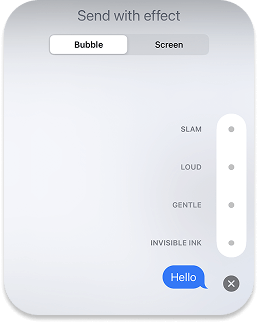
✨ To send effects, just type your message, then press and hold the Send button. From there, you can choose Bubble effects (like “Loud” or “Gentle”) or Screen effects (like confetti, lasers, or balloons). It’s a great way to add a little flair without overdoing it.
How to delete messages on iPhone?
Cleaning out your inbox? Whether you want to delete just one awkward message or remove old conversations in bulk, iOS gives you several options.
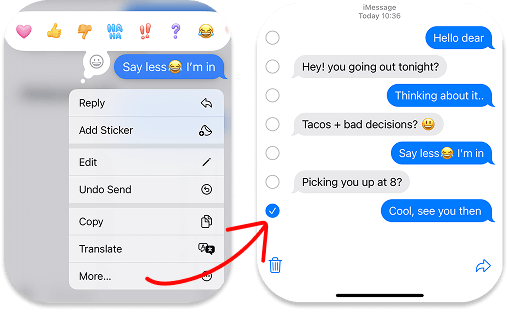
To delete a single message, open the conversation, tap and hold the bubble, select More, and hit the trash can icon. Done.
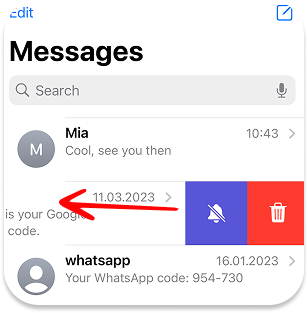
If you’re over the entire conversation, swipe left on the thread from the main list of messages and tap Delete. This removes the whole thread at once.
For long-term cleanup, there’s a built-in auto-delete option. Go to Settings > Apps > Messages > Keep Messages and choose between 30 Days, 1 Year, or Forever. If you pick one of the first two, your phone will take care of deleting old messages automatically, no reminders needed.
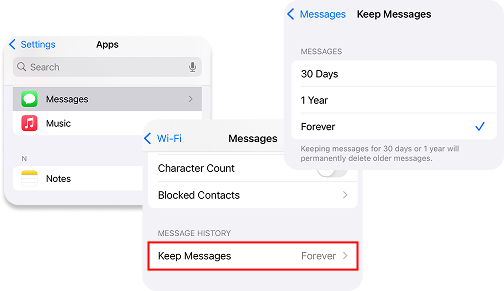
All in all, deleting iPhone messages is easy — and if you set it to run in the background, you’ll never have to think about it again.
How to silence messages on iPhone?
There are times when you want to stay connected, just… on your own terms. Whether it’s a group chat going wild or a conversation you’re not quite ready to step away from, muting the thread lets you keep an eye on things — without the endless pings.
Here’s how to do it: go to the conversation you want to mute, swipe left on it from the main Messages screen, and tap Hide Alerts. You’ll see a small moon icon appear next to the chat, and your phone won’t buzz, light up, or ping when new messages come.
You can also silence a chat from inside the conversation. Tap the contact name at the top, then toggle Hide Alerts on.
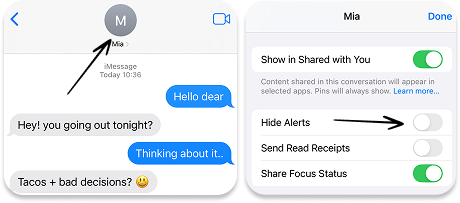
Now you know how to silence text messages notifications without blocking or deleting anyone.
How to hide messages on iPhone
We’ve all been there — you hand someone your phone to show a picture, and suddenly a message preview pops up. Maybe it’s harmless. Maybe it’s… not. Either way, you probably don’t want your messages to show themselves on your lock screen. The good news? You don’t need a secret app or some hidden feature. Your iPhone already has a couple of clever tricks built right in to hide messages on iPhone.
Start with the Basics: Turn Off Message Previews
Let’s kick things off with the simplest move. When a message comes in, your iPhone shows a preview — even on the lock screen. But you can stop that with just a few taps:
Go to Settings → Notifications → Messages → Show Previews → Set it to Never
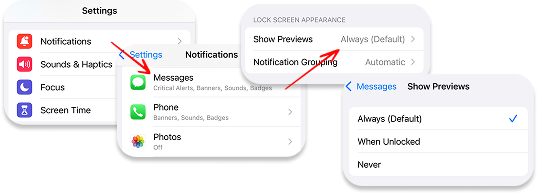
Now, when you get a message, you’ll still see the notification — but not the content. It’s like putting a curtain over your conversations. But what if you want to hide entire messages — conversations, details, everything — in a more protected place?
Hide Messages Inside the Notes App
Once previews are off, you’ve handled the “glance risk.” But if you want to take things further — like stashing a message or a conversation in a truly private spot — your Notes app can become an unexpected ally.
Here’s how to turn it into your personal message vault:
– Copy the message (or any sensitive info)
– Open the Notes app and paste it into a new note
– Tap the share icon and choose Lock Note
– Use Face ID, Touch ID, or a passcode to lock it.
So you’ve moved the message somewhere only you can open, and you didn’t need to download anything or raise suspicion.
How to lock text messages on iPhone?
iPhones don’t let you password-lock text messages or threads inside the Messages app. But there are still a few ways to limit access to your conversations.
One option is to use Screen Time settings. Go to Settings > Screen Time > App Limits, then add a time limit for the Messages app and secure it with a passcode. Once you reach the daily limit, Messages will require the code to open. It’s a bit of a workaround, but it can be surprisingly effective — especially if you’re trying to restrict access without using third-party tools.
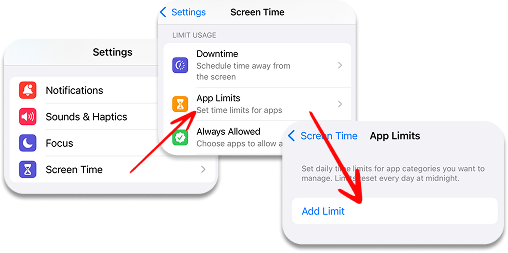
Speaking of which, there are apps designed specifically to lock and hide your texts. AppLock, Locker, and similar vault-style apps let you import or copy sensitive conversations and keep them under lock and key. Just keep in mind they don’t integrate directly with iMessage, so you’ll need to move messages manually.
So while Apple hasn’t yet added a native “lock text messages” feature, these tricks can help you add a layer of security to your private chats.
How to archive messages on iPhone?
If you’re used to Gmail or other email apps, you might go looking for an archive button in iPhone Messages — and come up empty. That’s because iOS doesn’t offer true archiving for texts. It’s pretty black and white: you can either keep the conversation or delete it entirely. There’s no in between option where the thread disappears from view but quietly stays tucked away in the background.
Still, if you want to save important conversations without leaving them cluttering your inbox, there are a few workarounds.
- You can copy and paste the conversation into Notes, then lock the note for safekeeping.
- You can forward messages to your email for storage outside the Messages app.
- If you’re using a PC, CopyTrans Contacts can help you export and save your iPhone messages for archiving. It’s not the same as having a built-in archive button, but it does the trick.
Common iPhone message issues and how to fix them
Even the most dependable iPhones can run into messaging hiccups. Contact names may disappear, notifications may arrive late (or not at all), or texts may seem to vanish into thin air. It’s a problem — especially when your phone is key to keeping up with work or staying in touch. Here are some of the most common iMessage and SMS issues iPhone users run into, plus quick fixes to help you sort things out fast.
1. Why is my iPhone not showing contact names in messages
The problem: You open the Messages app and see only phone numbers — no names, no familiar faces. It feels like your contacts have vanished.
This usually comes down to sync issues with iCloud, Apple ID misconfigurations, or formatting mismatches in your saved contacts.
How to fix it:
– Make sure your contacts are syncing correctly via iCloud. Head to Settings > Your Name > iCloud and toggle
Contacts off and back on.
– Check if iMessage is linked to your Apple ID under Settings > Messages > Send and Receive.
– Review your region settings and make sure phone numbers are saved with the correct country code.
– Double-check your Contacts app for any incomplete or misformatted entries.
– Try turning Messages off and back on in Settings > Messages to refresh contact recognition.
2. Why does iPhone show unread text messages when there are none
The problem: That little red badge won’t go away — but when you open the Messages app, there’s nothing unread. Just… ghost messages.
What’s going on: This glitch is usually caused by iMessage sync delays across devices, stuck group messages, or reaction notifications that didn’t register correctly.
How to fix it:
– Force close the Messages app and reopen it.
– Reboot your iPhone to refresh all background processes.
– Toggle iMessage off and on via Settings > Messages.
– Still stuck? Try Reset All Settings: go to Settings > General > Transfer or Reset iPhone > Reset > Reset All Settings. This won’t delete your data, just resets system settings.
3. Why is my iPhone not notifying me when I get text messages iPhone
The problem: You’re missing texts completely — no sound, no vibration, no banner. Silent mode is off, yet your iPhone’s acting like it’s on mute.
What’s going on: This is usually caused by Focus Mode, Do Not Disturb, or muted notification settings — either for the Messages app or individual contacts.
How to fix it:
– Open Control Center and check if Focus or Do Not Disturb is enabled.
– Go to Settings > Sounds and Haptics and make sure the Text Tone isn’t set to “None.”
– Head to Settings > Notifications > Messages and make sure all alerts are enabled (lock screen, banners, sounds).
– Check if the conversation is muted (open the chat and see if there’s a bell icon with a slash).
4. Not Receiving Text Messages on iPhone
The problem: You’re not getting texts—whether from Android users (SMS) or other iPhones (iMessage). It’s like your inbox has gone dark.
What’s going on: This could be due to network issues, iMessage not being activated, blocked contacts, or trouble with your cellular carrier.
How to fix it:
– For SMS, check your cellular signal, and if needed, restart your iPhone or reinsert the SIM card.
– For iMessage, go to Settings > Messages and toggle iMessage off and on again. Verify your Apple ID in Send and Receive.
– Make sure you haven’t accidentally blocked the sender. Go to Settings > Messages > Blocked Contacts.
– If you switched to a non-Apple phone recently, make sure iMessage was deactivated beforehand on the Apple’s Deregister iMessage page.
BONUS: Save iPhone contacts to PC
Imagine if all your important conversations and unforgettable moments were backed up and safely stored on your PC — ready to be revisited or rescued when needed. Whether you’re upgrading your device or just want a trusty archive outside of iCloud, transferring your iPhone messages to your computer doesn’t have to be a headache. That’s where CopyTrans Contacts helps you.

✔️ Manage iPhone, iCloud, Outlook, and Gmail contacts.
✔️ Transfer your contacts between different Apple IDs.
✔️ Save contacts in .xlsx; .vcf; .csv formats.
✔️ Merge old and new contact sets.
- Download and install CopyTrans Contacts: Download CopyTrans Contacts
-
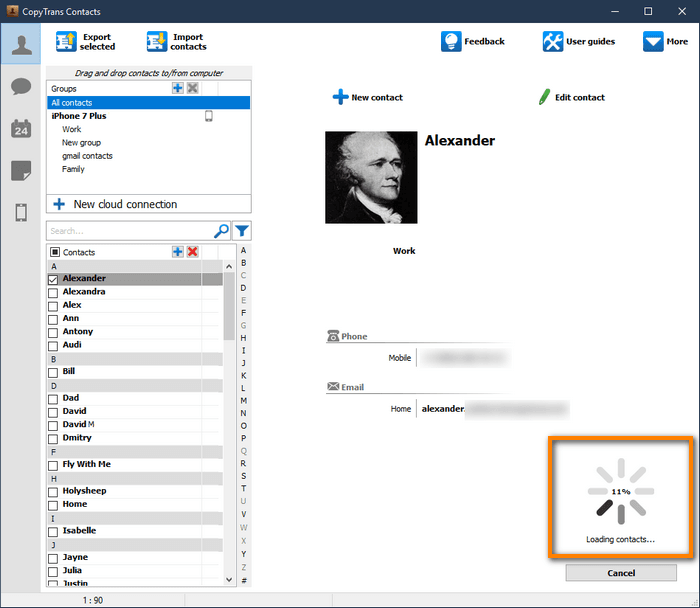
Run CopyTrans Contacts and connect your iPhone to the PC. You will see a loading icon: the program is retrieving all your contacts, messages, calendars, and notes. Wait until the loading is finished, then proceed to Step 3.
➕ If your iPhone is encrypted, you may be asked for an iPhone backup password. What password?
-
Select the contacts you want to transfer to your PC.
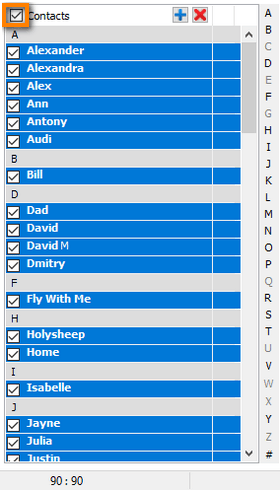
TIP: If you don’t see your contacts in the CopyTrans Contacts interface, follow this troubleshooting guide.
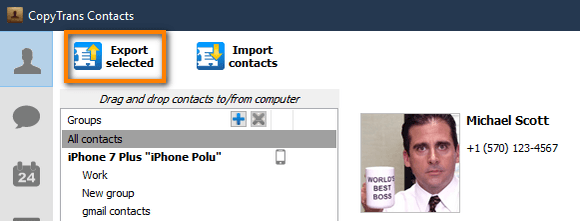
- Click Export selected:
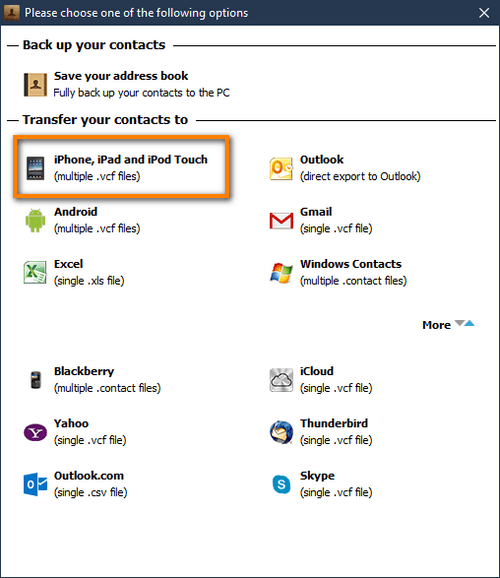
- After that, select the format you need:
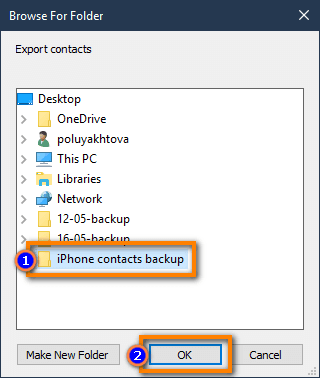
- Select the destination folder. Click OK. And this is how to move contacts from iPhone to iPhone using CopyTrans Contacts.
FAQ
Why do some messages on iPhone turn green, even if both users have iPhones?
Green messages usually mean that your iPhone couldn’t send the message via iMessage at that moment. This can happen if mobile data or Wi-Fi isn’t available, iMessage is temporarily disabled, or Apple’s servers are having problems. In these cases, your iPhone automatically switches to standard SMS to ensure the message is delivered.
Can I turn off message notifications without turning off all sounds on my iPhone?
Yes. You can turn off the sound for specific conversations without affecting calls, alarms, or other app notifications. This is useful if you want peace and quiet to focus, while still being available for important notifications.
Do deleted messages disappear from my iPhone forever?
Not always. Depending on your iOS version, deleted messages may be temporarily stored and can sometimes be recovered from backups. However, once messages are deleted from both your device and all available backups, they cannot be recovered.
Can I hide message previews without hiding the entire conversation?
Of course. iOS allows you to hide the content of messages on the lock screen while keeping the conversation visible in the Messages app. This way, you will see who sent the message, but not its text, until the phone is unlocked.
Text Message
Final Thoughts
Messaging on iPhone may seem simple at first glance, but as you’ve seen, there’s a lot going on behind the scenes. Understanding the difference between iMessage and text messages, knowing how each one works, and being able to manage your conversations gives you much more control over your communication.
Whether you want to send messages more efficiently, delete or hide private chats, turn off notifications, block conversations, or archive old threads, iOS offers flexible tools to organise and protect your inbox. And when things don’t work as expected, most common messaging issues can be quickly fixed if you know where to look.
Finally, managing messages often goes hand in hand with managing contacts. Knowing how to save iPhone contacts to your PC ensures that your important conversations and connections remain accessible and are backed up outside of your device.
With the right settings and a few smart habits, the Messages app on your iPhone can become more than just a chat tool—it can be a well-organised, private, and reliable communication hub.
