We recently introduced a new program – CopyTrans Studio that is designed to manage and back up photos.
If you want to manage photos and videos from your iPhone or iPad or transfer them to your PC, we offer two tools: CopyTrans Photo and CopyTrans Studio. Both programs help you manage your media but they do so in very different ways. If you are also an existing customer and have always used CopyTrans Photo, you may be wondering, “What is the difference between CopyTrans Photo and CopyTrans Studio?”
To help you quickly decide which program is best suited to your needs, we present both solutions in detail:
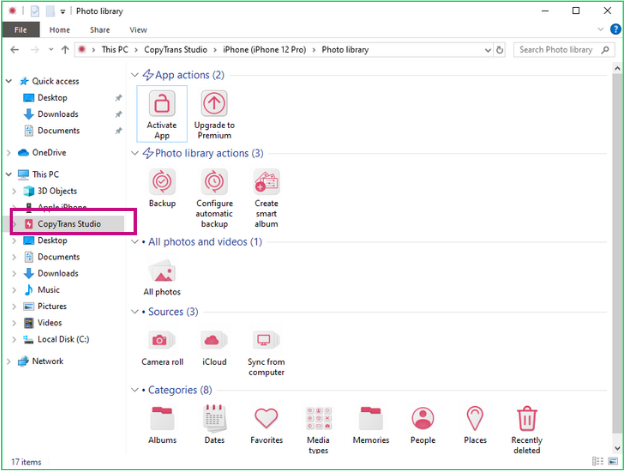
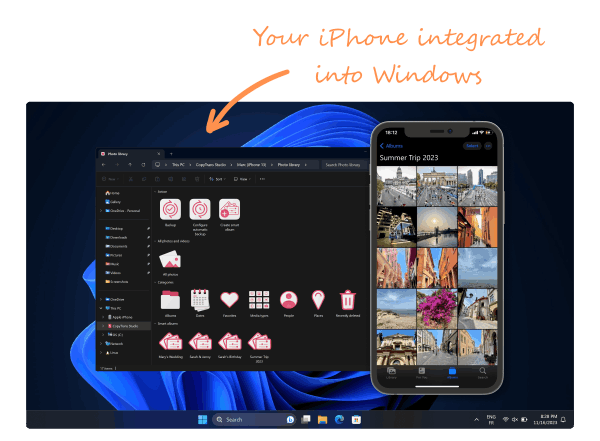
CopyTrans Studio integrates your photos and videos directly into Windows Explorer: your iPhone/iPad appears as a drive that you can access like a USB stick, without iTunes. Ideal for quick access and easy backup. This allows you to use your images as if they were stored locally.
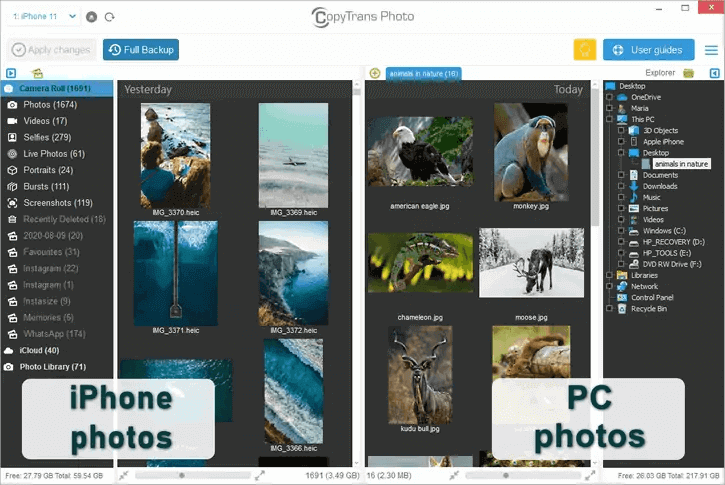
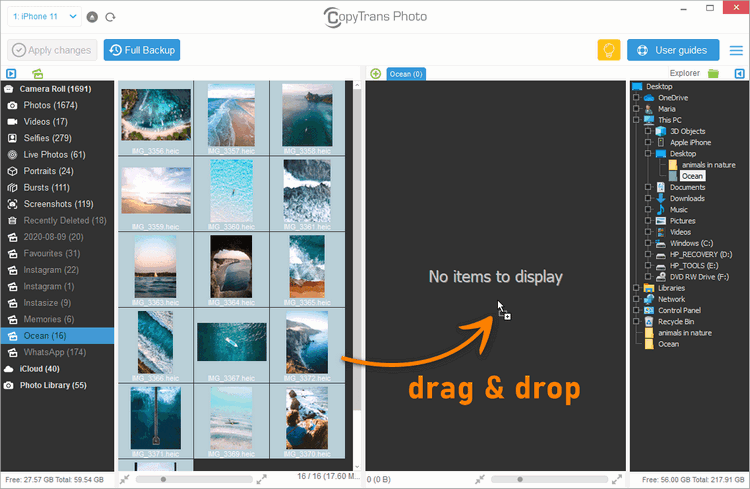
CopyTrans Photo is a tool for managing and transferring iPhone photos and videos: you can view your iPad/iPhone images in a two-window view (device on the left, PC on the right), create albums, and back up and restore images using drag and drop.
Let’s take a closer look at the two programs.
CopyTrans Photo: full control over your photos
CopyTrans Photo is the classic, proven tool for managing photos between iPhone/iPad and Windows PC. It is perfect for anyone who wants to organize and transfer their photos and albums manually.
What CopyTrans Photo can do:
-
Move photos and videos between your PC and iPhone/iPad using drag and drop
-
Transfer entire albums, including custom folders. For example, save iPhone albums to your PC
-
Automatically convert HEIC to JPEG during transfer
-
Support ProRAW (DNG)
-
Create a 1-click backup of your entire photo library
-
Export Live Photos as still images + video
-
Sort iPhone photos
Who is CopyTrans Photo suitable for?
For users who:
-
Want to actively sort, compare, and organize their photos
-
Want to use drag and drop to individually select which files to transfer
-
Want to transfer entire albums exactly as they are on the iPhone
-
Need a reliable tool that has been proven over many years
CopyTrans Studio: use iOS photos directly in Windows Explorer
CopyTrans Studio is our latest solution – modern, automatic, and seamlessly integrated into Windows.
The program displays your iPhone photos directly in Windows Explorer without you having to import anything.
iPhone photos integrated into Windows Explorer
What CopyTrans Studio can do:
-
Automatically display photos and videos from your iPhone/iPad in Windows as if they were stored locally
-
Transfer Apple photos, videos, and albums to your PC
-
Automatic, one-click backups of your entire photo library
-
Automatically convert HEIC to JPG during transfer
-
Open HEIC on Windows without additional codecs
-
Play Live Photos thanks to the integrated photo viewer
-
Create smart albums, e.g., “Vacation 2025” or “Selfies”
-
HEIC to JPG converter for Windows included: CopyTrans HEIC
-
There are definitely special advantages: Wi-Fi connection (no more cables!) and integration directly into Windows Explorer
Who is CopyTrans Studio suitable for?
For users who:
-
Want to use their iPhone photos without an extra software window
-
Prefer an automatic solution
-
Need regular backups and don’t want to worry about them
-
Have lots of HEIC photos and want to open them effortlessly on Windows
-
Are looking for a modern tool with smart albums and automation
What is the difference between CopyTrans Studio and CopyTrans Photo?
What is the difference between CopyTrans Studio & CopyTrans Photo?
| Features | CopyTrans Studio | CopyTrans Photo |
|---|---|---|
| View photos from Camera Roll | ||
| Create a full photo & video backup with 1 click | ||
| Transfer photos and videos to PC | ||
| Transfer albums to PC | ||
| Convert .heic to .jpeg during transfer | ||
| Drag & drop transfer | ||
| Support for Live Photos | ||
| Batch convert .heic to .jpeg on PC | ||
| Automatic photo backup | ||
| Integrated into Windows Explorer | ||
| Supports Wi-Fi connection | ||
| Save Live Photos as .jpeg + .mov or only .jpeg | ||
| Save edited photos only or edited + original versions | ||
| Rename photo filenames | ||
| Organize photos using smart albums | ||
| Sort photos by date, location, people, and more | ||
| Save photos by date, location, people, and more | ||
| Sort and extract photos by media type | ||
| Mode of use | Standalone program | Integration into Windows Explorer |
Final Thoughts
While CopyTrans Photo has been serving as a precise tool for manual photo management for years, CopyTrans Studio goes one step further and brings your photos directly into Windows Explorer: no additional window, no copying or importing. This allows you to use your images as if they were stored locally.
