Are you switching from Samsung to iPhone? Or do you simply need to share a few photos? There are ways to transfer Samsung photos to an iPhone, and one of them will surely suit your needs.
Bluetooth, Smart Switch, Quick Share, or AirDrop will not work in this case. In total, I found 5 trusted apps to send photos from Samsung to iPhone. You can check the comparison table below and go directly to the method you like the most. Otherwise, read about every way one by one to see what’s more convenient for you.
| Features | CopyTrans Photo | Google Drive | Google Photo | Move to iOS | Messaging apps |
| Transfer photo library in one go | ✓ | ✘ | ✘ | ✓ | ✘ |
| Select photos or videos to transfer | ✓ | ✓ | ✘ | ✓ | ✓ |
| Transfer originals | ✓ | ✓ | ✓ | ✓ | ✓ |
| Quality preserved | ✓ | ✓ | ✓ | ✓ | ✓ |
| Wireless | ✘ | ✓ | ✓ | ✓ | ✓ |
| Internet required to transfer | not required | required | required | required | required |
| No space limitations | ✓ | 15 GB | 15 GB | ✓ | ✓ |
| Totally free | ✘ | ✘ | ✘ | ✓ | ✓ |
Unfortunately, Motion Photos stopped being supported on the Samsung A53. I can make them, but I can no longer view them on the device. None of the available solutions could transform Motion Photos to iPhone Live Photos. They are transferred as still photos.
The date of the photos that were uploaded from messaging apps and social media may change to the date of today. No matter when they were taken or downloaded, the date will be rewritten to the date of transfer. The pictures taken on Samsung are copied with the correct date.
Places, albums, and panoramas are preserved.
The .heic format is changed to .HEIF, .mp4 videos are transformed to H.264. The files are not changed — this is simply how iPhone sees and shows the formats.
I tested and described each solution in detail with screenshots below. Go directly to the one that interests you or check them all to choose the best one:
How to transfer Samsung photos to iPhone
Via PC
I will start with the least complicated and most convenient way for me — CopyTrans Photo. You need to copy your Samsung photo library to a folder on your PC first, then drag and drop the photos and videos to the iPhone via CopyTrans Photo. So, it’s a good solution if you already have some photos and videos on your iPhone because nothing will be erased.
What’s required?
- A USB or Type-C cable for Samsung and for iPhone
- An initialized and set-up iPhone
- Internet connection to install and activate CopyTrans Photo on your Windows PC. Internet is not required for the transfer.
- Free space on your computer and iPhone
Step 1 – Copy photos from Samsung to PC
- Connect your Samsung to your computer with a USB cable. Make sure your phone screen is unlocked.
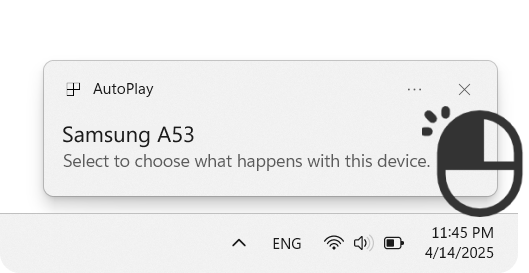
- A pop-up will appear. You need to choose what you wish to do with the device.
- I always select “Open device to view files” because I can preview, select and drag and drop pictures.
- Then double-click on “Internal Storage” -> “DCIM”. The photos that you took on Samsung are in the “Camera” folder.
- Drag and drop the whole folder or only the photos you wish to your desktop.
- If you downloaded images from the browser, messaging apps, or you made many screenshots and you wish to copy them all as well, find these files in the specific folders. For example, there should be Downloads, WhatsApp, Telegram subfolders in the “Internal storage” folder. Simply go through all the folders, then drag and drop what you need to the PC.
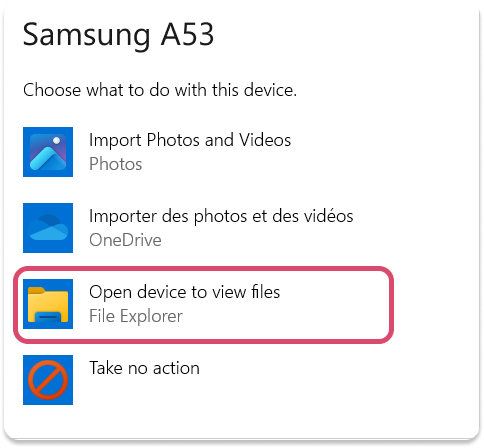
I tried to “Import Photos and Videos” several times, but the loading would always fail.
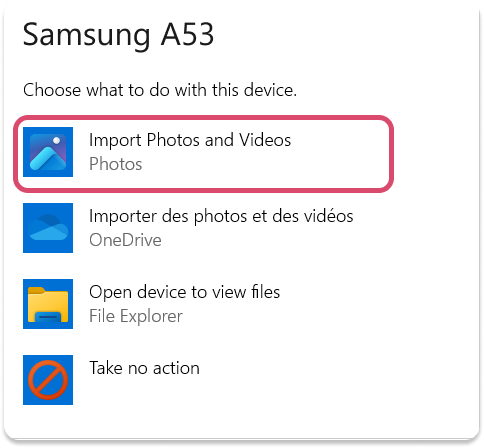
You can click “Import Photos and Videos”, then select and add everything. However, if it doesn’t work for you either, follow the steps below.

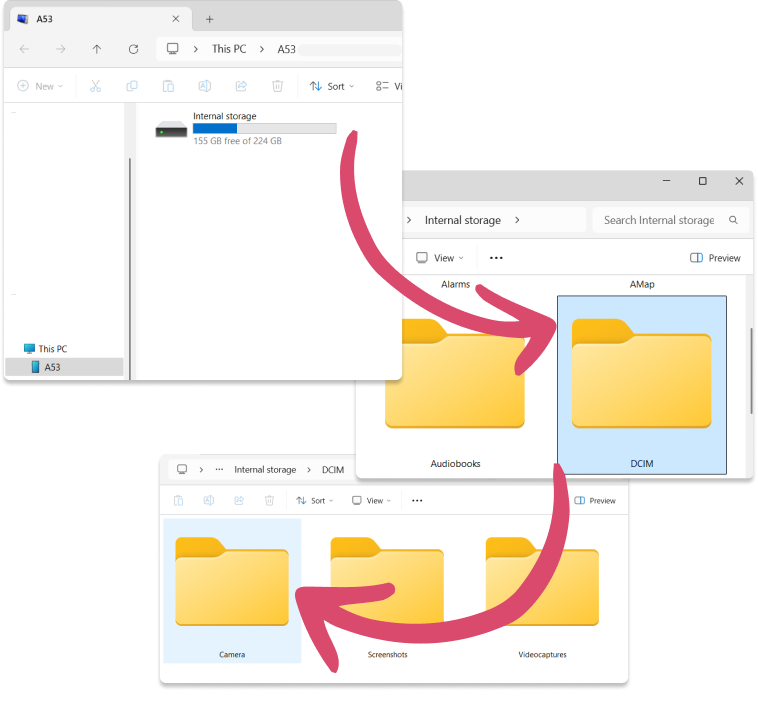
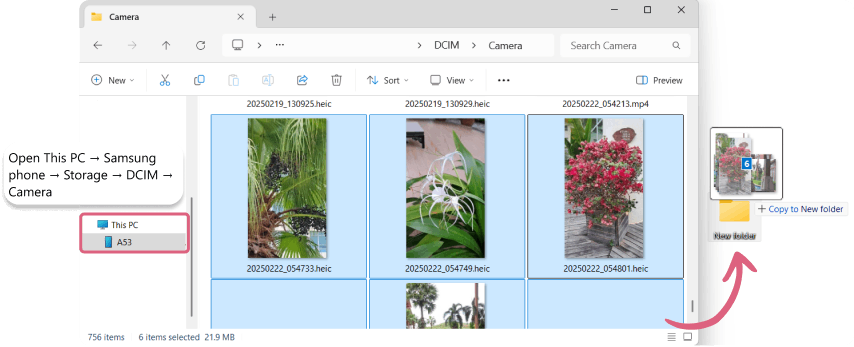
If you can’t see the previews of the photos on the PC, see if the names of the files are ending by .heic. This format is not supported by Windows. But you will be able to view the photos in CopyTrans Photo and on the iPhone.

When the pictures are on your computer, you can move to the next step.
Step 2 – Copy photos from PC to iPhone
It’s not possible to drag and drop photos to an iPhone directly via Windows Explorer. But you can use CopyTrans Photo, a tool that was designed to facilitate the data transfer process.
- Start by downloading CopyTrans Photo to your PC. Install the program normally. Refer to the installation guide if necessary. Download CopyTrans Photo
- Then launch CopyTrans Photo and connect your iPhone to the PC with a USB or Type-C cable.
- You can see all your iPhone photo albums on the left.
- Find the folder with the Samsung photos on the right. Open it.
- Now, drag and drop the photos from the right side to the “Photo Library” album.

Otherwise, drag and drop the whole folder from the right to the left part. In that case, the photos will appear in the iPhone “Photos” app under the “From my Mac” section — they will not be part of your iPhone Camera Roll.
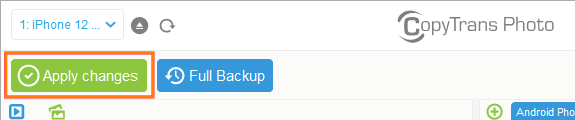
- Finish the transfer by clicking “Apply Changes”.
If you’re planning to use an iPhone from now on, CopyTrans Photo will come in handy. Use it to :
- Back up your iPhone photo library to a folder or an external hard drive
- Delete your iPhone photos for good
- Add photos and videos from the PC to your iPhone
How to share photos from Samsung to iPhone
Via Google Drive
What’s required?
- A Gmail/ Google account
- Internet connection
- Free space on Google Drive
To transfer Samsung photos to iPhone using Google Drive, you need to connect both devices to the same Google account. The connection procedure varies depending on the way you once chose to do verification. In my case, I needed to find a verification code in the settings of my other old Android. But you can select other ways.
- Make sure you have the Google Drive app installed on your Samsung and iPhone. It should be preinstalled on your Samsung. You can find the app in the App Store on your iPhone (click to open Google Drive in the App Store).
- Start by connecting Samsung and iPhone to the same Google/ Gmail account. The app will lead you through the connection steps. If not, click on the account avatar (or a circle with a letter) in the upper-right corner and select “Add another account”. Follow the steps the app gives.
- When you’re connected to the same account on both devices, open Drive on your Samsung. Tap the huge + button, then Upload.
- Tap “Gallery”. You need to manually select every picture you want to upload. If you wish to transfer everything at once, go to the Google Photos solution below.
- When you’re done selecting, tap on “Done” in the upper-right corner. It let me upload the files only via Wi-Fi. So, if Drive can’t upload your Samsung photos, make sure you’re connected to Wi-Fi. Otherwise, allow transfer using cellular data in the phone settings.
- Now, open Drive on your iPhone. You need to press one photo for a second – it will become selected. You can then continue tapping the other photos to select them all.
- When it’s done, press the three dots in the upper-right corner. Then, select “Download”.
- You transferred your Samsung photos to the iPhone Camera Roll!


How to send photos from Samsung to iPhone
Via Google Photos
What’s required?
- A Gmail/ Google account
- Internet connection
- Free space on Google Drive
In comparison to Google Drive, Google Photos uploads the whole Samsung Gallery to the cloud. If you already logged in to your Google/Gmail account in your Google Drive, you’ll also be connected to the same account in Google Photos. If you have already uploaded some pictures via Google Drive, they will appear in Google Photos.
- Install the Google Photos app on your Samsung and iPhone (download Google Photos to iPhone from the App Store).
- Connect to the same Google/Gmail account on your Samsung and iPhone. The app will guide you through the process. To add another account to Google Photos, press the circle icon in the upper-right corner. Select “Add another account”. Follow the instructions.
- The upload should start automatically. It didn’t work for me until I enabled Wi-Fi on the Samsung. But you can enable the use of the mobile data in the settings.
- When the transfer is done, open Google Photos on your iPhone. In the Photos tab, you’ll be asked to “Allow access to photos so that you can continue backup”. I didn’t do it because I already have photos on my iPhone and I don’t want to mix all the pictures. But if you have an empty iPhone Photo Library, you can enable the sync.
- If you didn’t enable the access to your iPhone photos like me, go to the “Collections” tab at the bottom, and open “Recently added”.
- I was able to download only one photo at a time. Open a photo and tap the three dots in the upper-right corner. Then, select “Download”.
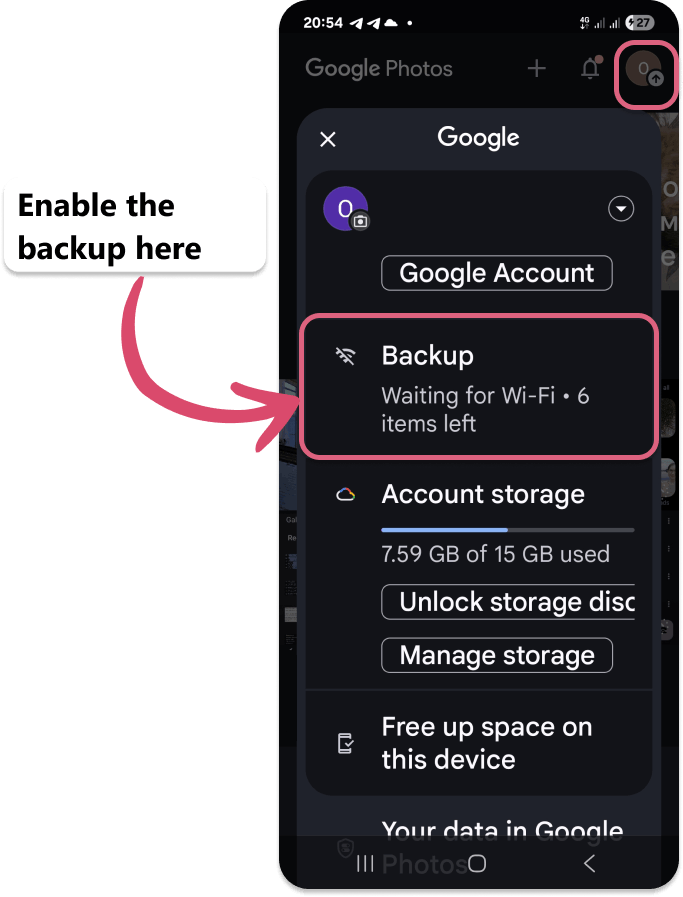


Some users complained that some photo info was lost or the format was changed. However, all the formats and metadata were preserved for me. The Samsung .heic becomes .HEIF on the iPhone, but it’s simply the way Apple treats .heic.
How to share all photos from Samsung to iPhone
Using Move to iOS
Move to iOS is the only native and free way to transfer photos from Samsung to iPhone. The transfer is possible if your iPhone is not yet initialized. If you already see app icons on your iPhone, it means you need to erase everything from your iPhone and follow the instructions of the “Move to iOS” app on Samsung. If you prefer to leave your iPhone data and settings untouched, try another way to copy photos.
If your iPhone is not yet set up or you’ve just erased all the data, follow the instructions below to copy photos and videos.
What’s required?
- Put both devices on charge. The process is very energy-consuming.
- Install a special free app “Move to iOS”.
- Connect Samsung and iPhone to the same Wi-Fi. Otherwise, use a special cable to connect Samsung and iPhone.
- Install the app “Move to iOS” on your Samsung from the Play Store.
- Start your iPhone. Follow the setup instructions — you will need to select the language, create a screen lock password, and confirm a few other settings.
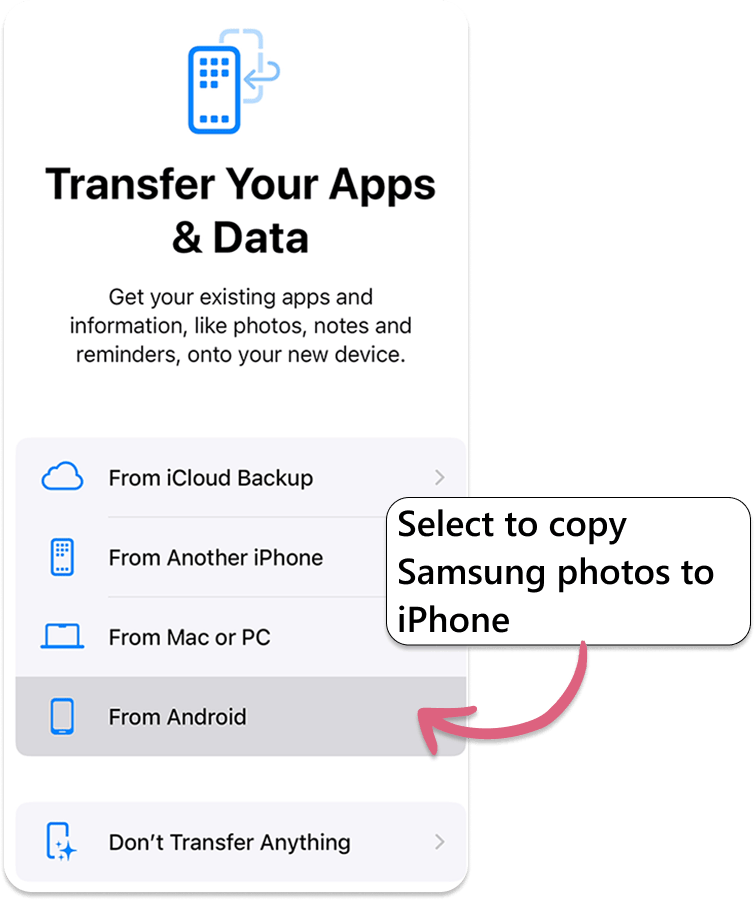
- Connect both devices to the same Wi-Fi. When you see the “Transfer Your Apps and Data” screen, select “From Android”.
- The iPhone name will appear in the app on your Samsung. Tap on it.
- Follow the instructions to connect the devices. Then, allow access to all the photos and videos on your Samsung. If you select “Allow limited access”, you should be prompted to select photos and videos to transfer. When it’s done, scroll down to “Photo Library” and toggle it.

How long should a transfer from Samsung to iPhone take?
2050 files were transferred from the Samsung Gallery to the iPhone in 15 minutes. However, you need to continue setting up your iPhone after the transfer is done. The photos will continue loading for 10-30 more minutes after the full iPhone initialization. You will see them appear in the iPhone Photos app one by one.
How to send photos from Samsung to iPhone without losing quality
Via messaging apps
What’s required?
- A Telegram account
- Internet connection on Samsung and iPhone
You can use a messaging app that allows you to connect several devices to the same account at the same time. WhatsApp doesn’t offer that possibility. I’ll show you how to send photos from Samsung to iPhone without losing quality using Telegram. This method is convenient if you need to send a dozen photos or so.
- Open Telegram on your Samsung. Open the “Saved Messages” chat.
- Tap the paperclip icon. Select “File”. Then tap “Gallery”.
- You can go through all the photos, select what you wish to transfer and then send them.
- Open Telegram on your iPhone now. Press one photo, then select “Select All Items”.
- Tap the share icon at the bottom. Scroll down the actions and choose “Save Images”. They will appear in your iPhone Photos app after the transfer.


Conclusion
For full transfer
Better opt for Move to iOS if you wish to transfer all Samsung photos to iPhone at once.
CopyTrans Photo is useful if you prefer to choose what to transfer on your PC screen.
Google Photos is a wireless way to sync the whole Samsung Gallery with an iPhone. But you can also download photos to your iPhone Camera Roll one by one.
For partial transfer
Messaging apps allow you to send photos from Samsung to iPhone without losing quality. You simply have to send them as files. Files are usually gathered into batches of 10 photos. So, you can send and download files by dozens.
You can select photos and videos to upload to Google Drive. The advantage is that you can select all these photos on your iPhone and download them in one go.
FAQ
Transfer photos from Samsung to iPhone
How to share photos from Samsung to iPhone wirelessly?
Samsung and iPhone have two completely different systems. So, Bluetooth, AirDrop, Quick Share won’t work. You can either use messaging apps to send a few files or Move to iOS app if your iPhone is new and not yet initialised.
Which app is best to transfer data from Samsung to iPhone?
The only free app that transfers data from an Android to an iOS device is “Move to iOS”. The transfer is made either via Wi-Fi or using a special cable that connects the devices.
Another option is to make the transfer via a Windows PC. The solution is not free. You can easily copy all the Samsung data via drag and drop to your PC without any app. You then have to use CopyTrans apps to transfer that data from your PC to the iPhone.
What is the fastest way to transfer from Samsung to iPhone?
If you have a fast and stable Wi-Fi connection, then use the Move to iOS app. Otherwise, opt for the transfer via PC. You should drag and drop all the Samsung files to a folder and then use CopyTrans apps to import the files to your new iPhone.
How to get pictures off SD card to iPhone?
You can purchase a special adapter and connect it directly to your iPhone. If you don’t want to buy an adapter, copy the pictures of the SD card to your Windows PC — some SD cards can be inserted directly. Then use CopyTrans Photo to drag and drop these photos to your iPhone.
