Sometimes the timing of a message is more important than the message itself. Perhaps you want a reminder to reach your colleague first thing in the morning, or a birthday greeting to arrive at midnight sharp, without you having to stay awake until then. iPhone users have been asking for this kind of flexibility for years, and with recent iOS updates, it has finally arrived in a simple and practical form.
Scheduling messages isn’t just about convenience, it’s about control. Instead of relying on your memory or interrupting your day at an inconvenient moment, you can prepare what you want to say in advance and let your iPhone take care of the rest.
In this article, I’ll show you different ways to schedule messages on your iPhone: Apple’s built-in option, how to do it with Shortcuts, and what CopyTrans has to offer if you need something more advanced.
For years, iPhone users have had to use workarounds or third-party apps to schedule messages. In iOS 18, Apple has finally introduced a built-in solution called “Send Later”. This feature is integrated directly into the Messages app, making it easy to schedule the sending of text messages, whether it’s a work reminder, a personal note, or an urgent update.
How to use the “Send Later” feature:
-
Open the Messages app and tap the “+” icon to create a new message.
-
Select “Send Later” from the options menu.
-
Select the exact date and time you want the message to be delivered.
-
Type your message as usual and tap Send. Your iPhone will queue the message and automatically deliver it at the scheduled time.
What to expect
- Scheduled messages appear in a special “Send Later” folder in the Messages app. This makes it easy to check what’s in the queue, reschedule, or delete a message before it’s sent.
- If your phone is turned off or in airplane mode at the scheduled time, your iPhone will send the message as soon as it reconnects to the network.
- You will receive a small notification confirming that the message has been sent.
Limitations:
Despite its usefulness, the “Send Later” feature is not yet perfect:
-
It only works with iMessages (blue bubbles in chat). Traditional SMS/MMS messages (green bubbles) do not support scheduling.
-
Messages can be scheduled up to 14 days in advance, but not months or years.
-
There is no option for recurring scheduled messages (e.g., daily reminders).
Tips for getting the most out of the “Send Later” feature
-
Double-check time zones: if you’re sending a message to someone in another country, make sure you schedule it for the morning or during business hours.
-
Use it for follow-ups: great for work — write a follow-up message after a meeting, schedule it for the next day, and free up your mind.
-
Plan birthday greetings in advance: set them up once and you won’t forget on the big day.
-
Review before sending: scheduled messages can be edited, so if your plans or wording change, you don’t have to start from scratch.
Save your messages with CopyTrans Contacts
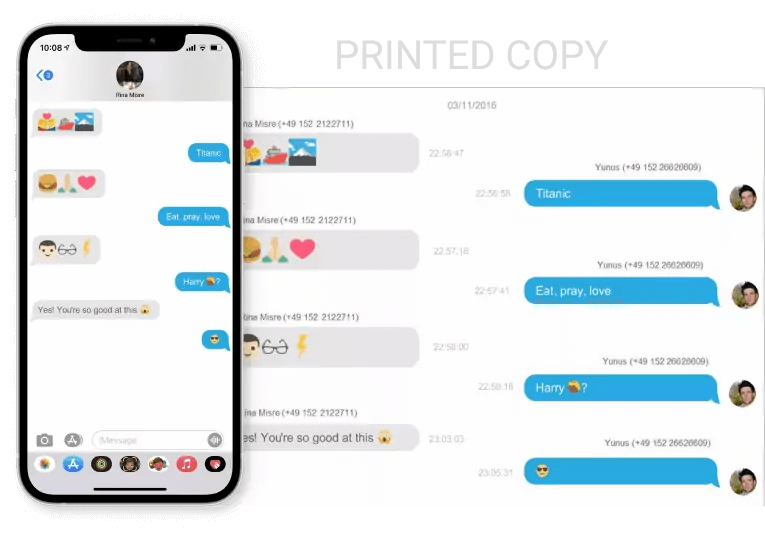
Scheduling messages helps you organize your communication, but it’s also important to save records of important conversations. CopyTrans Contacts allows you to save all messages from your iPhone directly to your computer, including iMessages, SMS, and attachments such as photos or documents.
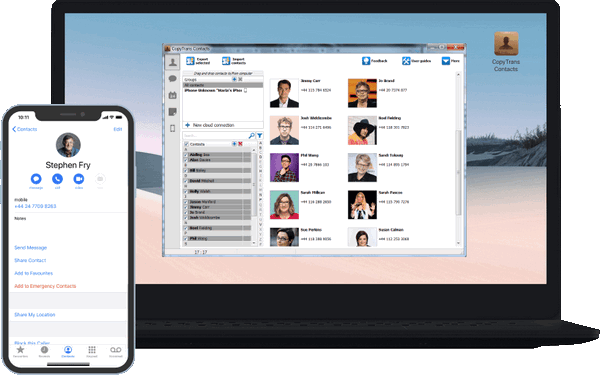
✔️ Manage messages with attachments.
✔️ Transfer your contacts between different Apple IDs.
✔️ Save contacts in .xlsx; .vcf; .csv formats.
✔️ Merge old and new contact sets.
- Download and install CopyTrans Contacts: Download CopyTrans Contacts
-
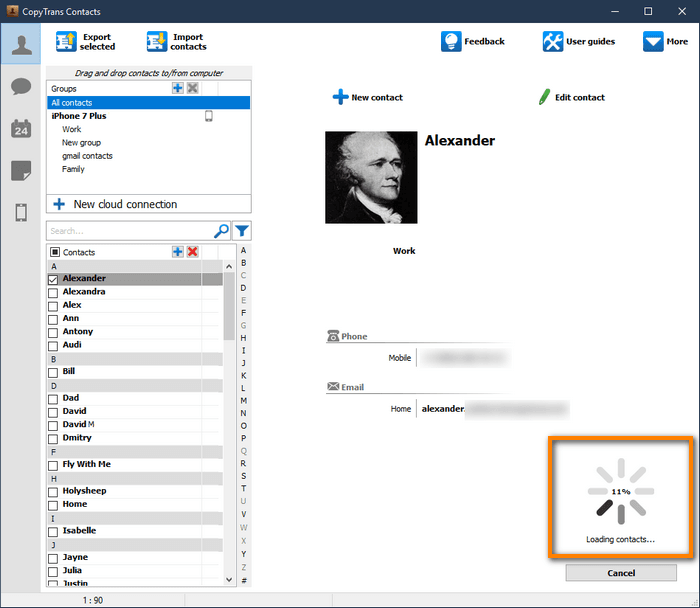
Run CopyTrans Contacts and connect your iPhone to the PC. You will see a loading icon: the program is retrieving all your contacts, messages, calendars, and notes. Wait until the loading is finished.
-
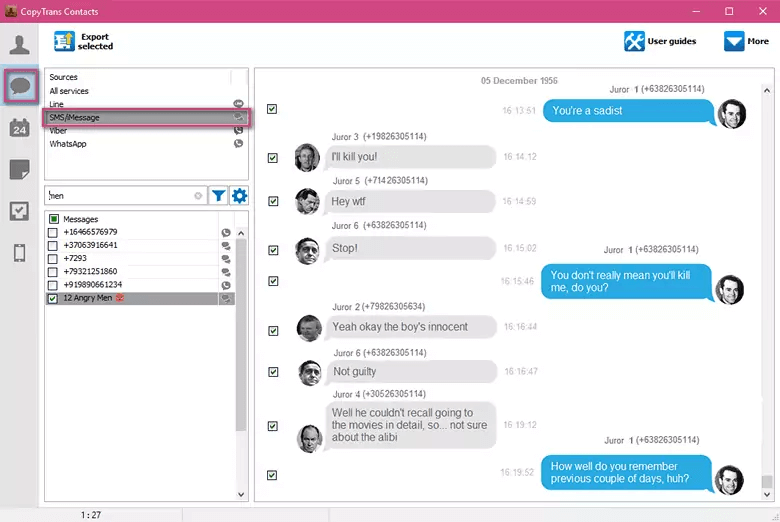
Open the messages, select the messages you need
-
Click on the “Export button”, choose the format and all your messages with attachments will be saved on your PC
Tips and best practices
Scheduling messages on your iPhone is easy once you know how it works, but a few extra tricks can simplify the process and help you avoid mistakes. Here are some helpful tips:
Editing scheduled messages
If you change your mind after scheduling, you don’t need to delete the message and start over.
-
Open the Messages app → go to the “Send Later” section.
-
Tap on the scheduled message → edit the text or update the recipient.
-
Save your changes, and the new version will replace the original.
This is especially useful if you realize you’ve forgotten a detail or want to change the wording.
Changing the message schedule
To change the delivery time, open the scheduled message in the “Send Later” folder.
-
Tap “Edit” and select a new date and time, and confirm.
-
Your iPhone will automatically update the schedule, and you won’t need to rewrite the message.
Considerations related to lack of Internet connection
-
iMessages depend on an Internet connection (Wi-Fi or cellular data). If your phone is disconnected from the Internet at the scheduled time, the message will not be sent immediately.
-
Instead, it will be sent as soon as your iPhone reconnects to the Internet.
-
If you need the message to reach the recipient without delay (e.g., a reminder during a meeting), make sure you are connected to the network, or consider using SMS via Shortcuts or a third-party app.
Conclusion
Once you start scheduling messages on your iPhone, you’ll find it hard to give up this feature. It’s one of those features that quietly changes your daily routine.
Think about it: a perfectly timed message happens automatically now, without having to interrupt what you’re doing or set dozens of reminders. With the “Send Later” feature in iOS 18, Apple has finally made this level of control part of the everyday experience. You just set it up once, and your iPhone takes care of the rest.
Scheduling messages not only saves time, but also helps you stay focused. It allows you to slow down and think before hitting the “Send” button. You can write whatever comes to mind without rushing, and trust your iPhone to deliver your messages at the right moment.
