

 (32 votes, average: 3.75 out of 5)
iPhone backup failed – no worries! iCloud backup is not perfect, we wrote about its pros and cons before.
You might have already encountered that annoying popup after iCloud backup failed: “This iPhone cannot be backed up because there is not enough iCloud storage available”.
To back up the iPhone with iCloud, the following simple conditions must be met:
✓ iPhone is connected to a Wi-Fi network;
✓ iPhone is charging;
✓ iCloud has enough free space;
✓ iPhone screen is unlocked.
If you’ve taken the steps above and your iPhone says not enough storage but there is, keep reading and select one of the sections which apply best to you:
- iPhone backup to iCloud failed
- Not enough iCloud storage
- What should I delete when my Phone storage is full
- Back up only the data that you need
- My iPhone won’t backup to iCloud
- Don’t pay for iCloud – how to back up iPhone without iCloud alternative | Text instruction
- Video guide
- iPhone iCloud backup: FAQ
- iCloud greyed out
⚡ Don’t miss out on your discount at the end of the guide 😉
iPhone backup to iCloud
Failed
Let’s start with the most common problem: you can’t back up to iCloud because there is not enough iCloud storage.
💡 Why won’t my iCloud backup when I have enough storage? Keep in mind that iPhone memory and iCloud storage are not the same things. If you run out of space in iCloud, you will see the following message:
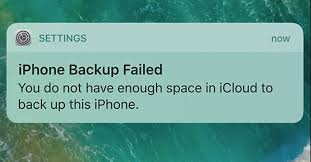
Here’s how to check how much free space in iCloud storage you have:
- On your device, go to Settings > Your name > iCloud.
Here’s how to see how much iCloud space your backups take:
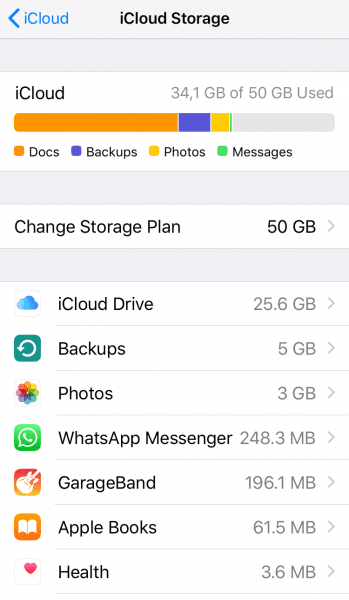
- On iOS 11 or later: go to Settings > Your name > iCloud > Manage Storage > Backups.
- On iOS 10.3 or earlier: go to Settings > Your name > iCloud > iCloud Storage > Manage Storage.
Not enough iCloud storage
By default, Apple gives you 5GB of free iCloud storage, which, let’s be honest, is barely enough to fully back up your iPhone with photos, videos, messages, and app data.
- To get more space, you’ll have to sign up for a paid iCloud plan. While it doesn’t cost much, you may prefer to save that money or spend it elsewhere.
- Or you don’t necessarily have to upgrade to a new plan. One option is to free up space in your existing iCloud storage, and we can help you do that.
What should I delete when my Phone storage is full
As a rule, photos, videos, backups, and other data take up the most space in your iCloud. Here is what you can do to make space.
1. Download all photos from iCloud
In most cases, clearing storage starts with photos as they use up a lot of cloud space. You probably noticed battling iCloud is not that easy.
Thankfully, we know a workable solution that consists of 2 steps:
- Exclude photos from iCloud backups.
- Download your photos and videos to your PC.
How can we do that – maybe iCloud.com can help us.
Now, if you have 62000 photos in your iCloud, and also work full-time, that would probably take you anywhere from 20 to 60 days to finish this. But that’s not all! Upon downloading from iCloud, the images lose their EXIF data, that is the information of when and where the photos were actually taken.
Is it time for the facepalm yet? We say let Apple do the 🤦, we have a solution for you called CopyTrans Cloudly – it will download all the photos in one go and allow you to settle the score with what’s still in your iCloud.
Follow the steps:
1. Exclude photos from iCloud Backup
To do this, go to Settings> Apple ID> iCloud> Manage Storage> Photos> Disable and Delete. Keep in mind that you won’t be able to restore your pictures from the iCloud backup later.
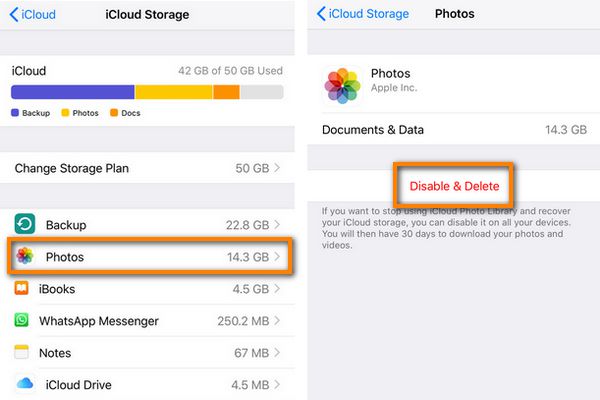
2. Back up all iCloud photos to your PC or external hard drive and delete them from iCloud
To do this follow the steps below:
-
Download and install CopyTrans Cloudly
Download CopyTrans Cloudly
-
Run CopyTrans Cloudly. You will see a login screen. Enter your Apple ID and password. Wait until your iCloud library is loaded. To download all photos from iCloud, click “Download“
-
Select the destination folder:
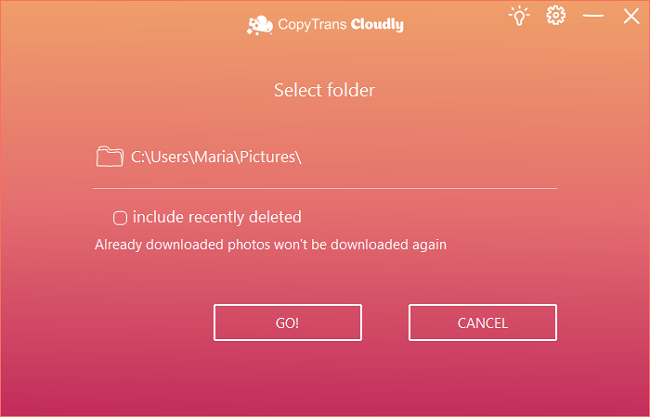
-
Voila! All you need to do now is wait until all your photos are downloaded.
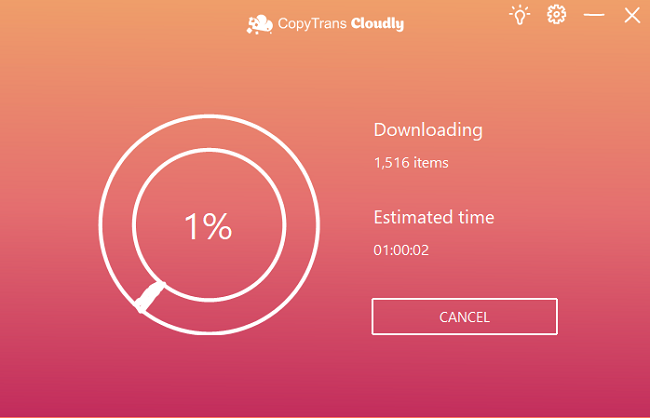
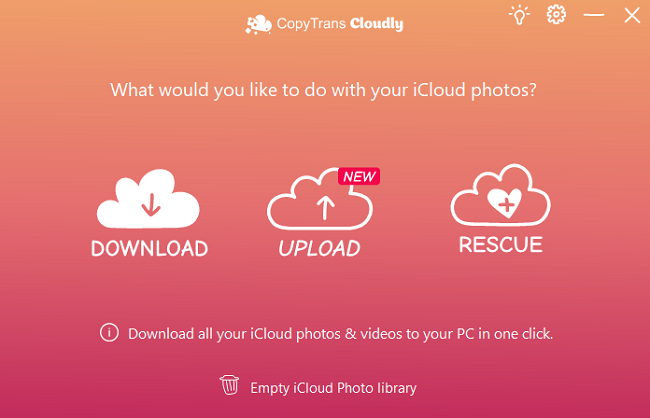
💡 TIP: You can also back up your iCloud photos to an external drive to save up space on your PC.
Now that you’ve downloaded all the photos and videos, you might want to delete everything from iCloud.
-
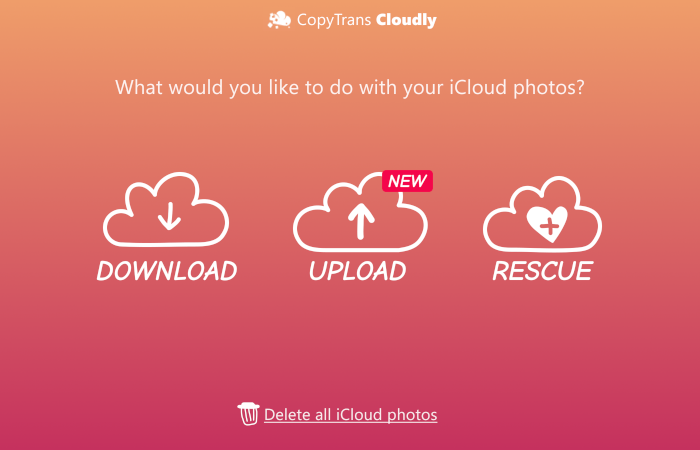
To delete all photos from iCloud, click “Delete“:
-
Now you will need to confirm that you want to delete ALL your photos from iCloud by ticking the checkbox.
NOTE: your photos will be deleted from all the devices associated with this Apple ID.
-
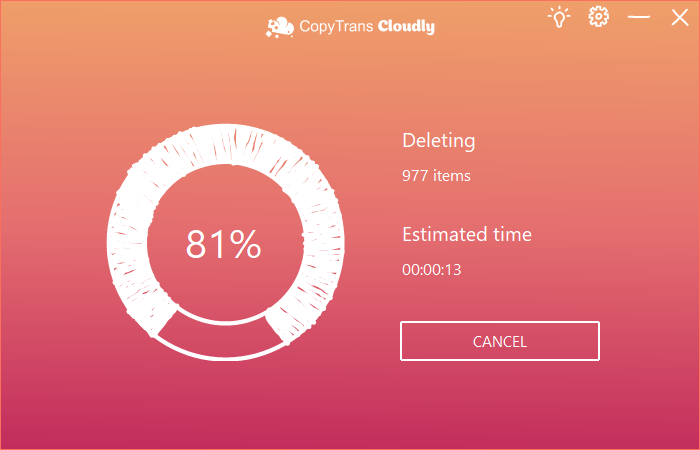
Voila! All you need to do now is wait until all your photos are deleted.
| CopyTrans Cloudly | iCloud.com | iCloud for Windows | |
| Downloading all photos | Downloads everything at once | Downloads only 1000 items at a time | Downloads everything at once |
| Preserving album structure | Yes | No | No (downloads by year) |
| The incremental download of new photos (without creating duplicates) | Yes | No | No |
| Deleting all photos | Deletes everything at once | Deletes only 1000 items at a time | No |
| Speed (depends on the Internet connection speed) | 15-30 minutes for every 5 GB | Eternity | 1,5-3 hours for every 5 GB |
Get CopyTrans
*No credit card is required
2. Delete old iCloud backups and other data
To free up more iCloud space, delete all your old backups, i.e. backups from devices that you no longer use.
To do that, on your iPhone go to Settings > Your name > iCloud > Manage Storage > Backups. Choose the backup and tap on Delete Backup.
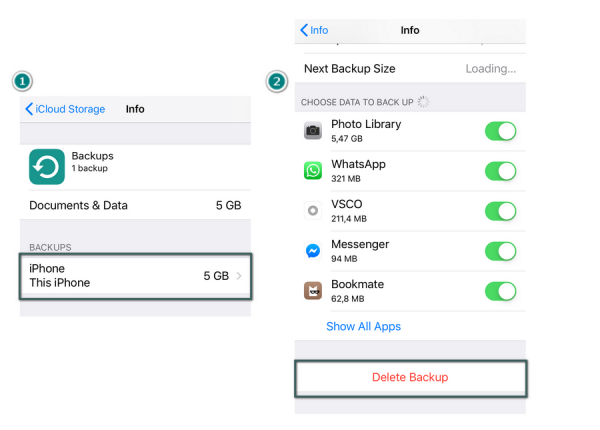
You have deleted some backups, but the error message persists? Delete large files you don’t need.
Go to Settings > Apple ID > iCloud > Manage Storage. There you can get rid of the data that takes up too much space.
Back up only the data you need
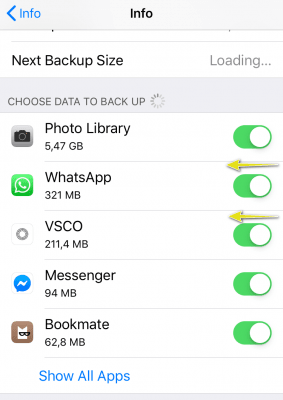
By default, all of your app data is saved to iCloud upon every backup. But do you really need a backup for each app? If not, you can turn off backups for this specific app and further reduce iCloud backup size.
To disable backup for unnecessary applications, go to Settings > Apple ID > iCloud> Manage Storage >Backup.
My iPhone won’t backup to iCloud
Let’s be honest: iCloud backup is not perfect. When backing up iPhone via iCloud, one may find iCloud backup taking forever or even failing.
How to back up iPhone without iCloud
Unlike iCloud, CopyTrans Shelbee can back up your iPhone wherever you want on your PC. Choose any location with plenty of space and you don’t have to worry about storage limitations.
Why people choose CopyTrans Shelbee:
✓ Choose any folder to store your backup;
✓ Validate the integrity of the backup file after each backup*;
✓ Add password protection to encrypt your backup;
✓ Choose between a full Backup or only the latest changes backup;
✓ Set up reminders when it’s time to do a backup.
✓ Backup and restore apps.
* Unlike iTunes, CopyTrans Shelbee validates the integrity of each backup after it is done. Let’s say you have done 10 consecutive backups over some time, attempt #3 was corrupted in the process, but you were never made aware of this, which means that the rest of them were done in vain. A restore attempt will give you an error message. We make sure this does not happen.
Here is how to back up your iPhone without iCloud:
-
Download and install CopyTrans Shelbee:
-
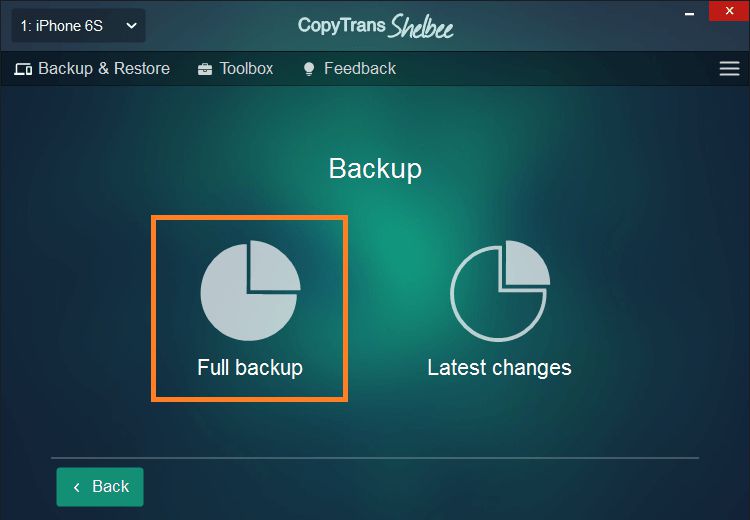
Run CopyTrans Shelbee and connect your iPhone. Choose Backup -> Full Backup.
-
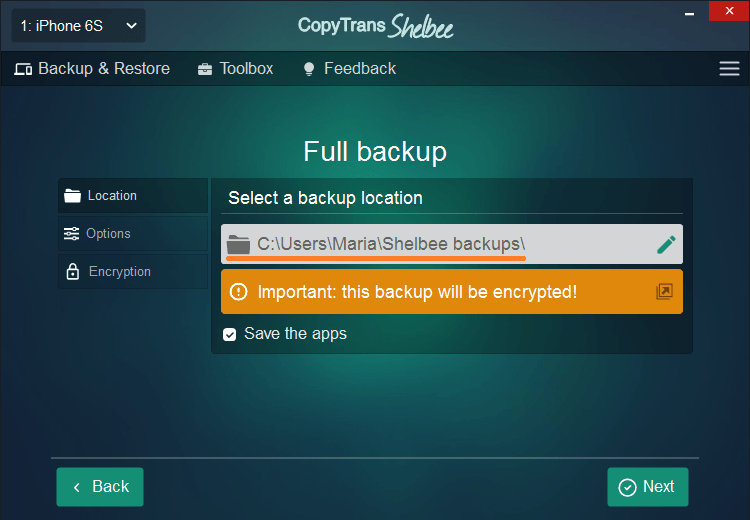
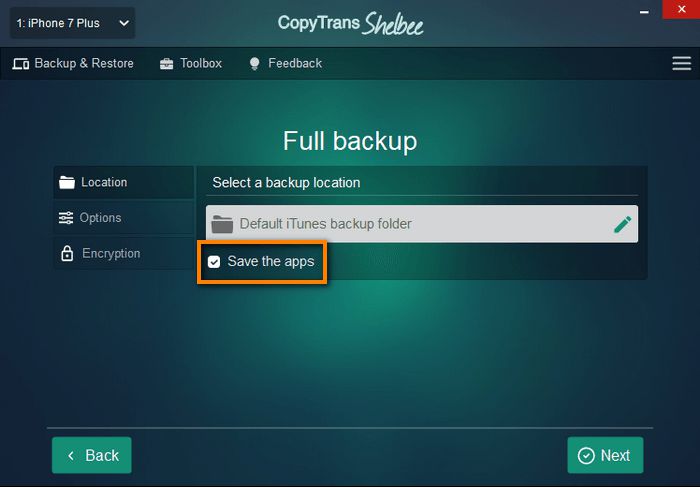
Select the folder where you want to place your backup. By default, iTunes saves your backups to C:\Users\*your user name*\AppData\Roaming\Apple Computer\MobileSync\Backup.
✓ With CopyTrans Shelbee, you can choose any folder!
✓ You can move the iTunes default backup folder and transfer all previous backups there.
✓ You can save a backup to an external drive. -
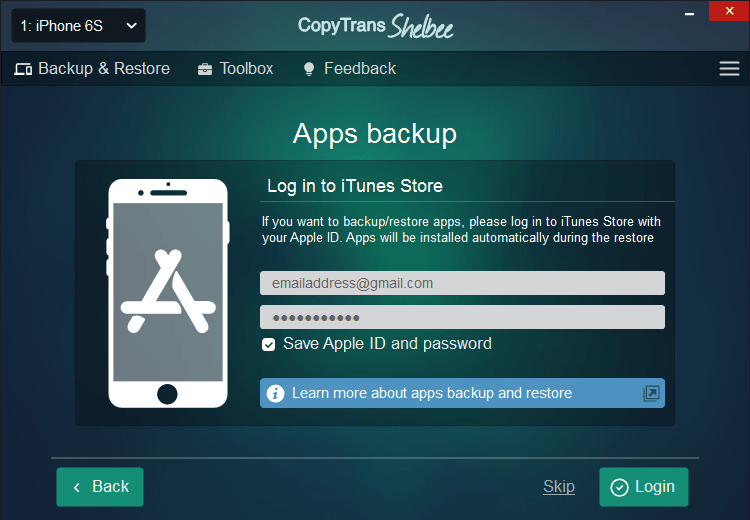
If you want to back up your apps, check “Save the apps”. You will need to log in to the App store and have a stable internet connection.
⚡ Your apps will be backed up from the App store in .ipa format. CopyTrans Shelbee will also back up app data, but only if the app developer allowed that.
-
If you chose to back up apps, log in to the App Store.
-
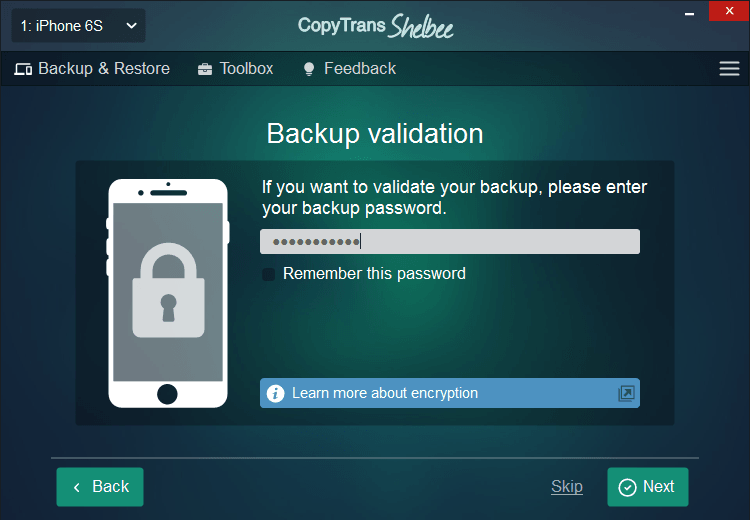
If you see this screen, it means you have an iOS backup password. The program will use it to validate the integrity of the backup, making sure you can restore it later. iTunes would back up at once, but not restore until you’ve inserted the right password. What password again?
⚡ Encrypted backups include passwords, Wi-Fi settings, etc. More about encrypted backups from Apple.
⚡ If you don’t remember your iOS backup password, you can reset it. -
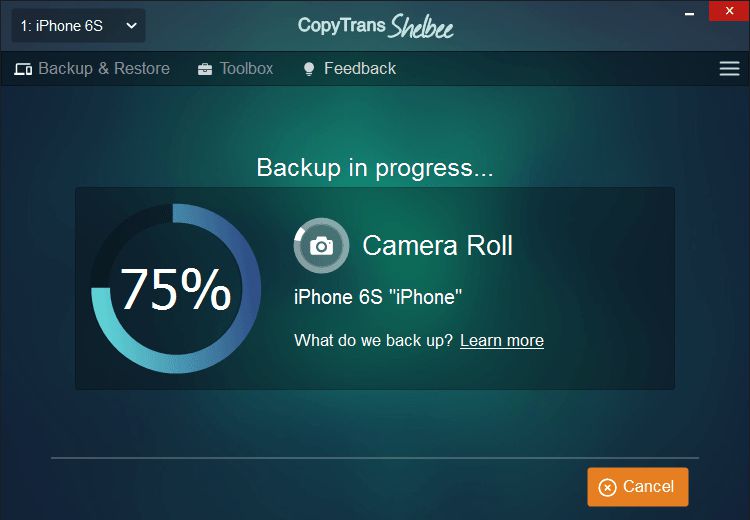
Wait while CopyTrans Shelbee performs the backup. Do not disconnect the device and be patient.
-
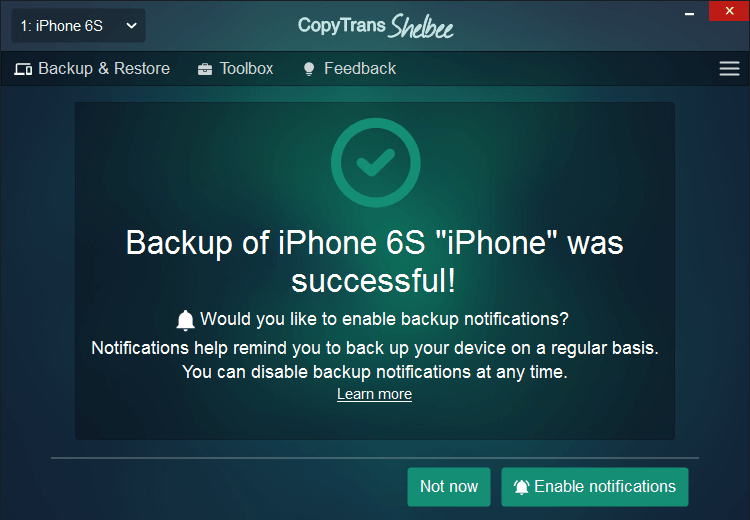
Success! Your data is waiting for you in the folder of your choice.
YouTube guide
iPhone iCloud backup
FAQ
❓1. Why does my iPhone say my iCloud storage is full even though I’ve hardly used it?
Because iCloud backs up everything: not just photos, but messages, app data, and settings. Even if your phone looks “light”, a full backup can be so much more.
❓2. I deleted the photos, but iCloud is still full. Why?
Deleted items stay in the “Recently Deleted” folder for 30 days. To instantly free up space, clear this folder in Photos, iCloud Drive, and Mail.
❓3. Can I back up my iPhone without buying additional iCloud storage?
Yes. Either:
- Create a backup on your computer (iTunes, Finder, or CopyTrans Shelbee), or
- Free up iCloud space by disabling backups of apps you don’t need.
❓4. What’s the cheapest way to store backups?
Use a free backup tool (like CopyTrans Shelbee) or upgrade to Apple’s 50GB plan, which is the easiest hands-free option.
❓5. If I increase my iCloud storage, will it be backed up immediately?
Yes, as soon as new space is available. If the backup doesn’t start, go to Settings > iCloud > iCloud Backup > Back Up Now.
iCloud greyed out
The quickest alternative solution would be to back up using iTunes or other apps like CopyTrans Shelbee.
This will make sure you have a working backup saved. After you can focus on fixing the main problem to ensure the safety of your data with iCloud.
⚡ It is highly recommended to use both online and offline backup methods, as they complement each other.
While many users have faced this “greyed out issue” after an update, there is still no word from Apple confirming that the update is actually the cause. If it is, Apple will probably try to fix it soon. If it isn’t, there are a couple of other things that might cause the issue:
- Apple servers (or part of them) are down;
- iPhone is not connected to Wi-Fi;
- iPhone has a configuration profile installed;
- You are accessing your iCloud backup over a restricted network, such as a company network.
- Restart your iPhone
- Make sure you’ve turned off airplane mode
- Log in to your iCloud account again
- Check if iCloud has enough free space
- Try to back up later
- Delete your configuration profile on iPhone
- Turn off content and privacy restrictions
- Reset network settings
- Reset settings
- Turn on iCloud backup via iTunes
- Update iOS to the latest version
🔑 Try these steps to make sure you’ve done everything:
We have a guide on how to restart your iPhone.
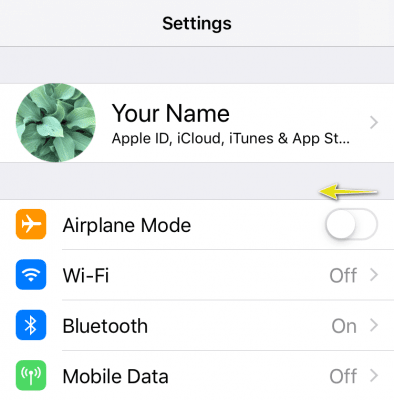
This is a rookie mistake, but it never hurts to check. See if the airplane mode is on in the iPhone settings.
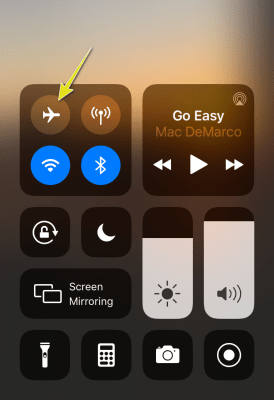
You can also disable it from the Control Center. To do so, on iPhone X or later with iOS 12 or later, swipe down from the upper-right corner of the screen. On other devices, swipe up from the bottom of the screen. Then tap the airplane icon.
In some cases, logging in again fixes iCloud connectivity issues. Tap Settings > Apple ID > Sign Out. Then tap Sign in to iPhone in Settings and follow the instructions.
To check how much iCloud space you have, go to Settings > Apple ID > iCloud.
Just check on the issue a bit later to see if that was a server problem.
Configuration profiles are commonly used on devices provided to company employees. You may be asked to install a configuration profile that was emailed to you or downloaded from a web page. Such profiles can cause Wi-Fi and configuration issues.
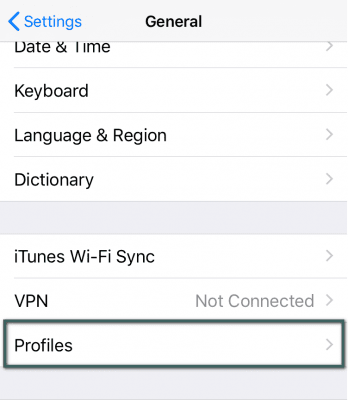
You can check the installed profiles in Settings > General > Profiles. You can also delete the profile there.
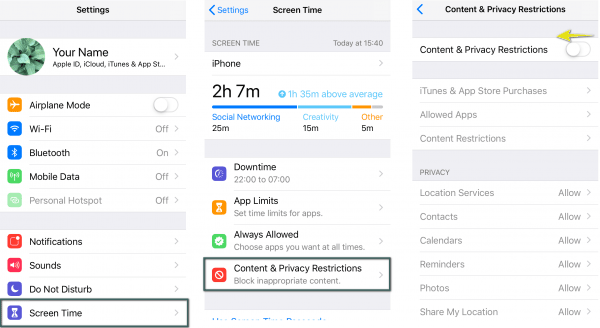
Go to Settings > Screen Time > Content and Privacy Restrictions. Then disable “Content and Privacy Restrictions”.
Resetting network settings resolve network-related issues such as being unable to connect to Wi-Fi. Tap Settings > General > Reset > Reset network settings.
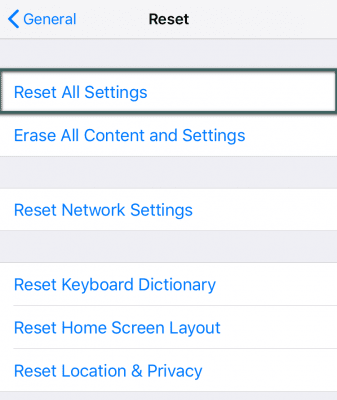
Another way to fix an iCloud backup failure is to reset iPhone settings altogether. The system settings (Wi-Fi network password, etc.) will be deleted, but the files on the iPhone (application data, etc.) will stay untouched.
Go to Settings > General > Reset > Reset All Settings. Back up to iCloud after the iPhone restarts.
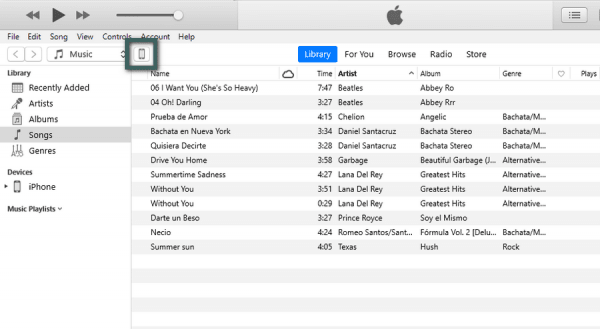
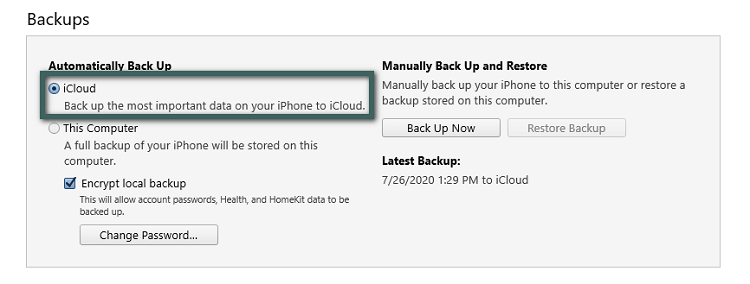
Connect your iPhone to your PC and launch iTunes, then click on the iPhone icon and select iCloud. After that, disconnect your iPhone from your PC and make an iCloud backup as usual.
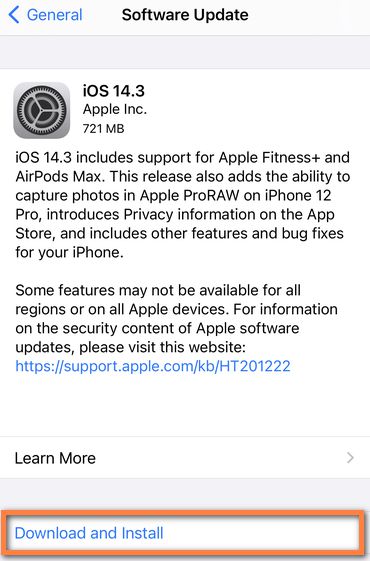
Sometimes the problem is caused by an old iOS version. To update your iOS, go to Settings on your iPhone, tap on General > Software Update > Download and install. If you see the message “Your software is up to date”, you have the latest version.
iPhone not backing up
Final Thoughts
If you’ve ever wondered, “Why can’t I backup my iPhone?”, then you are in the right place. The iPhone backup failed error is one of the most common and annoying problems faced by iOS users. Whether it’s limited iCloud storage, poor Wi-Fi connection or hidden settings that need adjusting, the good news is that most backup problems have simple solutions.
By following the tips in this guide, such as checking your iCloud space, deleting old backups, or trying an alternative backup method, you can quickly get your data back in one piece. And if iCloud continues to give you trouble, remember that tools like CopyTrans offer a reliable way to backup your iPhone to your computer without worrying about cloud storage limits.
