Losing your iPhone is one of those moments that throws your entire day off balance. You reach into your pocket or bag, and it’s just not there. Maybe it slipped out during your morning commute, was left on a café table, or worst-case scenario, someone swiped it.
No matter what happens, it’s a huge problem. After all, your iPhone holds everything – messages, photos, contacts, and personal information that you don’t want falling into the wrong hands. But before you start worrying, there’s a lot you can do to try and get it back, or at least protect your information. From using Find My iPhone to remotely locking your device, Apple’s built-in features offer practical solutions when you need them most.
In this guide, we’ll go through exactly what to do if your iPhone is lost, how to track it down, keep your data safe, and handle the situation if recovery just isn’t possible. Let’s get you back in control.
- How to find my lost iPhone?
- iPhone stolen. What to do?
- How to find iPhone if the “Find my iPhone” function is activated
- Recover info with CopyTrans Backup Extractor in a folder
Lost my iPhone
Do these 3 things right now:
Don’t panic! These immediate steps will help protect your personal data and increase the chances of getting your device back.
-
Mark it as lost (activate Lost Mode): go to iCloud.com/find or use the Find My app on another Apple device. This will lock the screen with a passcode, suspend Apple Pay, and display a custom message with your contact number on the lock screen.
-
Contact your mobile carrier: report your device as lost or stolen. Your carrier can block your mobile account to prevent unauthorized use and blacklist the device’s IMEI so it can’t be used on other networks.
-
File a police report: find the serial number (on the original box or on your Apple ID page) and report it to your local authorities. A police report is necessary to receive insurance compensation and will help if the phone is turned in to a lost and found office.
How to find my lost iPhone?
The first question is: Is the “Find My iPhone” app activated on the iPhone or not? You can check this in your iCloud account. To do this, log in with your Apple ID at icloud.com.
Since you don’t have a device with you, click on “Find devices” right away.
You will be asked for the password again. After you have entered the password again, the map will be displayed with all your Apple devices.
What will appear next?
The “Find my iPhone” function is activated so that you can locate your iPhone.
You’re lucky! In this case, you can locate and hopefully find your iPhone at icloud.com. Call your number first. Maybe you’ve just left your phone in a store, café or bus and someone has already found it and will give it back to you after a call.
→ Here are further steps if the call didn’t help.
Unfortunately, your iPhone cannot be located.
This means that the “Find my iPhone” function has been manually deactivated on the device.
→ What should I do if “Find my iPhone” is deactivated?
Your iPhone can be found even after it has been switched off
A switched off device is still available for tracking for 24 hours and can be found just like a working device. If the device is switched off due to a low battery, the detection period is limited to the phone’s deep sleep mode – that’s about five hours. After that, you can only see the last geolocation before switching off.
iPhone stolen. What to do?
The “Find my iPhone” function is activated
In this case, you can locate and hopefully find your iPhone at icloud.com.
-
Find your iPhone at icloud.com
You can already see where your device is at this moment on the map.
-
Switch the iPhone to “Lost” mode in iCloud
If you are unlucky and your iPhone cannot be found, press the “Lost” mode. You will be asked for a phone number.This is displayed on the screen of the missing device so that a good person who finds it can call you. It should be a phone number that can be reached.
You can also write a message that is displayed together with the phone number. For example, “I have lost this iPhone. Please call me”.
-
If there is no hope of getting your favorite item back, delete all data on it.
Then select the “Erase device” mode. Now let’s hope you have a backup so that the data can be recovered.
I lost my iPhone
Further steps, even if “Find my iPhone” is deactivated.
After you have marked your iPhone as lost, there are still a few things to do. If the “Find my iPhone” function is deactivated on iPhone, you can no longer locate the device. In this case, you should also follow these steps:
- Immediately change the passwords you have used on your iPhone: Apple ID, PayPal, email account, Facebook and other services.
- You should report your iPhone as stolen. This must be done with the local police and your mobile phone provider. You may be asked for the iPhone serial number. You can find this either on the original packaging (on the back of the box at the bottom next to “Serial No.”), on the invoice or at appleid.apple.com (all your Apple devices are listed to the right of the “Devices” item. Tap on your lost iPhone to find out the serial number).
- Look to remove the lost iPhone from the list of your trusted devices in your Apple account.
- Finally, report the loss to your mobile service provider to have the SIM card blocked.
- Get access to your iPhone data from the last backup by extracting the data to PC or restoring it to another iPhone.
Lost iPhone
Recover info with CopyTrans Backup Extractor
Losing your iPhone can feel like losing a part of your life—along with all the data stored on it. From photos and contacts to important notes, the thought of losing everything can be overwhelming. But if you’ve been regularly backing up your iPhone to your PC, you’re in luck! CopyTrans Backup Extractor makes it easy to retrieve your photos, contacts, notes, and more directly from your backups, so you won’t lose everything, even without your device.
-
Download and install CopyTrans Backup Extractor.
- Export data from iTunes and iCloud backups
- Automatic search of your backups on the PC and in iCloud
- Photos, videos, contacts, WhatsApp, notes and calendars
- Back up your iPhone photos and other deleted data
- Can be used without iPhone
-
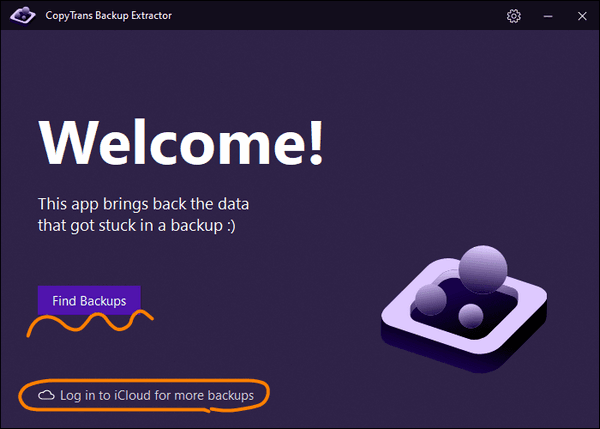
Run CopyTrans Backup Extractor. Log in to iCloud if you backed up the info to cloud.
-
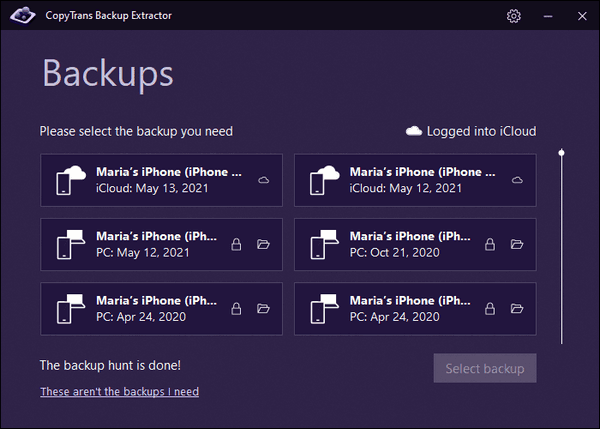
Wait until the backup hunt is over. You will see a list of all available backups.
💡 iTunes backups are marked with a folder icon. iCloud backups will be marked with a cloud icon.
-
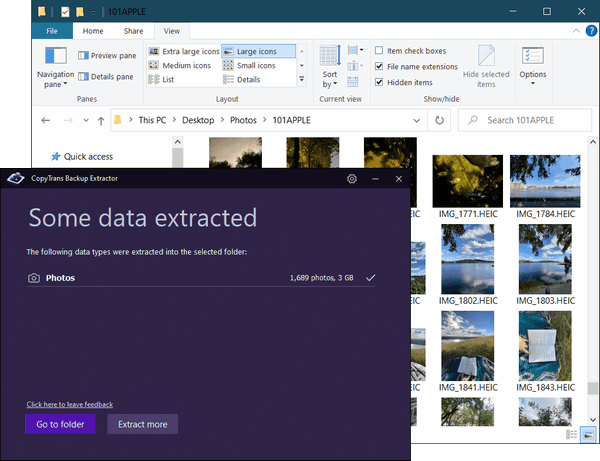
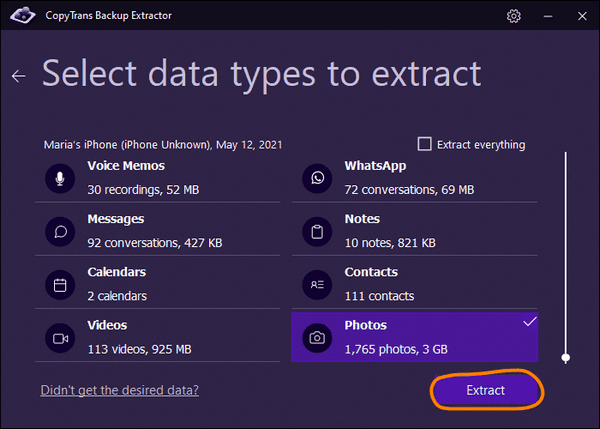
Click on what data you need to restore, for example Photos > Extract.
-
Next, choose the folder where you’d like to save your photos. Wait for the extraction to complete. Once done, click Go to folder to view all the photos and videos recovered with CopyTrans Backup Extractor.
Advantages of CopyTrans Backup Extractor

Restore data on iPhone with CopyTrans Shelbee
If you’ve been regularly backing up your iPhone to your PC, CopyTrans Shelbee offers a seamless way to restore your data to a new iPhone. Whether you’ve switched to a new device or need to recover specific information, CopyTrans Shelbee lets you choose exactly what you want to restore. You can either restore the entire backup, bringing over everything from your previous device—photos, contacts, messages, apps, and settings—or selectively choose only certain data like photos, contacts, or app data. With this flexibility, you can ensure that your new iPhone is personalized with just the data you need, without any hassle.
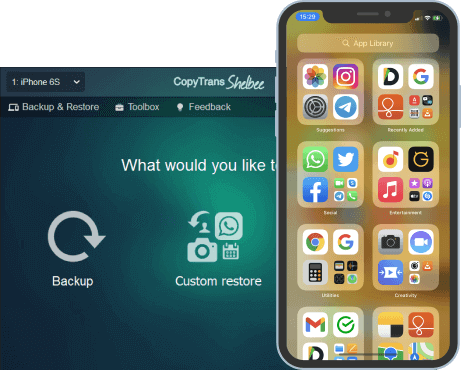
Unlike iTunes, CopyTrans Shelbee will:
✔️ restore full iPhone backup or just some selected data;
✔️ allow you to restore all your apps or just some of them;
✔️ do full or incremental backup;
✔️ allow to choose the folder to save backup;
✔️ validate backup made;
✔️ compatible with iTunes backup;
✔️ support encrypted iPhone backup;
Follow these steps to restore data with CopyTrans Shelbee:
- Download CopyTrans Shelbee and install the program.
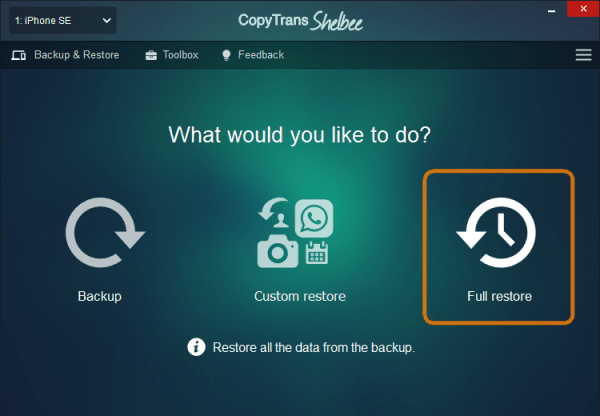
- Start CopyTrans Shelbee and click on Full restore.
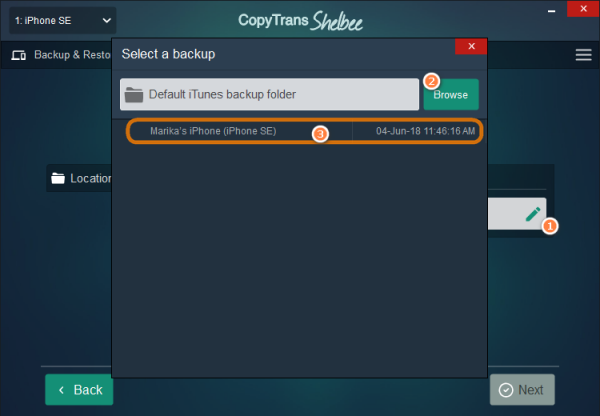
- Click on the pencil icon and select the backup file.
- Once you select the backup, CopyTrans Shelbee begins the restore operation. Stand by until the process is complete. CopyTrans Shelbee will restore iPhone content that was backed up with iTunes including messages, Camera Roll images, notes, calendars, iOS settings, app documents, and more.
- Click “Done” and that is how to restore iPhone backup.
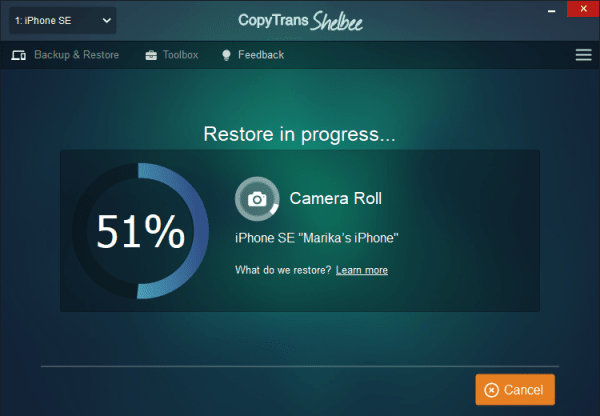
💡 What if you only need to restore a certain data type? For example, you lost some important contacts and do not want to completely overwrite the device data to get them back. If so, we have a solution!
Find Lost iPhone
FAQ
1. Can a thief bypass Lost Mode by simply removing the SIM card?
Removing the SIM card suspends cellular data transmission, but does not disable Lost Mode. Your iPhone remains locked with a passcode and activation lock. As soon as the device connects to any Wi-Fi network (or even passes near another Apple device via the Find My network), it will update its location and remain locked.
2. What happens if I find my iPhone after I’ve already started Remote Wipe?
If the wipe hasn’t started yet (the phone was disconnected from the network), you can cancel it in the Find My app. However, if the phone has already connected to the Internet and wiped itself, you won’t be able to “undo” the wipe. That’s why it’s so important to have a CopyTrans Shelbee backup on your PC — you can restore your data to the same phone in minutes.
3. My iPhone is turned off and the battery is dead. Is it lost forever?
Not necessarily. Modern iPhones (iPhone 11 and later models) reserve a small amount of energy to keep the Find My beacon active for up to 24 hours after the screen goes black. If you check iCloud immediately, you will still be able to see the current location. After 24 hours, you will only see the “Last Known Location.”
4. If I don’t have another Apple device, how can I get a 2FA code to log into iCloud?
This is a common “trap.” If your lost iPhone was your only Apple device, you won’t be able to receive an SMS message with a 2FA code. To get around this problem, go to icloud.com/find. Apple allows you to access the Find My feature without a 2FA code, specifically so you can track or lock your phone in an emergency.
5. Will Lost Mode protect my photos and messages if I didn’t have a passcode?
If you didn’t have a passcode to lock your screen, anyone who finds your phone will be able to see your data. However, when you activate Lost Mode from another device, your phone is locked and requires a passcode that you create remotely. In addition, Apple Pay is instantly suspended to keep your credit cards safe.
Find Lost iPhone
Conclusion
Losing your iPhone can be stressful, but that doesn’t mean you’ll lose everything stored on it. Contacts, photos, and messages are only really at risk if you don’t have a backup to fall back on and that’s where regular PC backups come in.
As we’ve seen, CopyTrans Backup Extractor lets you open an existing backup and restore only the data you need, while CopyTrans Shelbee helps you restore that backup to a new device without using iCloud. Using them together gives you a clear and predictable way to recover your information.
Losing your phone doesn’t have to be a long-term problem. With regular backups and the right tools, your data remains under your control, even if the device itself is gone.
