System administrators can deploy CopyTrans programs on multiple end-user machines by following the steps below.
Download, install and start
There are two ways to deploy CopyTrans programs on a PC:
In most cases, we recommend system administrators to deploy the programs via the standalone executables rather than via CopyTrans Control Center. Note that neither method requires administrator rights on end-user PCs for installing or running the programs.
Standalone program executables
Each of the CopyTrans programs can be run directly without installation from a portable standalone executable. If using the standalone executable, no other files are required to run the applications. 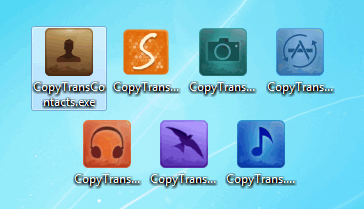
-
Download the CopyTrans program executable(s) of your choice:
-
Distribute the executable(s) to the end-user PCs on your network
-
Optional: create a shortcut to the executable(s) on the end-user PC Desktop for easy access.
Pros and cons of deploying the CopyTrans program executables:
Pros:
- no installation required (click-and-run)
- no installation = no need for an Internet connection
- system administrators have control over what programs and what versions end-users run
Cons:
- manual update required
Note:
In order for Windows PCs to correctly communicate with iOS devices you first need to have the iOS drivers installed.
Program installation via the CopyTrans Control Center
The CopyTrans Control Center allows to start any CopyTrans program from a single window. It is designed in mind for easy end-user operated updates at the click of a button. The CopyTrans Control Center requires to be installed on the end-user PC. 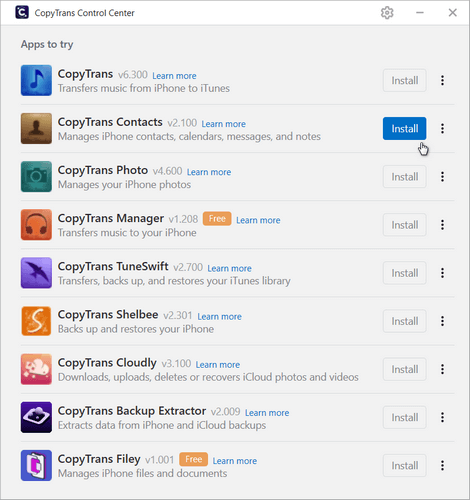
-
Download the CopyTrans Control Center Installer
-
Follow the Installation Guide.
Pros and cons of deploying the CopyTrans Control Center:
Pros:
- no installation required (click-and-run)
- installation requires an active Internet connection
- system administrators have control over what programs and what versions end-users run
Cons:
- manual update required
Note
In order for Windows PCs to correctly communicate with iOS devices you first need to have the iOS drivers installed.
Activate the program
System administrators can automate the activation process for any of the CopyTrans programs by creating a Windows registry file with the following contents and executing it on the end-user machine.
Windows Registry Editor Version 5.00
[HKEY_CURRENT_USER\Software\WindSolutions\CopyTrans XXXXX]
“FirstName”=”John”
“LastName”=”Doe”
“RegCopyTrans XXXXX”=”FFFF-FFFF-FFFF-FFFF”
Where CopyTrans XXXXX is the name of the product, for example: CopyTrans Contacts” and “FFFF-…” is the activation code. The registry file may contain activation details for multiple CopyTrans programs.
NOTE: CopyTrans Contacts can also be activated via command line.
For manual activation, refer to these instructions.
Update to the latest version
To update the CopyTrans programs on end-user PCs you have two options:
-
If deploying the executable(s), download the latest version of the respective executable from the links above and re-distribute it to end-user PCs
-
If deploying the CopyTrans Control Center, instruct end users to follow these update instructions (no admin access required)
