There’s something special about voice messages. They feel more personal than a text, more convenient than a call—and they’ve quietly become one of the most popular ways to communicate on the iPhone. Whether it’s a quick update while you’re on the move, a heartfelt message from someone far away, or a funny note you just had to record, voice messages often carry more emotion than plain words ever could.
But then comes the question: how do you save them? Maybe you want to keep a voice message from a loved one. Maybe it’s an important audio from work or a key part of a conversation on WhatsApp. And if you’ve ever wondered “Where are iMessage audio messages stored?” or “Why do voice messages disappear on iPhone?”, you’re not alone—these are questions iPhone users ask all the time.
In this guide, I’ll walk you through everything you need to know about saving voice messages on your iPhone. Whether you’re looking to back them up, download them to your computer, or simply stop them from disappearing, you’ll find clear answers here.
- How to keep voice messages on iPhone?
- How to save voice messages on iPhone?
- Save a Voice Message to Voice Memos on iPhone
- How to save a voice message on PC?
- Recover voice messages from backup
ATTENTION:
Before recording a voice message on iPhone, check your settings, especially if your iPhone voice messages disappear without explanation.
In fact, there are specific settings for audio messages. In your Settings, scroll down the main menu to Messages. Then scroll down to Audio Messages and check the Expiration setting. If this is set to Never, your received and sent audio messages remain in the conversation. Otherwise, they will be deleted after 2 minutes.
How to keep voice messages on iPhone?
To record an iPhone audio message, you can keep it on your iPhone (in the conversation or in the dictaphone application) or save it on your PC as audio files.
How to save voice messages on iPhone?
Please note that, even if the message expiry setting is set to “After 2 minutes” (see box above), you and your recipient still have the option of keeping a voicemail message:
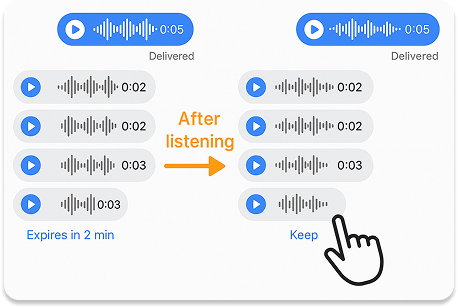
When you listen to or send a message scheduled to disappear, you will first see “Expires in 2 minutes” appear below it, followed by “Keep”. Touch Keep to cancel the expiry of the message on the device. The message will not disappear.
Scheduling message expiration helps limit the size of conversations and save space on the iPhone. Running out of space for your vocals? Learn here how to save space by cleaning up the iPhone.
Save a Voice Message to Voice Memos on iPhone
Did you know you can save voice messages directly into the Voice Memos app? It’s a quick way to keep important audio messages or transfer them to your computer later.
Here’s how to do it:
- Press and hold the voice message you want to save.
- From the options that appear, tap the Share icon (a square with an arrow).
- Choose Voice Memos from the list of apps.
- The message will now appear in the Voice Memos app.
⚠️ Important: If the message is temporary (disappearing), make sure to tap Keep before trying to save it—otherwise, the “Share” option won’t appear.
✘ This method only works one message at a time. If you want to save multiple messages or entire conversations, check out the next method below.
How to save a voice message on PC
Want to save an entire conversation or several messages at once? Wondering how to save a voice messages or to your PC? To answer these questions, we offer you a specialized tool for managing your iPhone messages on the PC: CopyTrans Contacts.
CopyTrans Contacts lets you extract voice messages stored in your conversation to your PC.
-
Download CopyTrans Contacts to try it for free from the following page and install it.
Download CopyTrans Contacts
*100% clean and safe -
Run CopyTrans Contacts and connect your iPhone to the computer.
-
Once loading is complete, touch the Message icon and select the conversation(s) containing voice messages vocals you wish to export.
Voice messages are displayed as thumbnails only, so you can’t listen to them in the application (but they will be exported and readable on your PC).
-
Click on Export selection. You can now choose between different export formats. In our case, we’ll choose PDF.
-
Choose the destination folder and confirm. You’ll find your voice messages in the sub-folder containing all the conversation attachments. These are saved in .caf format, readable in your Windows Media Player.

Please note that the Excel format will not allow audios to be exported.
For conversations extracted in HTML or Word format, the vocals are also present in the conversation as hyperlinks.
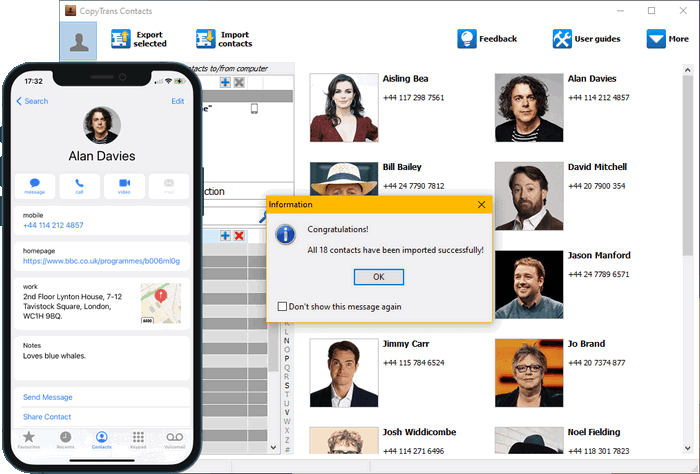
Why is CopyTrans Contacts exactly what you need?
🖖 With it, you can sync contacts with Outlook, Gmail, or another device and save them to PC;
🖖 Look through all your SMS, WhatsApp, Viber, and Line chats on PC;
🖖 Export messages to computer in PDF, DOC, etc.;
🖖 Save photos and attachments in a separate folder;
🖖 Manage your contacts, notes, and calendars.
Download CopyTrans Contacts
Recover voice messages from backup
If you want to download voice messages from an iTunes or iCloud backup and save them on your PC, you can use our CopyTrans Backup Extractor software. This way you can recover voice messages from an old WhatsApp backup without having to restore the backup on an iPhone!
-
Download and install CopyTrans Backup Extractor.
- Export data from iTunes and iCloud backups
- Automatic search of your backups on the PC and in iCloud
- Photos, videos, contacts, WhatsApp, notes and calendars
- Back up your iPhone photos and other deleted data
- Can be used without iPhone
-
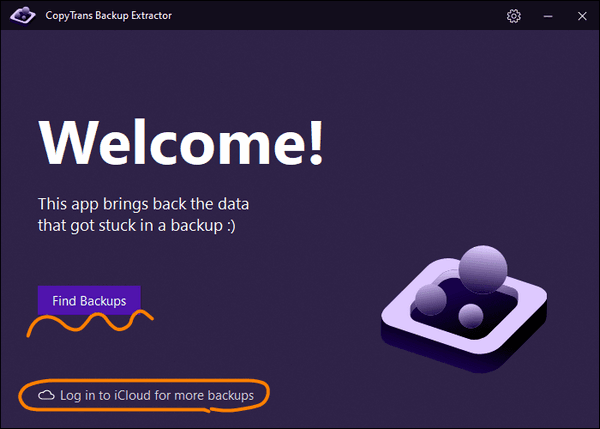
Run CopyTrans Backup Extractor. Log in to iCloud if you want to search for cloud backups, too.
-
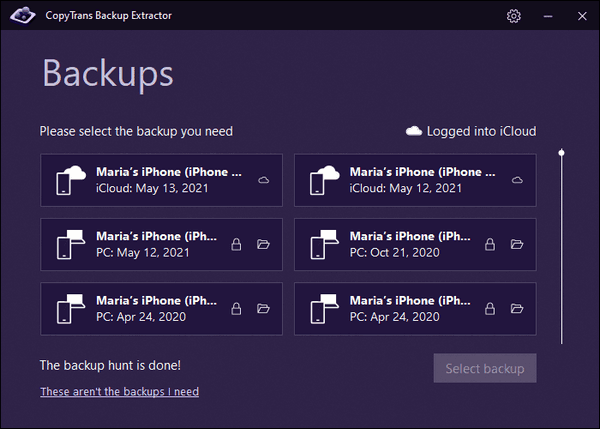
Wait until the backup hunt is over. You will see a list of all available backups.
💡 iTunes backups are marked with a folder icon. iCloud backups will be marked with a cloud icon.
-
Open the backup choose “WhatsApp” or “Messages” (or even both). Finally, click on Recover in the bottom right-hand corner.
-
You can now open the folder on your PC. Attachments and media such as images, videos and voicemails for each conversation are saved in a separate subfolder – so you can easily find and sort them.
Note that voicemail iMessages will be saved in .CAF format, WhatsApp voicemails in .OPUS format and Notes in .M4A format, all readable by Windows Media Player.
Advantages of CopyTrans Backup Extractor

Voice message
Final Thoughts
Voice messages are more than just sound — they’re moments, memories, and often, messages we wish we could hold onto forever. Whether it’s a cheerful update from a friend, a quick note from work, or a deeply personal recording from a loved one, these messages deserve a little extra care.
But on the iPhone, voice messages can easily slip away — especially with default settings that cause them to disappear in just two minutes. That’s why knowing how to save voice messages is so important. Fortunately, as you’ve seen in this guide, there are several ways to make sure your voice messages don’t vanish into thin air.
If you just need to keep a single message, the built-in “Keep” option or saving to the Voice Memos app will do the trick. For something more complete — like backing up entire conversations or storing messages on your computer—CopyTrans Contacts makes it easy. And if the message you’re trying to recover is from an older backup? CopyTrans Backup Extractor can help you get it back, even if your iPhone isn’t around anymore.
No matter which method you choose, the goal is the same: keeping the voices that matter close, in a safe place where you can revisit them anytime. So next time you get a voice message that makes you smile, laugh, or tear up—save it. Because some messages are just too meaningful to lose
