Your iPhone has a superpower: it can silence the world whenever you want. No buzzing during dinner, no beeping during meetings, no random app notifications distracting you at 11 p.m. It’s called “Do Not Disturb,” and if you haven’t activated it yet, you’re missing out on one of the most useful features hidden in your settings.
But here’s the problem: Apple has moved it. What used to be a simple switch is now part of something called “Focus Modes,” and finding it is like navigating a maze of settings designed by someone who loves submenus. Even people who have been using iPhones for years are clicking around wondering where their old “Do Not Disturb” button has gone.
Whether you’re ready to turn it on for the first time or you’ve accidentally turned it on and don’t know why your phone has gone silent, this guide will help. We’ll explain exactly where to find “Do Not Disturb,” how to turn it on and off in seconds, and how to customize it to silence what you want to silence, no more, no less. By the time you’re done reading, you’ll have complete control over when your iPhone interrupts you and when it doesn’t.
- How to turn Do Not Disturb mode on or off on your iPhone?
- Do Not Disturb settings explanation
- Common problems with Do Not Disturb Mode on iPhone
- Common problems with Do Not Disturb Mode on iPhone
What does “Do Not Disturb” do?
The “Do Not Disturb” feature helps you reduce interruptions when you need some quiet time. Here’s what it does:
-
Silences calls, alerts, and notifications: your iPhone won’t ring, vibrate, or light up
-
Doesn’t block everything completely: notifications still come in the background and can be checked later
-
Allows important calls through: calls from selected contacts, favorites, or repeat callers can still ring, depending on your settings
-
Part of Focus mode: on newer iPhones, Do Not Disturb is part of Apple Focus system, which controls notification behavior. Do Not Disturb is just one of these modes
In short, Do Not Disturb on the iPhone reduces distractions and lets important calls through.
How to turn Do Not Disturb mode on or off on your iPhone
If you need to turn on Do Not Disturb mode quickly, it only takes a few seconds. There are two main ways to do this, depending on whether you want to turn it on instantly or with more control.
Option 1: Use Control Centre (the fastest way)
This is the fastest way when you need to turn on Do Not Disturb right now.
-
Swipe down from the top right corner of the screen (on iPhones with Face ID).
-
Find the Focus button (moon icon).
-
Tap “Do Not Disturb” to turn on the feature and tap again to turn it off.
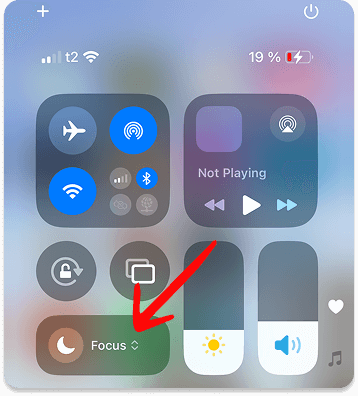
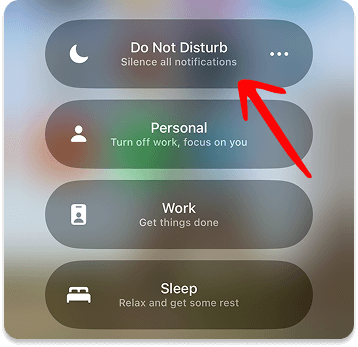
When Do Not Disturb is active, you will see a moon icon in the status bar or a Focus indicator on the lock screen.
Option 2: Turn Do Not Disturb on or off in Settings
If you want to customise or fully control how Do Not Disturb works, use Settings.
-
Open Settings and Tap Focus.
-
Select Do Not Disturb. Turn Do Not Disturb mode on or off.
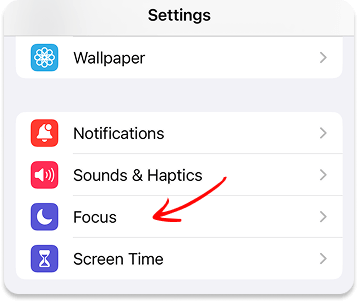
This is the best option if you want Do Not Disturb mode to work automatically or follow a specific schedule.
Do Not Disturb settings explanation
The Do Not Disturb settings on your iPhone are designed to reduce distractions without making you completely unavailable. You don’t need to configure all the settingsю only a few key settings are important for everyday use. Here’s what you should check:
-
Allow calls from specific people: You can choose who can call you when Do Not Disturb is enabled. Typically, one of the following options is set:
– Favourites
– Specific contacts
– Nobody
This ensures that important calls still reach you, while all others are ignored. -
Allow some apps notifications: You can allow notifications from certain apps while muting all others. Useful if you want to:
– Silence social media
– Still receive alerts from work apps
– Keep navigation or delivery notifications active -
Repeated calls: When this setting is enabled, a repeated call from the same number within a short period of time will be allowed through. This is intended for emergencies and is one of the most common reasons why calls bypass Do Not Disturb mode.
-
Scheduled time: Do Not Disturb mode can be enabled automatically at certain times, such as at night or during work hours. If your phone goes into silent mode at the same time every day, this setting is often the reason.
-
Lock screen behaviour: You can control how notifications are displayed when Do Not Disturb is active. Notifications can be completely hidden on the lock screen or displayed without sound or alerts.
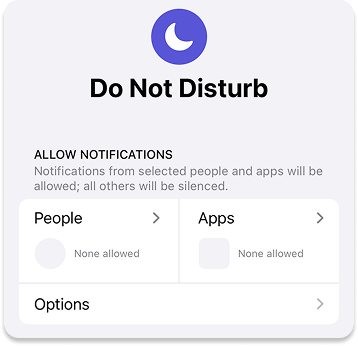
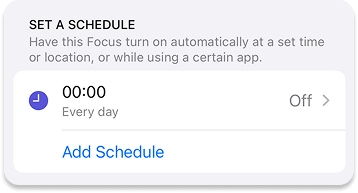
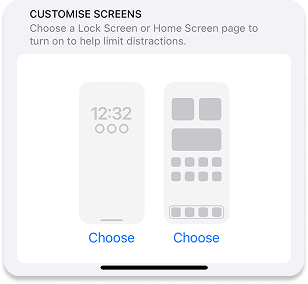
These basic settings for the Do Not Disturb feature on your iPhone determine whether your phone will remain silent or still allow important calls and notifications through.
Common problems with Do Not Disturb Mode on iPhone
Do Not Disturb mode is designed to reduce distractions, but when something isn’t working as expected, it can feel like your iPhone is ignoring you. Here are the most common issues and what to check first.
My phone remains silent even when Do Not Disturb is turned off
If your iPhone doesn’t ring or display notifications, even though Do Not Disturb appears to be off, it’s often due to focus settings. Check the following:
-
Focus mode is completely off: open Control Center and make sure no focus modes are active (not just Do Not Disturb)
-
Silent switch and volume: the side switch may be set to silent, or the ringtone volume may be lowered
-
Lock screen behavior: the side switch may be set to silent, or the ringtone volume may be lowered. In Settings → Focus → Do Not Disturb, check if lock screen notifications are set to silent
This situation often occurs after temporarily enabling focus modes and then forgetting to turn them off.
Calls aren’t going through
Do Not Disturb mode can allow calls, but only if it’s configured accordingly. What to check:
-
Allowed People: go to Settings → Focus → Do Not Disturb → People and check if calls from anyone are allowed
-
Repeat Call Settings: if this setting is disabled, a second call within three minutes won’t bypass Do Not Disturb mode
-
Scheduled Focusr: a schedule or automation can turn on Do Not Disturb mode during specific hours
If important calls aren’t going through, this section is usually the culprit.
Do Not Disturb mode turns on by itself
This is one of the most confusing phenomena—and usually it’s not an error. Please note:
-
Schedules: in Settings → Focus → Do Not Disturb, check if the time-based schedule is enabled
-
Smart Wake-up: iOS can automatically turn on Do Not Disturb mode based on location, time, or app usage
-
Other Focus Modes: another Focus mode (Sleep, Work, Driving) may activate and behave like Do Not Disturb
After disabling these automations, Do Not Disturb mode usually stops turning on unexpectedly.
PRO TIP: how to back up your focus settings and contacts
If you’ve spent hours setting up your Do Not Disturb schedule and choosing which contacts can reach you in emergencies, the last thing you want is to lose those settings when you update iOS or switch to a new phone.
Since iTunes can be challenging, many experienced users turn to CopyTrans programmes to manage their iPhone data from a Windows PC.
CopyTrans Shelbee: Use this programme to perform a full backup or a “last changes” backup of your iPhone.
Unlike iTunes, Shelbee allows you to back up and restore specific iOS settings and preferences, ensuring that your customisable Do Not Disturb schedules and Focus filters are never lost.
Download CopyTrans Shelbee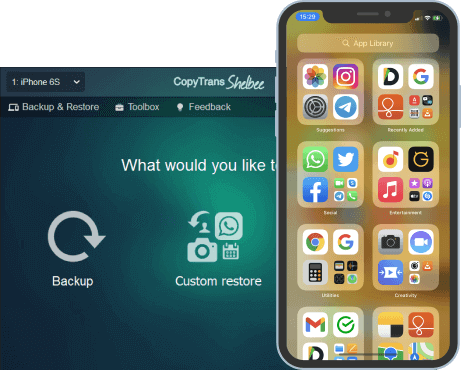
Do Not Disturb
Final Thoughts
The Do Not Disturb feature isn’t complicated, it’s just hidden away in a place Apple forgot to tell anyone. Now that you know it’s in Focus Mode, you have the keys to precisely control when your iPhone demands your attention and when it sits quietly in the corner like a well-trained pet.
Set it up once, tailor it to your life, and you’ll wonder how you ever got by without it. A real breakthrough? Experiment. Try Sleep Mode for a week. Test Driving Mode on your commute. Create a custom focus for deep work and see if you really get more done. Your iPhone can be smarter about interruptions than most people realize, you just need to show it what’s important.
And if you ever find yourself unable to access notifications again, you know exactly where to look. Three taps and you’re back in business.
