

 (549 votes, average: 3.77 out of 5)
It is recommended to back up your iPhone every two weeks. If you’re wondering how to back up text messages on iPhone without creating a full backup each time and view iPhone messages on PC, you’ve come to the right place!
It’s actually really easy to save messages from iPhone (SMS, iMessages, WhatsApp, Viber, Line and Threema) to computer with CopyTrans Contacts. In this article we will show you how to transfer text messages from iPhone to computer for free and make sure all your data is transferred, including attachments:
◾ photos;
◾ videos;
◾ GIFs;
◾ voice messages.
This guide will also come in handy if you want to view iPhone messages on PC or print them in a snap.
So, choose one of the options below:
-
How to transfer text messages from iPhone to computer for free
-
Backup iPhone text messages to computer from iCloud/PC backup
-
How to view iPhone text messages on computer | YouTube guide
✔ to Excel
✔ to Word
✔ to TXT
✔ to PDF
How to transfer text messages from iPhone to computer for free
Trying to figure out how to save text messages on iPhone to your computer can be confusing —especially if you’ve never done it before. If you’re looking for a way to back up or download iPhone text messages, we’re here to help. This guide will answer your questions and make the process much easier.
First option is to use iTunes. Yes, iTunes allows you to create a full iPhone backup, which includes your SMS and iMessages. But before you go that route, here’s what you need to know:<7p>
iTunes creates a full device backup—so the process can take a while.
You won’t be able to choose specific content like messages—it’s all or nothing.
And the biggest issue: you *can’t view or extract your messages* from the backup unless you fully restore your iPhone.
If your goal is to transfer iPhone messages to a computer, view them, or print them — iTunes won’t give you much control.
Looking for an easier way to export iPhone messages to computer? Try CopyTrans Contacts. It’s simple to use, works on Windows PCs, and lets you download iPhone messages in PDF, Word, Excel, CSV, or HTML format.
How to save text messages from iPhone for free:
The trial version of CopyTrans Contacts includes 50 free actions — and you can unlock up to 40 additional free actions just by sharing the app. This means you can export iPhone messages for free.
Why CopyTrans Contacts?
✔️ Transfer iPhone messages to PC in PDF, Word, Excel, TXT, CSV or HTML;
✔️ Back up iMessages, WhatsApp, Viber, and Line conversations;
✔️ Save all attachments like photos, videos, GIFs, voice messages in a separate folder;
✔️ Export messages for a specific time period;
✔️ Move messages in a few clicks;
✔️ Enjoy an easy-to-use, intuitive interface.
To save text messages iPhone:
-
Download and install CopyTrans Contacts from the following page:
If you need help installing CopyTrans Contacts, please refer to the installation guide.
-
Run CopyTrans Contacts and connect your iPhone to computer with a USB cable.
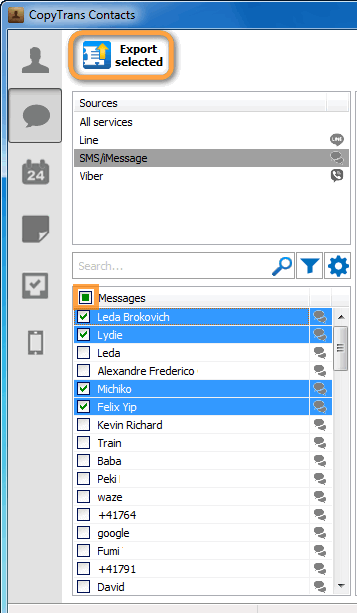
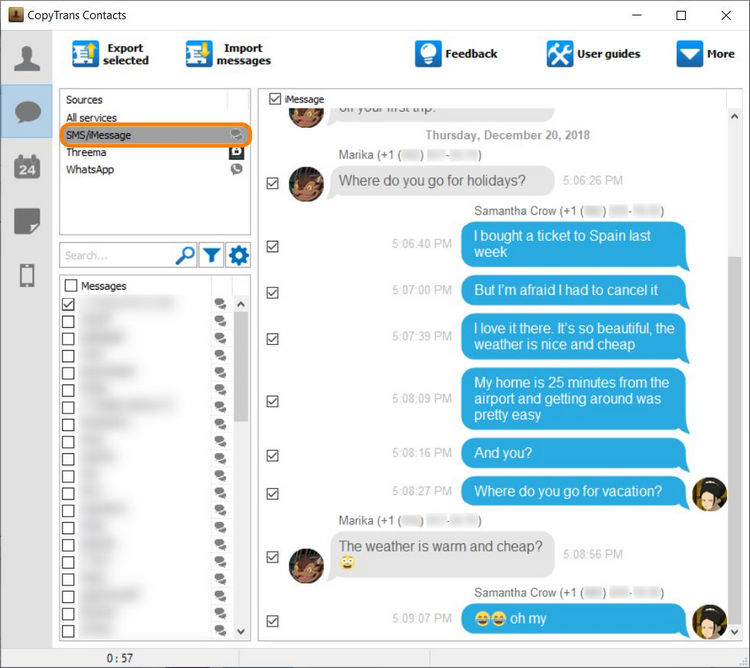
- Click the speech bubble icon on the left-hand side of the main program window. You will see all your iPhone text messages.
- Select SMS/iMessage (or WhatsApp, Viber, Line, Threema) from the Sources pane on top. Choose the conversations you want to save.
-
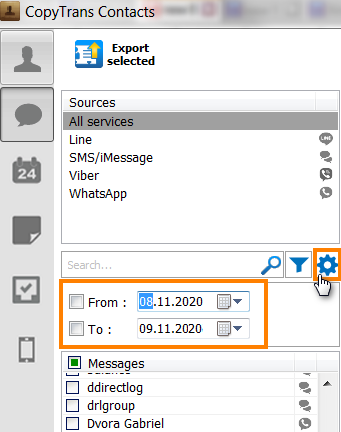
To export messages for a specific time period, click on the cogwheel symbol under the list of services and choose exact time frames:
-
Finish transferring text messages from iPhone to computer by clicking on Export selected.
-
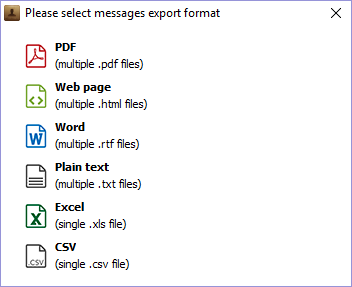
Next, select the backup format:
-
Download and install CopyTrans Contacts from the following page:
If you need help installing CopyTrans Contacts, please refer to the installation guide.
-
Run CopyTrans Contacts and connect your iPhone to computer with a USB cable.
- Click the speech bubble icon on the left-hand side of the main program window. You will see all your iPhone text messages.
- Select SMS/iMessage (or WhatsApp, Viber, Line, Threema) from the Sources pane on top. Choose the conversations you want to save.
-
To export messages for a specific time period, click on the cogwheel symbol under the list of services and choose exact time frames:
-
Finish transferring text messages from iPhone to computer by clicking on Export selected.
-
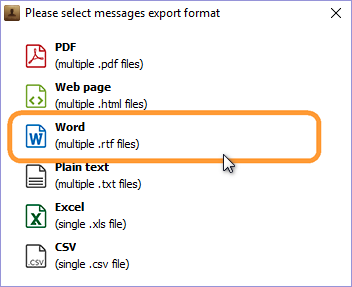
Next, select the backup format:
-
Select Word (multiple .doc files).
-
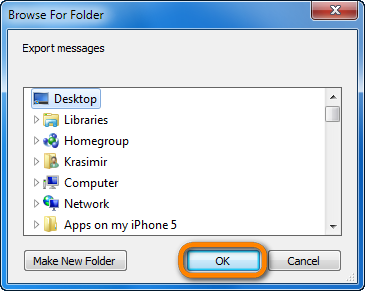
Choose the folder to save the iPhone text messages. If unsure, select Desktop. Click OK.
-
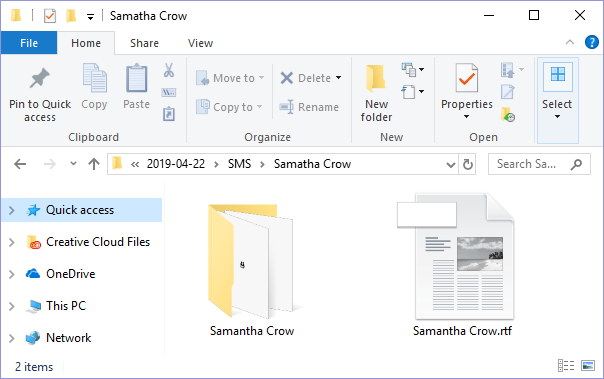
The iPhone text messages are now saved as individual *.doc files.
-
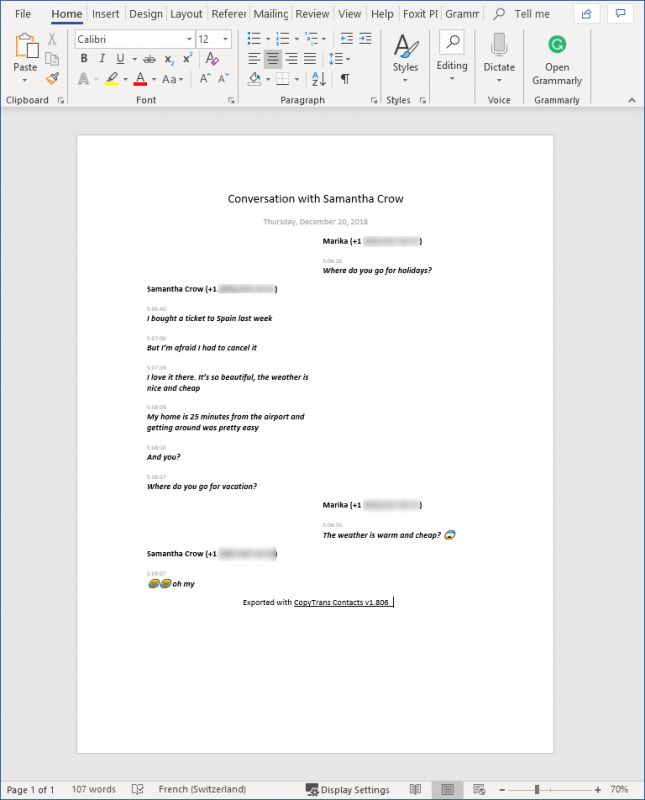
You can now open a text message with Microsoft Word by double-clicking on the .rtf (Word) file.
-
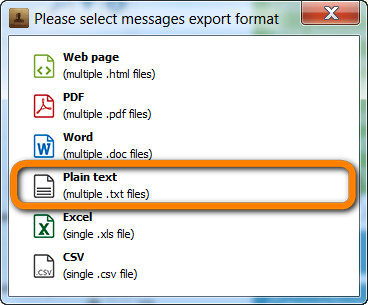
Select Plain text (multiple .txt files). This will save iPhone SMS messages to your PC as individual plain text TXT files.
-
Select the folder to save converted iPhone SMS.
-
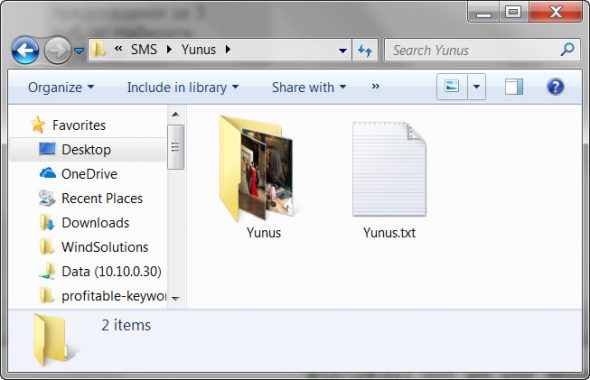
Your iPhone SMS messages are saved to your PC, with a separate folder for each conversation.
-
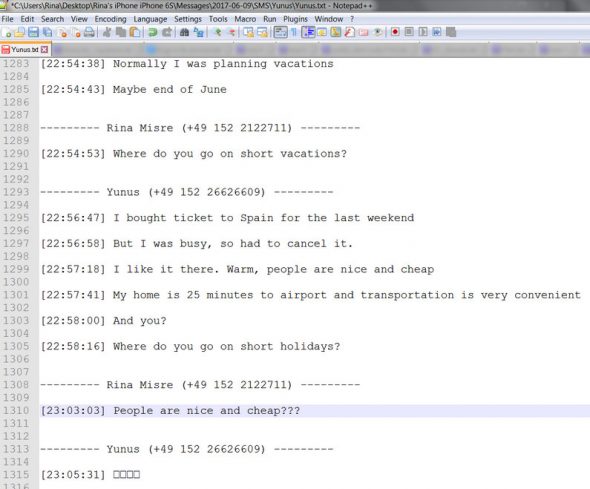
You can open these TXT files with Notepad (default) or any other reader.
-
Click Excel (single .xls file).
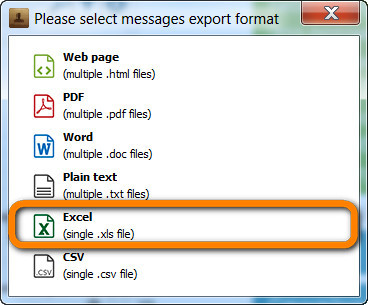
-
Choose the destination folder, or just select Desktop. Now click OK.
-
All selected iPhone messages are now exported in *.xls format, with a separate Excel sheet for each conversation.
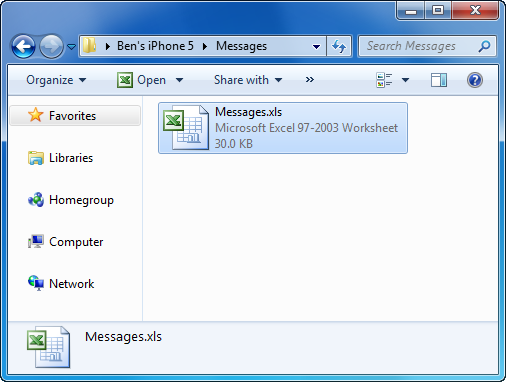
-
Just open the file to view the iPhone messages in Excel.
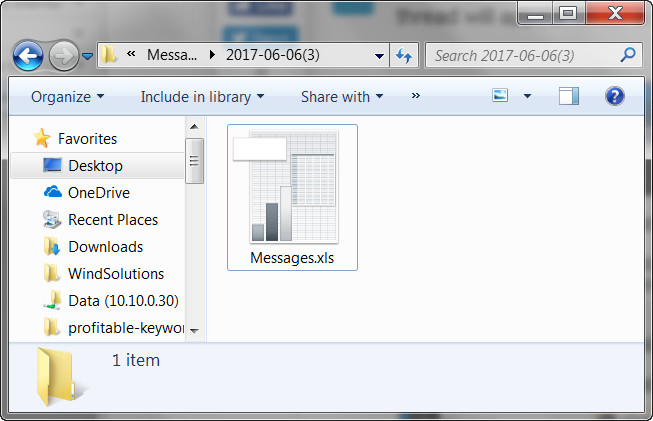
-
Download and install CopyTrans Backup Extractor:
- Run the program and log in to iCloud if you want to find more backups. Once ready, click Find Backups.
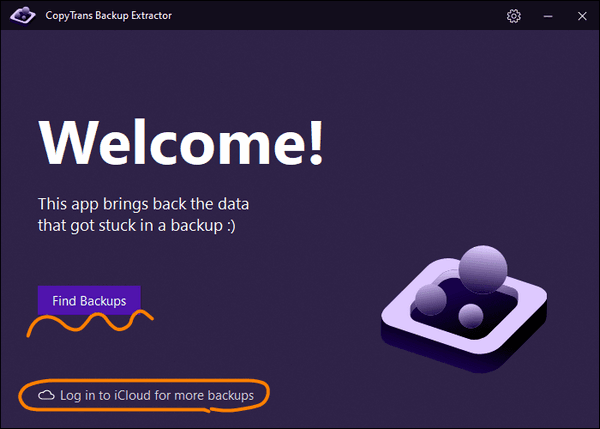
-
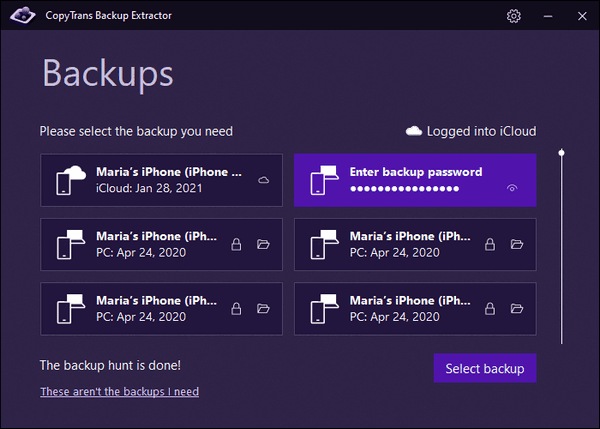
You will see a list of all available backups: choose the one that contains your text messages.
If you are restoring from iTunes backup, you may be asked for a backup password. What password?☁️ iCloud backups will be marked with a cloud icon and they are never password-protected.
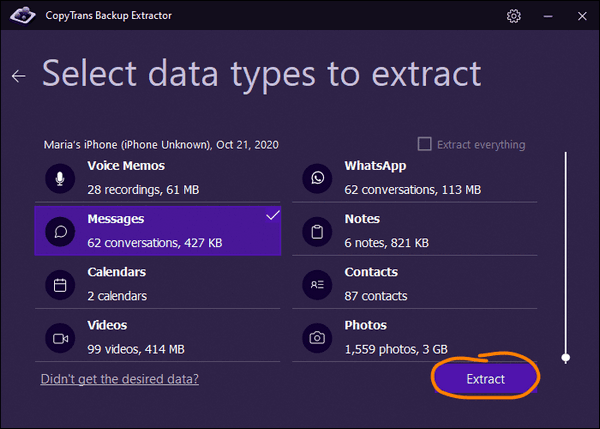
- Click Messages, press Extract and select the destination folder.
-
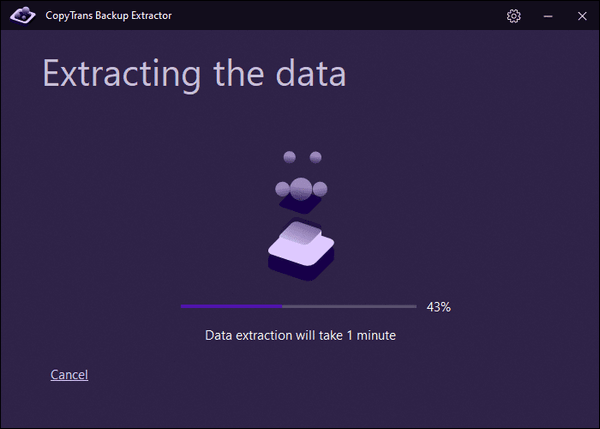
Wait while all your messages are being unloaded to your PC.
-
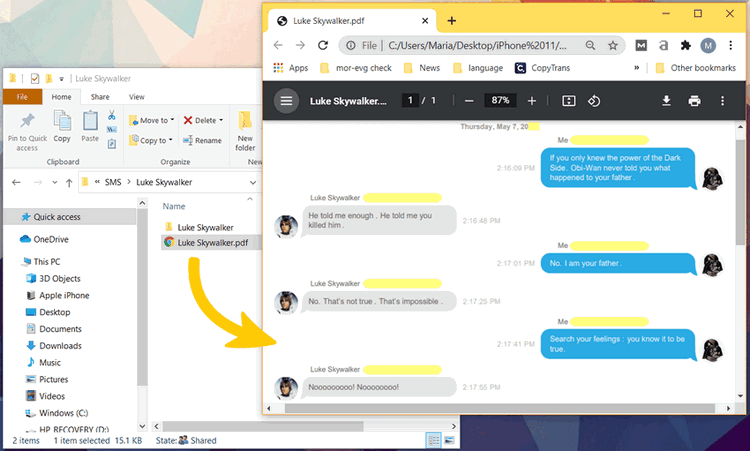
Once the extraction is finished, you can view all your messages from the backup in .pdf format.

❕ If your iPhone is encrypted, you may be asked for an iPhone backup password. What password?
💡 When you export iPhone messages as Web pages, the result is an interactive Web document. We recommend the Word format for editing your messages. The PDF format is the best for archiving or printing your SMS. Also, opt for PDF to enjoy conversations with emojis.
To save text messages iPhone:
❕ If your iPhone is encrypted, you may be asked for an iPhone backup password. What password?
💡 When you export iPhone messages as Web pages, the result is an interactive Web document. We recommend the Word format for editing your messages. The PDF format is the best for archiving or printing your SMS. Also, opt for PDF to enjoy conversations with emojis.
How to export text messages from iPhone
to Word
Saving iPhone SMS as Word documents is a great way to edit or print text messages on your computer.
💡 CopyTrans Contacts will create a folder with your attachments right next to the exported chats (available for Word, PDF, TXT, or Web formats).
CopyTrans Contacts acts as an SMS converter, turning your text messages to Word documents quickly and efficiently. Now that you’ve saved your texts to PC, you are free to print or edit them.
How to backup messages on iPhone
to TXT
Sometimes one has to save iPhone text messages in a plain text format for the purpose of printing iPhone SMS, archiving old iPhone messages on PC, etc. Proceed with the steps below to convert to SMS to .txt:
💡 CopyTrans Contacts will create a folder with your attachments right next to the exported chats (available for Word, PDF, TXT, or Web formats).
Use CopyTrans Contacts for converting iPhone SMS to text documents on your PC.
How to copy iPhone text messages
to Excel
The steps below outline a quick way to export and view iPhone SMS text messages in Microsoft Excel. In order to view iPhone SMS in Excel, you have to export the messages to PC in XLS format:
This is how to transfer text messages from iPhone to computer for free in the format of your choice!
CopyTrans Contacts features
Contacts
✔️ Export iPhone contacts to PC
✔️ Import contacts to iPhone
✔️ Transfer contacts from iPhone to iPhone
✔️ Move contacts from Android to iPhone
✔️ Sync Outlook contacts with iPhone
✔️ Export WhatsApp chats
✔️ Save WhatsApp photos
Messages
✔️ Transfer iPhone SMS messages
✔️ Export iPhone SMS to PDF
Calendars
✔️ Sync iPhone calendar with Outlook
✔️ Copy Outlook calendar with iPhone
How to save iPhone text messages to computer
from iCloud/PC backup
Need to export iPhone text messages, but no longer have the device? Search for iPhone backups on your PC or in iCloud for free with CopyTrans Backup Extractor and extract your messages to PC.
Why CopyTrans Backup Extractor?
✔ Find iPhone backups on your PC, wherever they are;
✔ Find iPhone backups in iCloud, even if you think there are none;
✔ Extract messages from any backup to PC in a readable format;
✔ Save attachments from a conversation;
✔ No technical skills required!
Indisputable advantages of using CopyTrans Backup Extractor:
😍 CopyTrans Backup Extractor is compatible with different backups: iCloud, iTunes, CopyTrans Shelbee, or other programs;
🥰 You can choose which data you want to recover.
Let’s get started:
If you need help installing the program, refer to the installation guide.
Download text messages iPhone
FAQ
Can I back up iPhone text messages without iCloud or iTunes?
Yes! If you want to avoid the hassle of iCloud and iTunes, you can use CopyTrans Contacts to back up only your messages—no full-device sync required. It lets you save your SMS, iMessages, and even WhatsApp chats directly to your PC in readable formats like PDF, Word, and more.
How do I save text messages to my iPhone instead of the cloud?
iPhones don’t offer a built-in way to save messages locally — they either stay in Messages or go to iCloud. But if you want to download your messages and store them somewhere safe, you can export them to your PC using CopyTrans Contacts and keep a copy offline.
Is there a way to download text messages from iPhone?
Absolutely. With CopyTrans Contacts, you can select any conversation on your iPhone and download text messages to your computer in just a few clicks. Perfect for keeping personal chats, legal records, or sweet memories safe and shareable.
Can I print my iPhone messages?
Yes, and it’s easier than you think. Once you export your iPhone messages as a PDF or Word file with CopyTrans Contacts, you can open them on your computer and print them like any other document — complete with timestamps, sender names, and emojis.
Will I lose my messages if I reset my iPhone?
If you don’t have a backup, then yes — resetting your iPhone can erase your message history. That’s why it’s a good idea to save your messages to a computer before doing anything drastic. Use CopyTrans Contacts to export the ones you care about.
How do I export iPhone messages with images?
CopyTrans Contacts lets you export your iPhone messages with all attached photos, videos, and emojis. You can choose PDF or Word format to keep the layout clean and media-rich—ideal if you need to keep the full context of your chats.
Is it possible to transfer only selected text messages?
Yes! Unlike iTunes, which backs up everything, CopyTrans Contacts gives you control. You can choose specific conversations or even select individual messages to save and export. No unnecessary files—just what you need.
How to view iPhone text messages on computer
YouTube guide
For those who prefer a video tutorial over a text one, we’ve prepared a YouTube guide on how to save text messages from iPhone to computer using CopyTrans Contacts.
Why CopyTrans Contacts?
✔ Activate on 5 PCs;
✔ Manage 5 devices;
✔ No subscription.
Download and try it yourself for free
How to save text messages
Final thoughts
Learning how to save text messages from iPhone isn’t just about storage—it’s about holding on to the messages that matter. Whether it’s a heartfelt conversation, a string of funny texts, or important info you don’t want to lose, your messages are part of your story. And now you know how to protect them.
We’ve shown you how to download text messages iPhone users often think are locked away forever. With the right tools, those messages aren’t just stuck in your phone — they can be safely stored, backed up, and even printed if needed.
If Apple’s default options feel limiting, CopyTrans gives you a clearer, more flexible way to manage it all. Whether you’re planning a device upgrade or just want a personal archive, saving your messages is easier than it sounds — and worth every step. Because sometimes, a backup is more than just data. It’s your memories, your proof, your peace of mind.
