
 (8 votes, average: 4.50 out of 5)
If your iPhone notes not syncing and you are looking for a way to manually sync notes from iPhone to iPad, this guide will provide you with the solution. You will also be able to manage your iPhone and iPad notes without iTunes or iCloud.
Due to an iOS limitation, the direct import of notes is no longer possible. But you can export notes from your iPhone to the PC as HTML or TXT files and then import them to the iPad to view them on the device as separate files.
Sync notes from iPhone to iPad
iPhone notes not syncing: what to do?
First, we are going to download notes from the iPhone to the PC as HTML or TXT files so that we can transfer them to the iPad later. Since it’s not possible to import notes directly to the Apple Notes app anymore, we’ll transfer them inside one of the apps installed on the iPad. That way, you will be able to view them from your iPad anytime.
Here’s how to sync notes from iPhone to iPad without iCloud:
Step 1
-
Download and install CopyTrans Contacts from the following page:
If you need help installing CopyTrans Contacts, please refer to the installation guide.
-
Run CopyTrans Contacts and connect your iPhone to the computer with a USB cable.
-
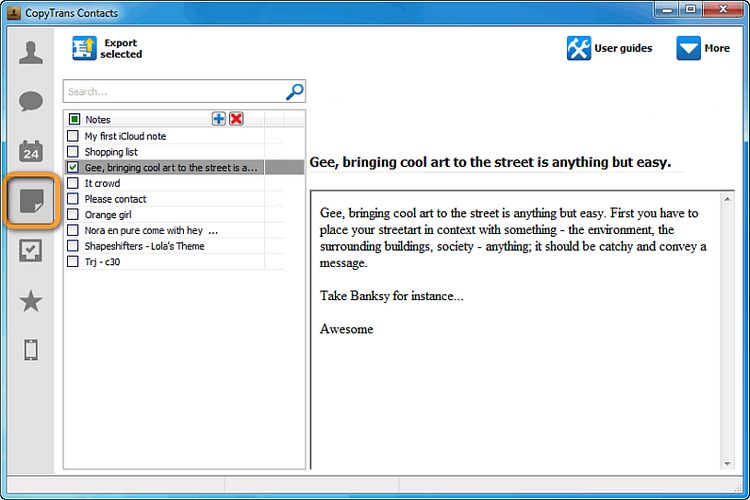
Click the notes icon on the left-hand side of the main program window. You will see all your iPhone notes. If your notes are stored in iCloud, you’ll need to set up a connection to your iCloud account.
-
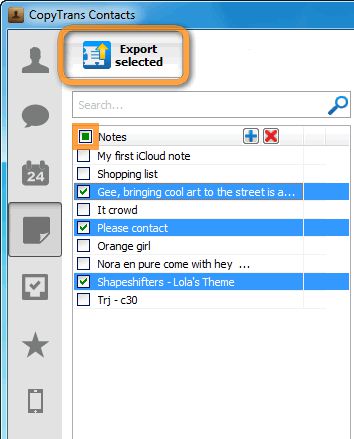
Select the notes you wish to copy from your iPhone notes list. To select several notes, hold down the CTRL key or use the checkboxes. You can select all iPhone notes at once by pressing CTRL + A or by checking the box next to Notes. Click Export selected to start iPhone notes backup.
-
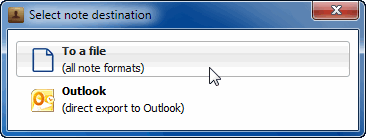
Click To a file to export iPhone notes. By default, CopyTrans Contacts will transfer your notes to your PC as HTML files.
-
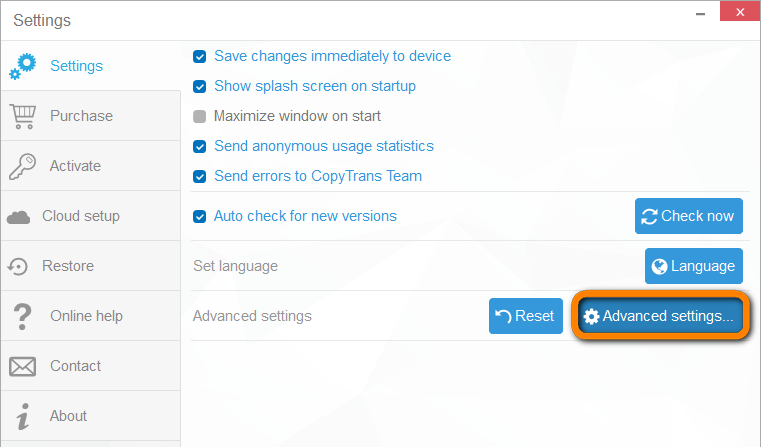
From the main CopyTrans Contacts window, navigate to More and then to Settings:

-
Select Advanced settings.
-
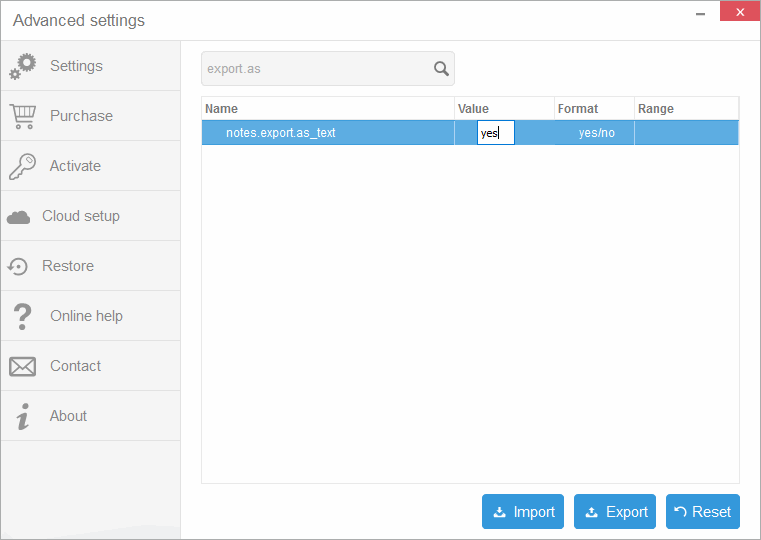
In the Search bar type export.as to find the notes.export.as_text parameter. After this, change the value from “no” to “yes”. Press Enter.
-
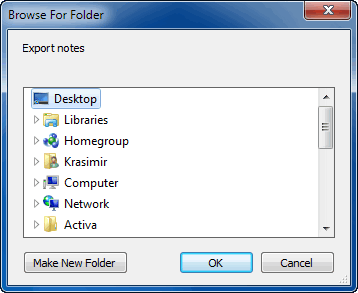
Choose the destination folder, or just select Desktop. Now click OK.
-
Your iPhone notes will be transferred to a PC folder of your choice.

❕ If your iPhone is encrypted, you may be asked for an iPhone backup password. What password?
How to transfer notes from iPhone to iPad as TXT files
If you would like to export iPhone notes to the PC in *.txt format instead, follow the steps below.
Notes not syncing between iPhone and iPad
Sync notes between iPhone and iPad manually
Step 2
And now we’ll import the notes you’ve just saved to the PС into one of the iPad apps. The CopyTrans Filey app (free) allows you to transfer documents into different apps installed on your Apple device. After you’ve done that, you will be able to view imported notes on your iPhone.
How to manually transfer notes from iPhone to iPad:
- On your iPad, install any document app that supports HTML or TXT file sharing. There are many such apps, you can even use the native Pages app. I use Documents by Readdle (free) for this purpose because it supports and lets me view a lot of formats.
- Next, get the free CopyTrans Filey on the PC:
Download CopyTrans FileyInstall the program. If you need help installing CopyTrans Filey, please refer to the installation guide.
- Start CopyTrans Filey and connect your iPad to the computer. You’ll see all your apps that can accept documents listed in the lower section of the app.
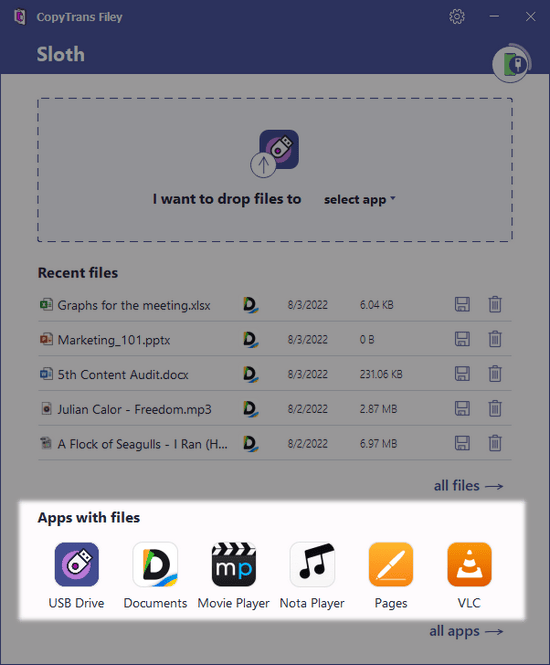
- Select a document reader app. In this case, I’ve selected the Documents app.
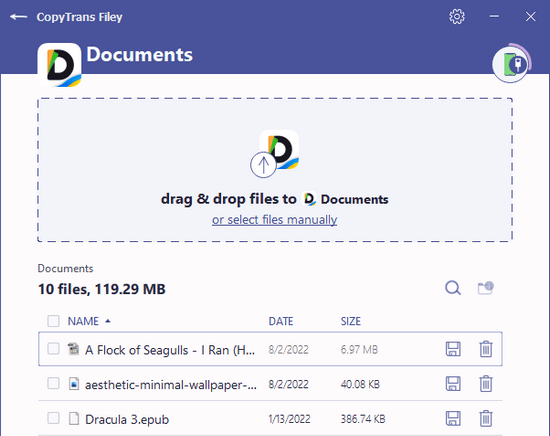
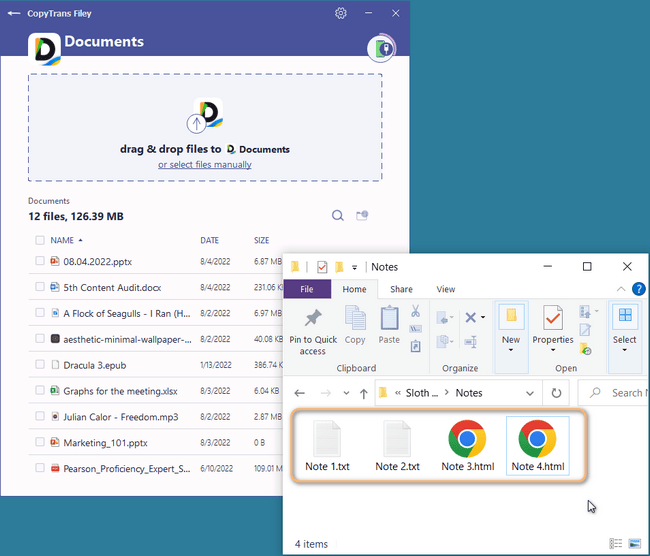
- On your PC, open a new Explorer window and find a folder with your notes. Select all the documents you wish to transfer, then drag and drop them to the middle of the CopyTrans Filey window. Stand by until the transfer is complete.
 TIP: You can also switch between the apps at the top of the window, in the drag-and-drop section.
 - The selected notes are now readily accessible on the iPad from within the document reader app.
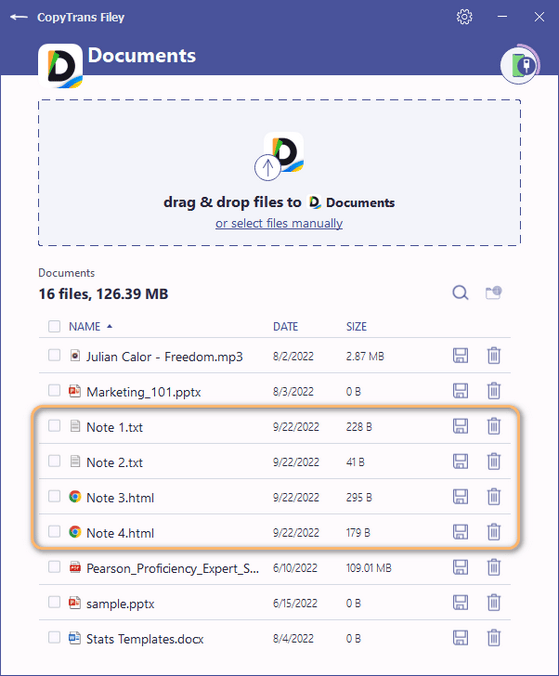
See, you can now easily sync notes between iPhone and iPad without iTunes or iCloud!
