
 (31 votes, average: 4.10 out of 5)
A media-player that needs one minute to open, another minute to load your iPod contents and an eternity to synchronize your iPhone can quickly become annoying. That is why we made CopyTrans Manager, the iTunes Alternative that is fast, light & 100% free. Organize your device on a daily basis, on any computer, at any time.
Download CopyTrans ManagerGet started with the CopyTrans Manager
Choose a section from the list below:
- Add music to iPod with drag and drop
- Remove tracks from iPod Touch, iPhone or iPod
- Create playlists on iPhone and iPod
- Edit ID-Tags, lyrics and iPod album artwork
- Synchronize iPad, iPod and iPhone without iTunes
- Integrated media player
- Install your iPod manager on your device
Add music to iPod with drag and drop
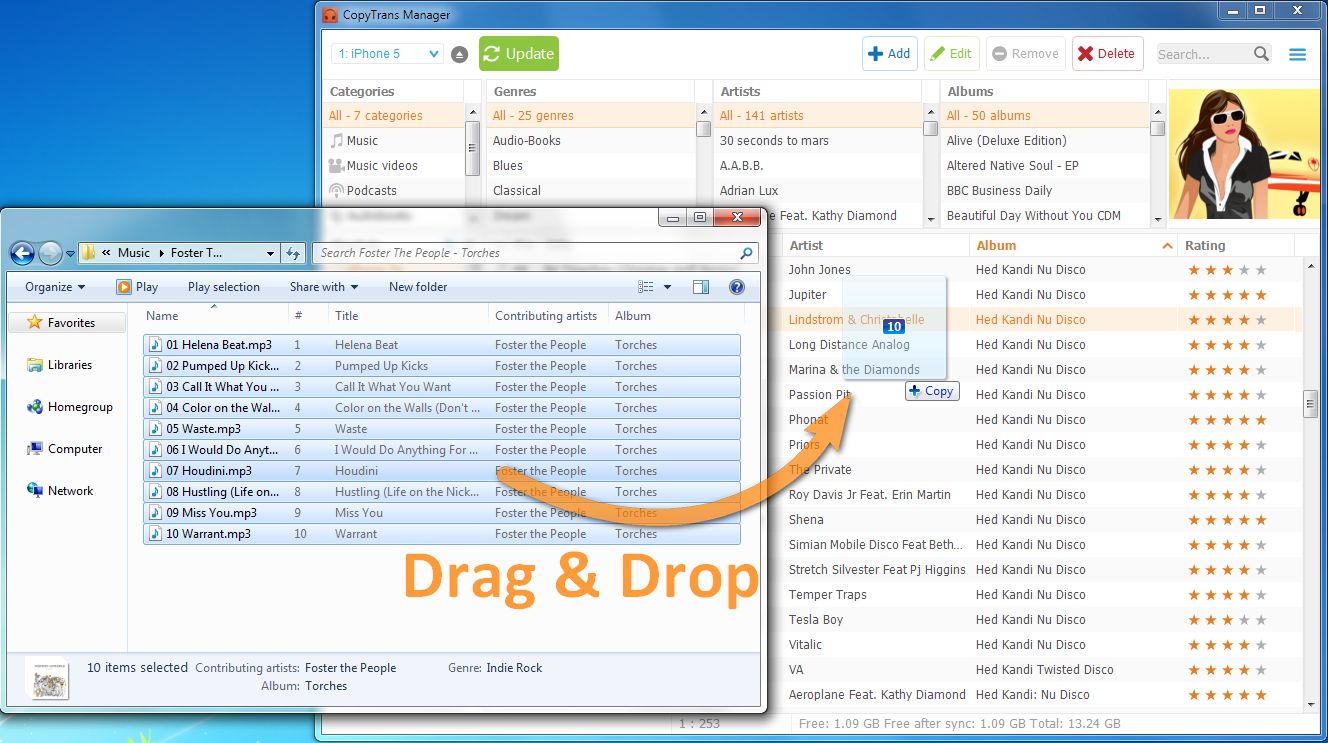
With CopyTrans Manager, drag and drop to add a file, a bunch of files and even entire folders directly from your Windows explorer or desktop into CopyTrans Manager. Don’t forget to hit “Update” to apply changes and complete the sync.
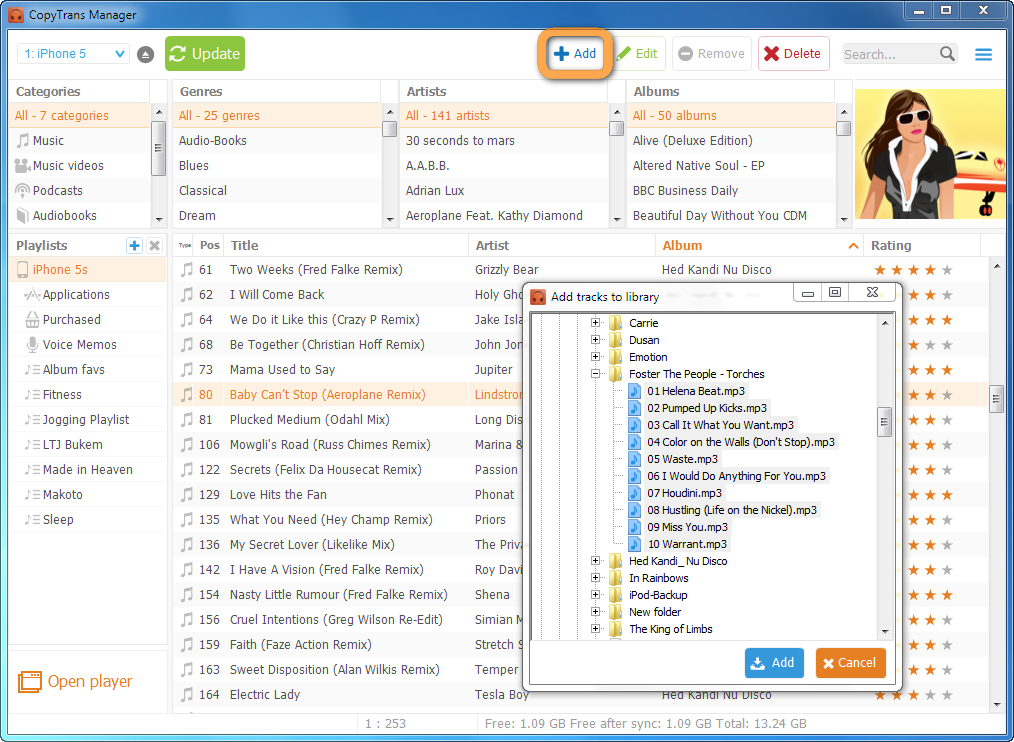
Use the following button to add music or videos from your computer to your iPod Touch. 
Remove tracks from iPod Touch, iPhone or iPod
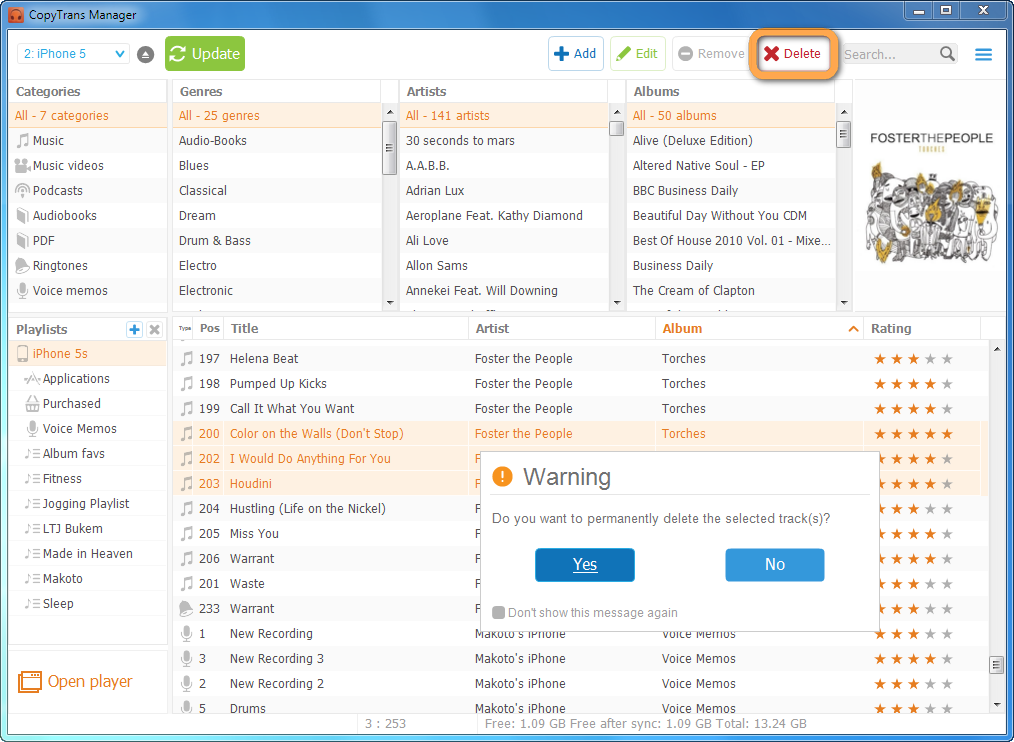
Use the following button or hit Shift+Del to remove music & videos from your iPhone and iPod. 
Create playlists on iPhone and iPod
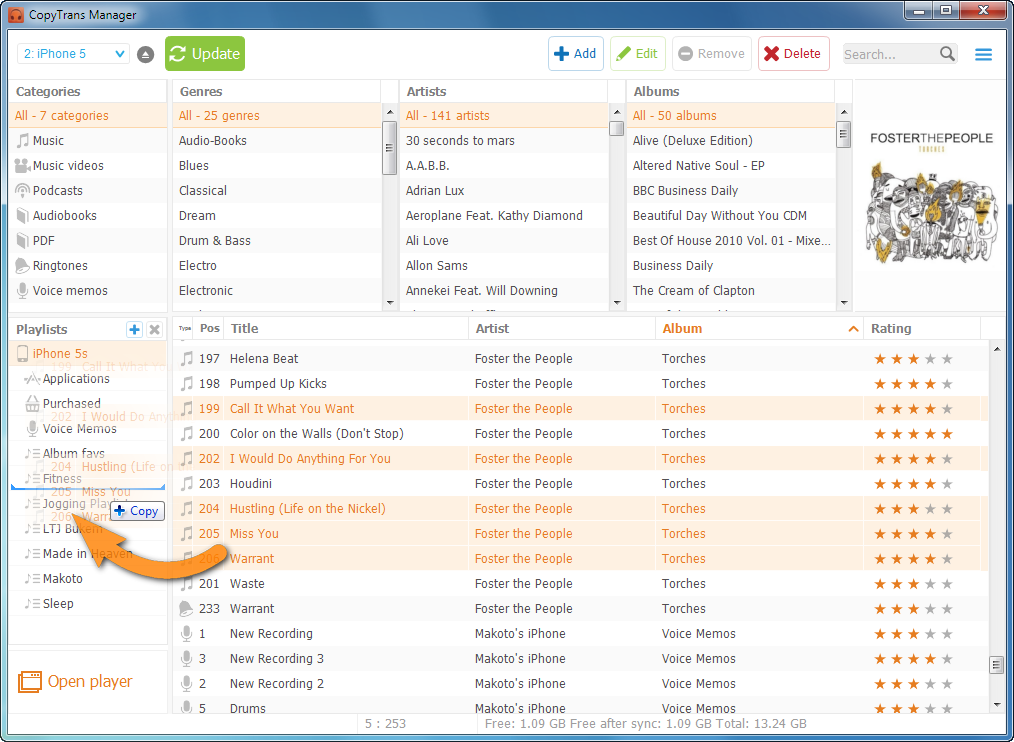
In the left column playlist explorer:
- Click on
 to add playlists
 - Click on
 to remove playlists
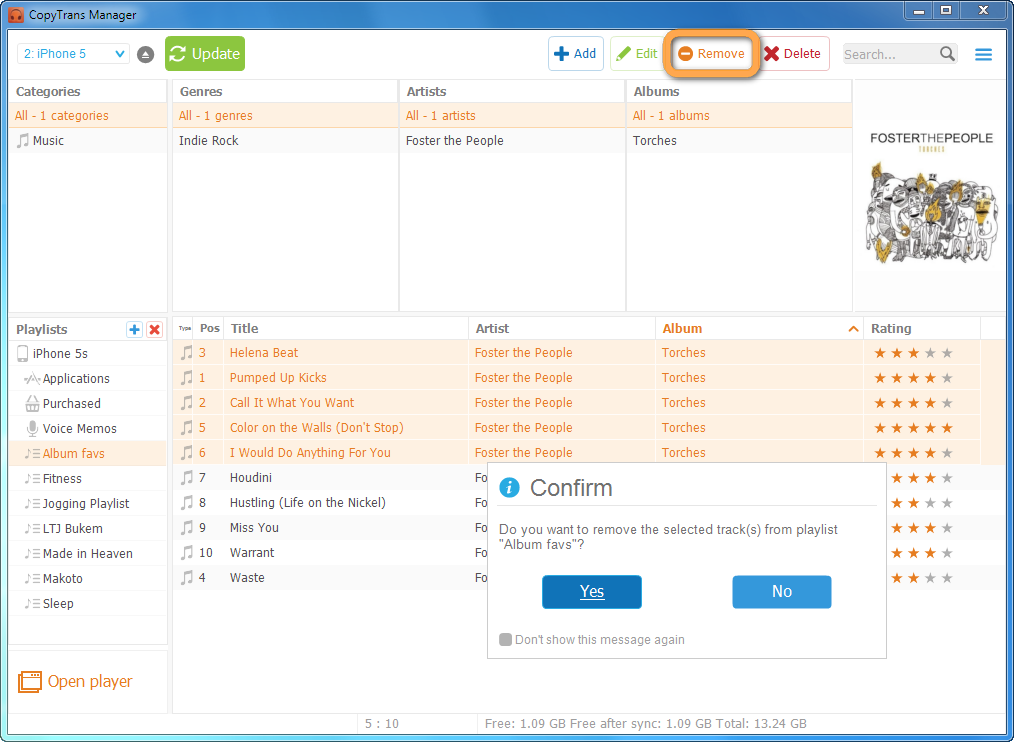
Remove tracks from iPod Touch, iPhone or iPods
To remove tracks from playlists, choose this button and confirm your choice by clicking on “yes”: 
Edit ID-Tags, lyrics and iPod album artwork
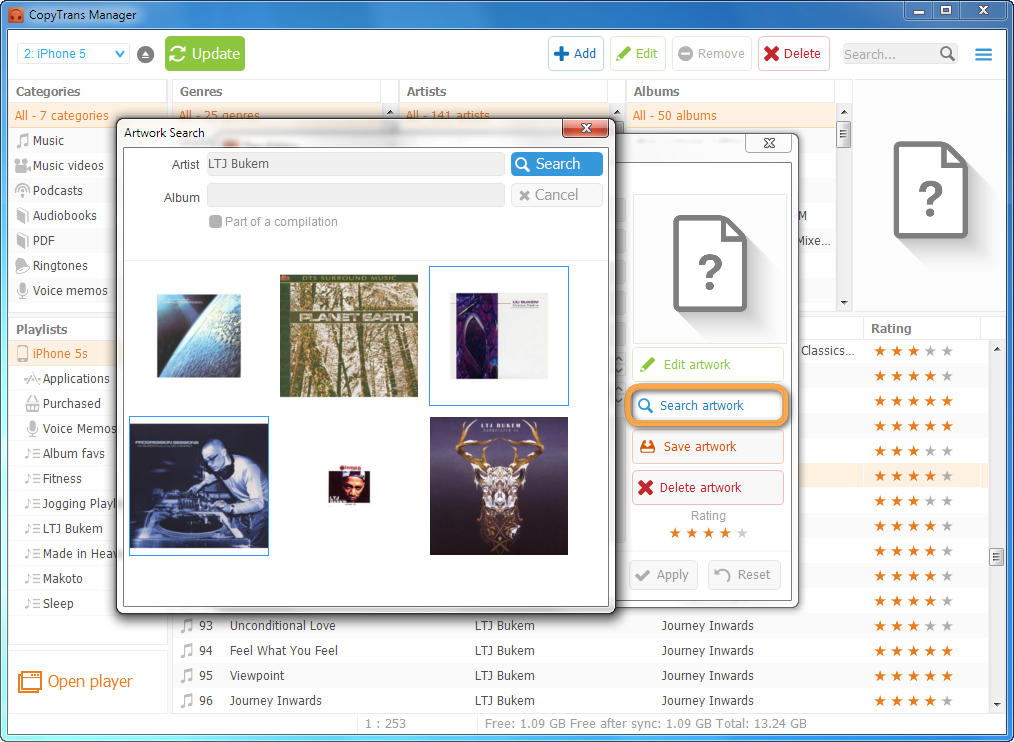
You can open the Tag-Editor by clicking the Edit button or through a right button mouse click. You can edit the title, artist, album, lyrics and artwork.
Confirm changes by pressing the Apply button. 
Synchronize iPad, iPod and iPhone without iTunes
CopyTrans Manager offers 2 possibilities to synchronize your device:
- Immediately after a change: Visit the Settings tab to enable this option.
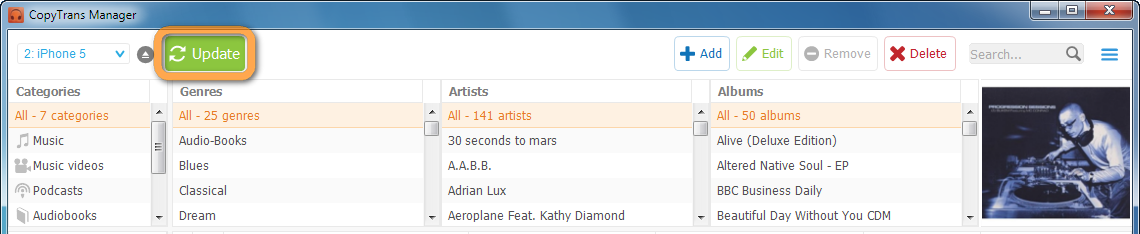
- On demand: Click on the Update button.

- Download the standalone zip file from our download page →
- Open the iPod summary in iTunes and choose “enable disk use”.
- Browse your iPod disk using Windows Explorer.
- Extract CopyTransManager.exe from the downloaded zip directly into a “CopyTrans Manager” folder on your iPod.
Integrated media player
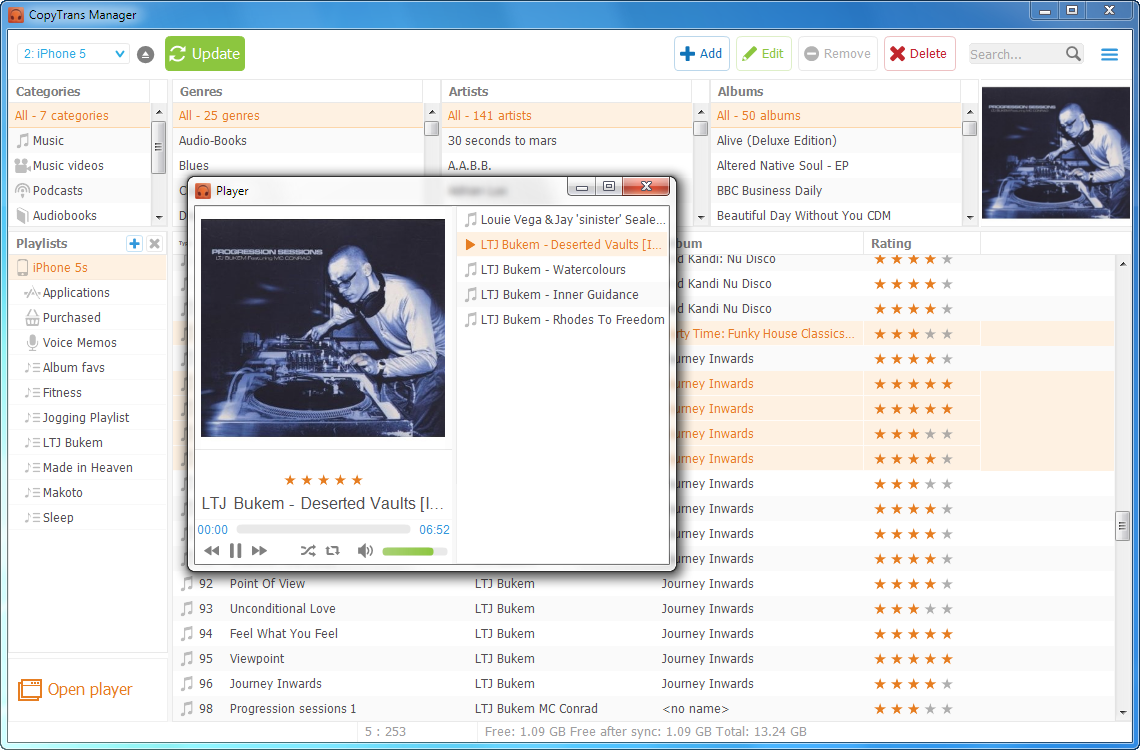
Play iPod songs and watch iPhone movies on every PC, anytime you want.
To play songs and movies which are on your device using the integrated player, select the tracks from the main track listing and click the player launcher at the bottom left corner.

During playback you can change the play order, add more songs or play tracks in shuffle or repeat one/repeat all mode.
Install your iPod manager on your device
By installing CopyTrans Manager on your iPod or USB-stick you can play your music, videos and films whenever you want on absolutely any computer. (Please respect copyrighted material.)
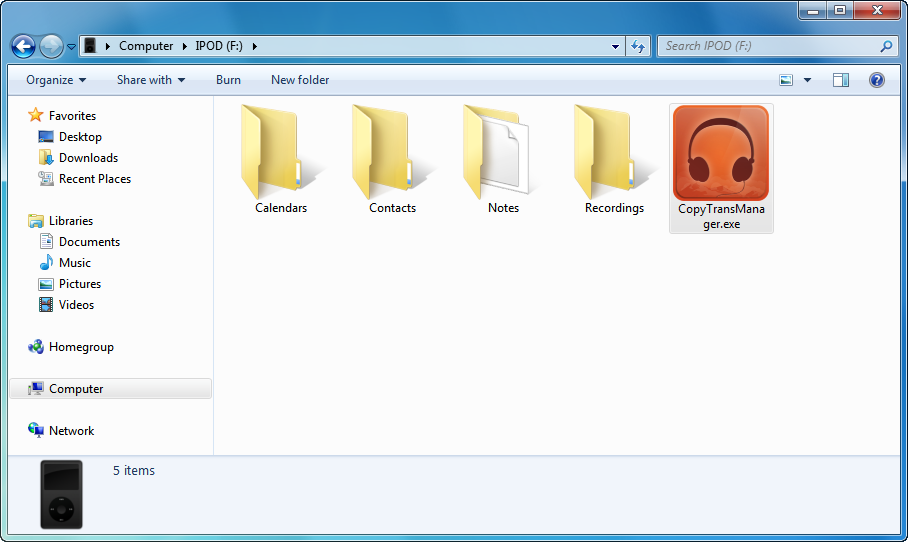
To install CopyTrans Manager on your iPod or USB-stick (excl. iTouch and iPhone) please:
Now you can use the iPod manager on any PC without installing it.
