

 (424 votes, average: 3.60 out of 5)
This guide explains how to download and safely install all CopyTrans software on your PC. The installation takes less than 2 minutes after which you can start using the programs.
Watch our YouTube tutorial:
Or follow the steps below:
-
Start by downloading the CopyTrans Control Center Installer.
-
Run the installer.
-
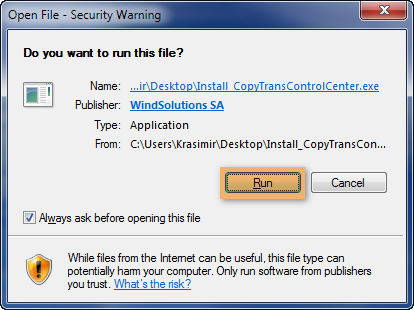
If the following message shows up, click Run.
-
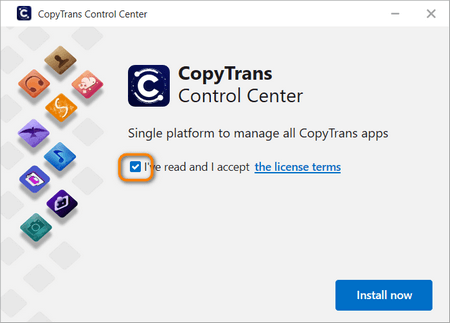
Check the box to confirm that you accept the license agreement and click on Install when you are ready to install.
-
If you access the Internet through a proxy (typically in a work environment), configure proxy
-
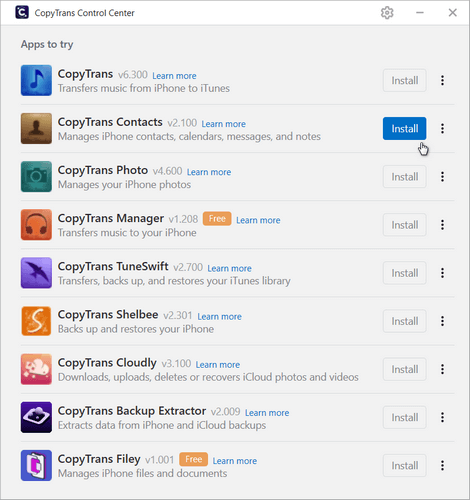
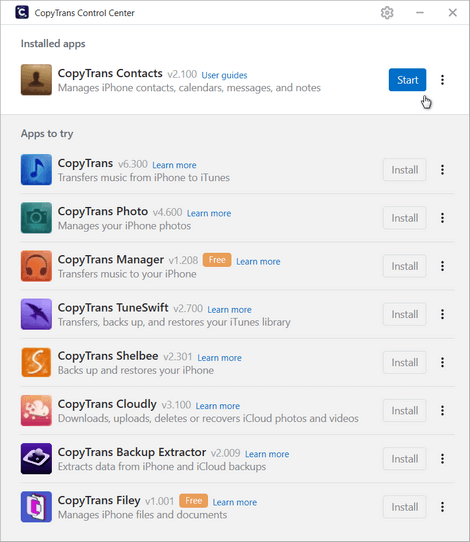
CopyTrans Control Center shows a list all CopyTrans programs. Mouse over the program of your choice and click Install.
-
Once installed, mouse over the app entry and click Start to run the program.
That is it! Enjoy your experience with CopyTrans!
